

Transferring Apple and Google account
This article will guide you through process of transferring your Apple and Google account from one developer to another
Transfer of Apple account
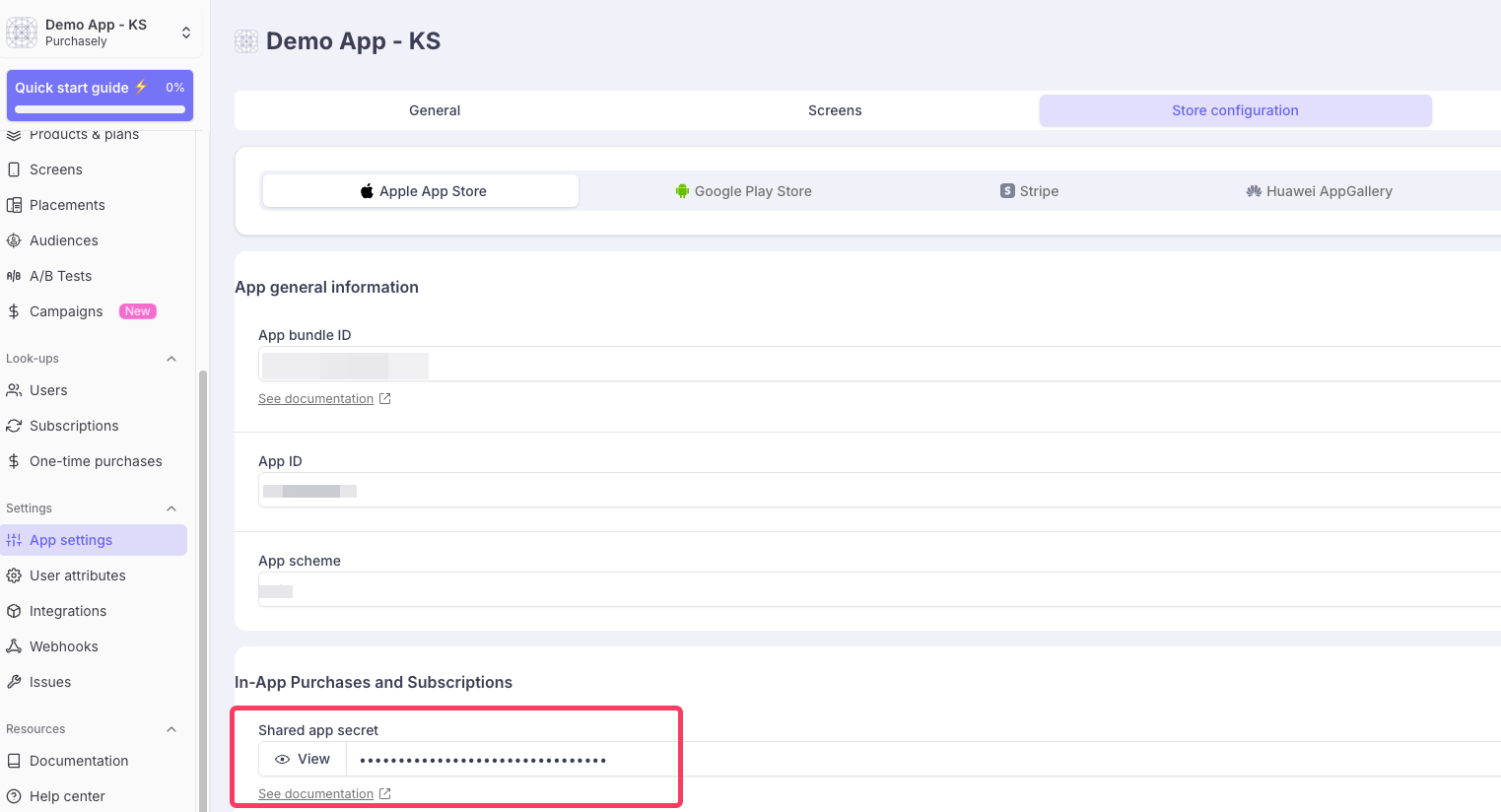
If you are using Storekit1- Check if the shared app secret in the Apple app Store and the one in the Purchasely console are correct.
If you are using Storekit 2- Create a new key in the App Store Connect, once the transfer is completed, add the new key credentials in the Purchasely console.
In both cases, we expect 5-10 mins of delay in getting the service back once the credentials are updated.
As far as I checked the console, you are using storekit 1, so all you have to do is check if this matches with the Apple App store configuration in the New account.
Most importantly, please check if the new account in Apple has paid app agreement signed and accepted. Without this the users will not be able to see the price in the paywalls.
Google transfer:
Follow this docs for the step by step instructions.
One extra tip to avoid a delay of 24-48 hrs at Google to accept the new account credentials.
-
When you are creating New service account step please do only till Step 6.
-
Invite the old service account to the new developer console and provide permissions for both new and old accounts
-
After 48 hrs, then complete the step 7 of this procedure
This is to make sure, even though you add a new account, when you also have the old account added with appropriate permission, once the transfer is complete, the delay of 24-48 hrs can be avoided to take it into effect.
If you are not a part of the Android Dev team, kindly share it with them and they will do the needful.
Updated 9 months ago