

Full mode - Checking your Purchasely Integration
This page gives you an outlook of everything you can check once you've finished the implementation of the Purchasely SDK
Here is a checklist for your Purchasely Integration
0. The App is properly set up and plugged with the app stores
📚 Documentation: Application setup
- You have configured the app basic parameters
- You've configured one Product & Plan and mapped it with the App Store and Play Store product IDs (📚 documentation)
1. The SDK is properly initialized
📚 Documentation: SDK Initialization
- The SDK is started ASAP in the start routine of your app
- The
running modeparameter is set tofull
- On iOS, the StoreKit version configured for the SDK matches the desired one (we strongly recommend using StoreKit 2 though)
- In the Console App settings, you have configured the StoreKit 2 settings (issuer ID, private key).
It will be useful to the Purchasely platform to fetch more accurate data even if your app is currently working with StoreKit 1.
2. Paywalls are properly displayed through Placements
-
You have displayed a Paywall by associating it with a Placement and by making a direct call to the placement on the app side (📚 documentation)
-
Prices for your Plans are properly displayed with their currency when using tags
[Optional] A/A testing your paywall
- You created a Screen leveraging the feature "Use Your Own Paywall" (📚 documentation) and implemented the code to display it
- You configured and started an A/A test with your own Paywall as the control (50%) and the Purchasely Screen as the variant (50%) for a particular (set of) Placement(s). 50% of the users see your existing Screen, and the other 50% see the new one designed with Purchasely
3. Transactions are properly processed
A Plan has been properly configured and mapped with a Paywall
- When testing a purchase in the sandbox environment, you can find the transaction in the Purchasely Console
For more details on Sandbox purchases and sandbox testing, please refer to the 📚 documentation.
4. Entitlements are properly granted / revoked
📚 Documentation: Entitlements management
If you are using the Purchasely Webhook
Documentation: Backend entitlements
- Every message received is properly acknowledged with a
HTTP 200response code
You can check the status of the webhook messages by going in the Subscription section of the Purchasely Console and clicking on a subscription to see its details.
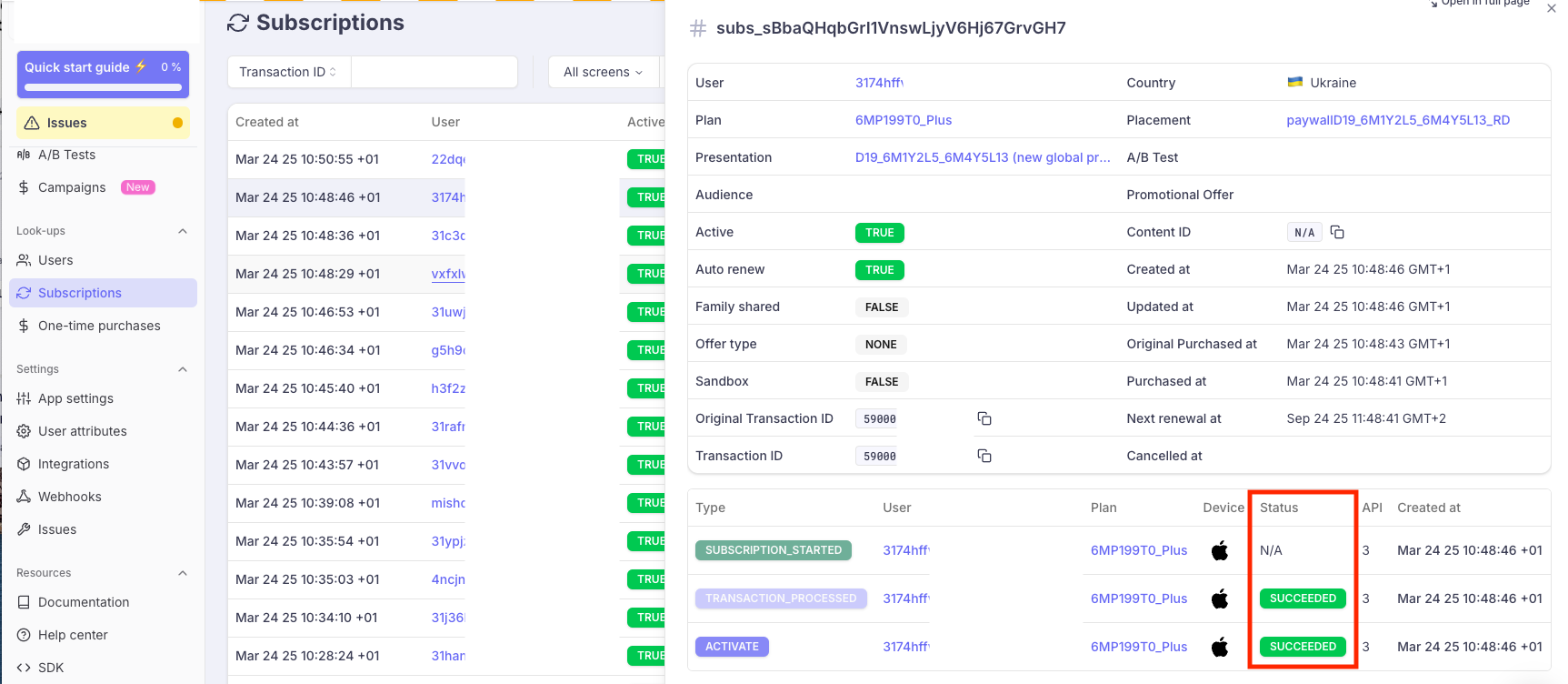
- Entitlements are granted when a new subscription starts and upon the reception of the initial
ACTIVATEmessage from the webhook
- Entitlements are prolonged when a subscription is renewed and upon the reception of a new
ACTIVATEmessage from the webhook
- Entitlements are revoked when a subscription is terminated and upon the reception of a new
DEACTIVATEmessage from the webhook
[Optional] Managing anonymous users
- If your app allows users to subscriber without sign-up before, you fetch the
anonymous user IDfrom the SDK and you retrieve the entitlements using that anonymous user ID (📚 documentation)
If you are using the API getSubscriptions of the SDK
📚 Documentation: SDK entitlement - getting the Subscription Status
- You fetch the subscription status when the app starts and leverage it to grant the access or not to the premium contents & features
- You refetch the subscription status after a purchase has been processed to grant the access or not to the premium contents & features
5. [Optional and advanced] You leverage the Purchasely Server Events to fetch the subscription lifecycle events and process them
Webhook
- You have implemented an endpoint on your backend to receive the Server Events generated by Purchasely
- You have configured this endpoint and activated the desired events in the Webhook Section of the Purchasely Console
- Every time an event is generated in a subscriber lifecycle, you see it flow in your data warehouse
3rd-party analytics integration
📚 Documentation: Combining Analytics Platforms with Purchasely)
- You have enable the 3rd party integration with the desired analytics platform
- You have activated the desired Server Events
- [If relevant] You have associated the 3rd-party analytics SDK
user_IDand passed it to the Purchasely SDK
- When subscription lifecycle events are generated by the app stores, they are automatically forwarded to the 3rd-party analytics platform and you can visualize them into your analytics platform
3rd-party engagement & CRM integration
📚 Documentation: Combining Engagement/CRM platforms with Purchasely)
- You have enable the 3rd party integration with the desired analytics platform
- You have activated the desired Server Events
- [If relevant] You have associated the 3rd-party analytics SDK
user_IDand passed it to the Purchasely SDK
- When subscription lifecycle events are generated by the app stores, they are automatically forwarded to the 3rd-party engagement & CRM platform and you can create automations leveraging these events and user properties
Updated 9 months ago