

Check your Implementation of Purchasely
This page provides the resources to check your SDK implementation
Here is a checklist for your Purchasely Integration
0. The App is properly set up
📚 Documentation: Application setup
- You have configured the app basic parameters
1. The SDK is properly initialized
📚 Documentation: SDK Initialization
- The SDK is started ASAP in the start routine of your app
2. Deeplinks are properly handled
📚 Documentation: Deeplinks management
Technical instructions
-
You have filled-in the app scheme parameter in the Purchasely Console for both iOS (tab
App Store) and Android (tabPlay Store)
Note: for Android, we recommend you to use Universal Links rather than an app scheme because the OS does not allow you to open deeplinks leveraging an app scheme from the camera which is what you will need to for the preview
-
You have integrated the code snippet to manage deeplinks
-
You execute the code allowing the Purchasely SDK to open deeplinks
Functional test
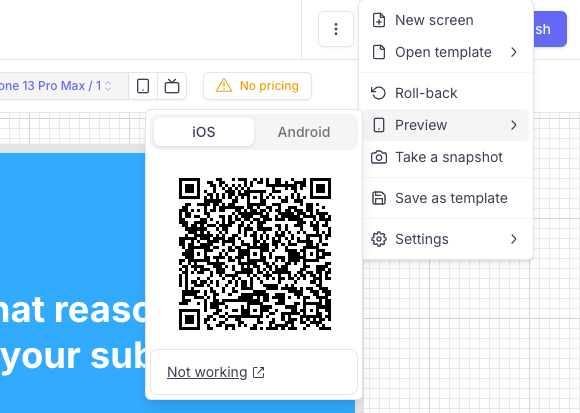
- When you create a Screen and save it in the Purchasely Console, you are able to preview it in your app by scanning the QR code
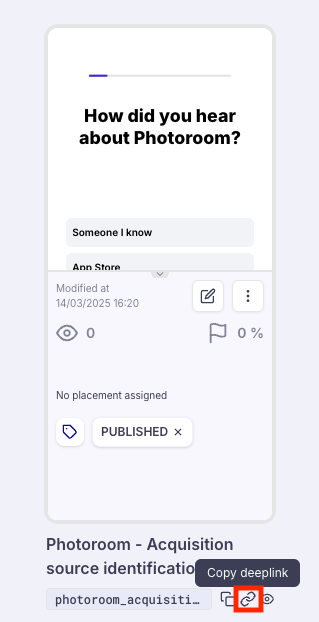
- When copy / pasting a Screen deeplink from the Purchasely Console and opening it with your device, you are able to visualize the desired Screen
3. Users are properly identified
Managing signed-in users
-
The User ID is properly set when users sign-in
-
When users are already signed-in upon the start of the app, the
user_IDis provided to the SDK in the initialization method. -
When users sign-in during the session, the
userLogInmethod of the SDK is being properly called (📚 documentation) -
In the Subscriptions section of the Console, transactions associated with an identified users are associated with the
user_IDprovided by the app

Signing-out users
-
The log out method is properly called when users sign-out
-
In the Subscriptions section of the Console, transactions associated with an anonymous user are associated with an
anonymous ID
4. Screens are displayed through Placements
-
You have displayed a Screen by associating it with a Placement and by making a direct call to the placement on the app side (📚 documentation)
-
[Optional] - You've leveraged Placement pre-fetching (📚 documentation) when you need to fetch a Screen in advance and display it later, or when you want to nest a Purchasely view into a parent view (📚 documentation
5. [Optional] Custom User Attributes have been implemented to segment users
📚 Documentation: Segmenting you user base
- When that makes sense, you leverage Custom User Attributes (📚 documentation) to attach properties to users and be able to segment them with your own data
Technical instructions
-
You have created the Custom User Attributes in the Purchasely Console
-
You properly set the attribute and its value
-
You have created an Audience leveraging the Custom User Attribute (📚 documentation)
Functional test
-
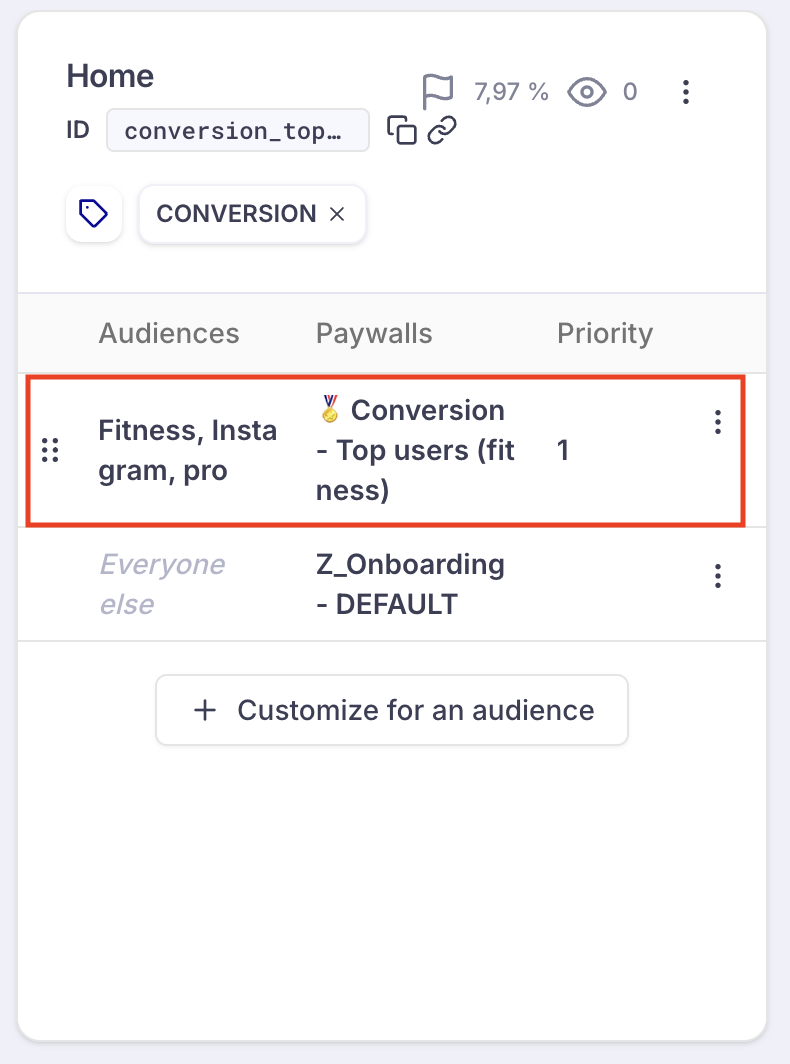
You have associated a customized the Screen displayed for your Audience on the Placement of your choice
-
When you display this Placement inside the app and that the user belongs to that Audience, you see the associated Screen instead of the default one displayed to Everyone else.
6. [Optional] You fetch user insights in the app upon a Quizz submission
📚 Documentation: Gaining Insights and Driving Personalization with Surveys
Technical instructions
-
You have implemented the listener / delegate for Custom User Attributes (📚 documentation)
-
You have created a new Custom User Attribute in the Purchasely Console, with the appropriate type
-
You have configured a Survey leveraging the MCQ component, activated option "Save as a custom user attribute" and associated the MCQ to the Custom User Attribute created
Functional test
-
When users answer to the Survey created, the app fetches the
{key, type, value}of the Custom User Attribute -
This data is sent to wherever you choose to send it to (e.g.: backend, data warehouse, 3rd party analytics, 3party engagement / CRM platform...)
-
You have created an Audience leveraging the Custom User Attributes and are able to tailor the Screen viewed depending on user insights.
7. [Optional and advanced] You process the UI / SDK events generated by the SDK and forward them to your analytics platform
Technical instructions
- You have implemented the listener / delegate for UI / SDK Events (📚 documentation)
Functional test
- When you interact with Purchasely Screens, you see the Purchasely UI / SDK analytics in the 3rd party analytics / engagement platform you've forwarded them to
Updated 9 months ago
What’s Next
If your app is a subscription app, check that In-App Purchases and transactions are properly processed