

Leveraging Conditional Visibility to Personalize Screens
Conditional visibility allows you to show or hide components within a Screen based on user interactions or user data. It helps you build dynamic, personalized Screens without needing to duplicate them.
What is Conditional Visibility?
Conditional Visibility lets you control whether a component is displayed or hidden in a Screen based on:
- Screen interactions - what the user does in the current Screen
- User data - who the user is, what attributes they have, or audiences they belong to
Use this to personalize Screens without duplicating content.
Enabling Conditional Visibility
-
Select any component in the Screen composer.
-
Turn on Conditional visibility.

-
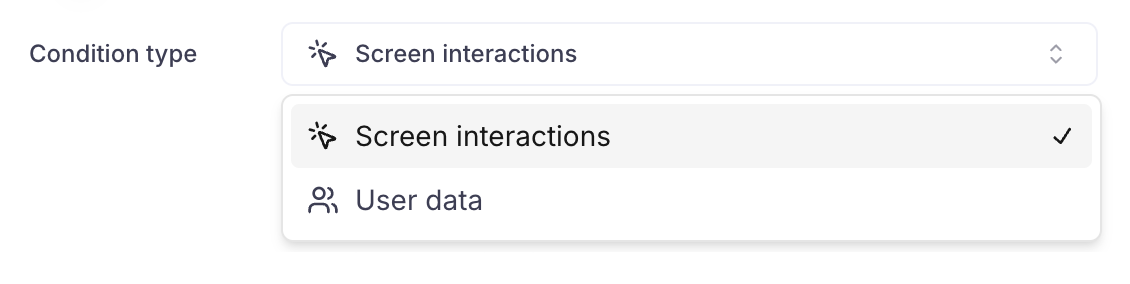
Choose a Condition type (Screen interactions or User data).
-
Pick the specific interaction trigger / user condition, then configure its parameters (see the table below).
-
Preview your Screen in different combinations of conditions.
Compatible with SDK v5.0All condition types below are retro-compatible until SDK v5.0, except Eligibility for an Offer, which requires SDK v5.6+ (see table below).
Condition type parameters
| Category | Condition type | Parameters to configure | Minimum SDK |
|---|---|---|---|
| Screen interaction | Plan selected | Plan picker ID, then the Plan | v5.0 |
| Screen interaction | Quiz answer selected | Quiz ID, then the Answer | v5.0 |
| Screen interaction | Switch state | Switch ID, then the state (on / off) | v5.0 |
| Screen interaction | Tab selected | Tab component, then the Tab | v5.0 |
| User data | Eligibility for an Offer | Eligibility rule (is eligible / is not eligible for the Introductory Offer) | v5.6+ |
| User data | User attribute value | User attribute, then its value | v5.0 |
| User data | Audience | Audience | v5.0 (requires a Placement or Flow) |
Screen Interactions
Use when visibility depends on actions the user takes in the current Screen.
Plan selected
This interaction lets you show a component only when a particular plan is selected. This is particularly useful when you want to change the price or CTA.
Example:
In the example below, the Yearly Plan has a free trial (and the CTA copy should therefore reflect that) but not the Weekly Plan.
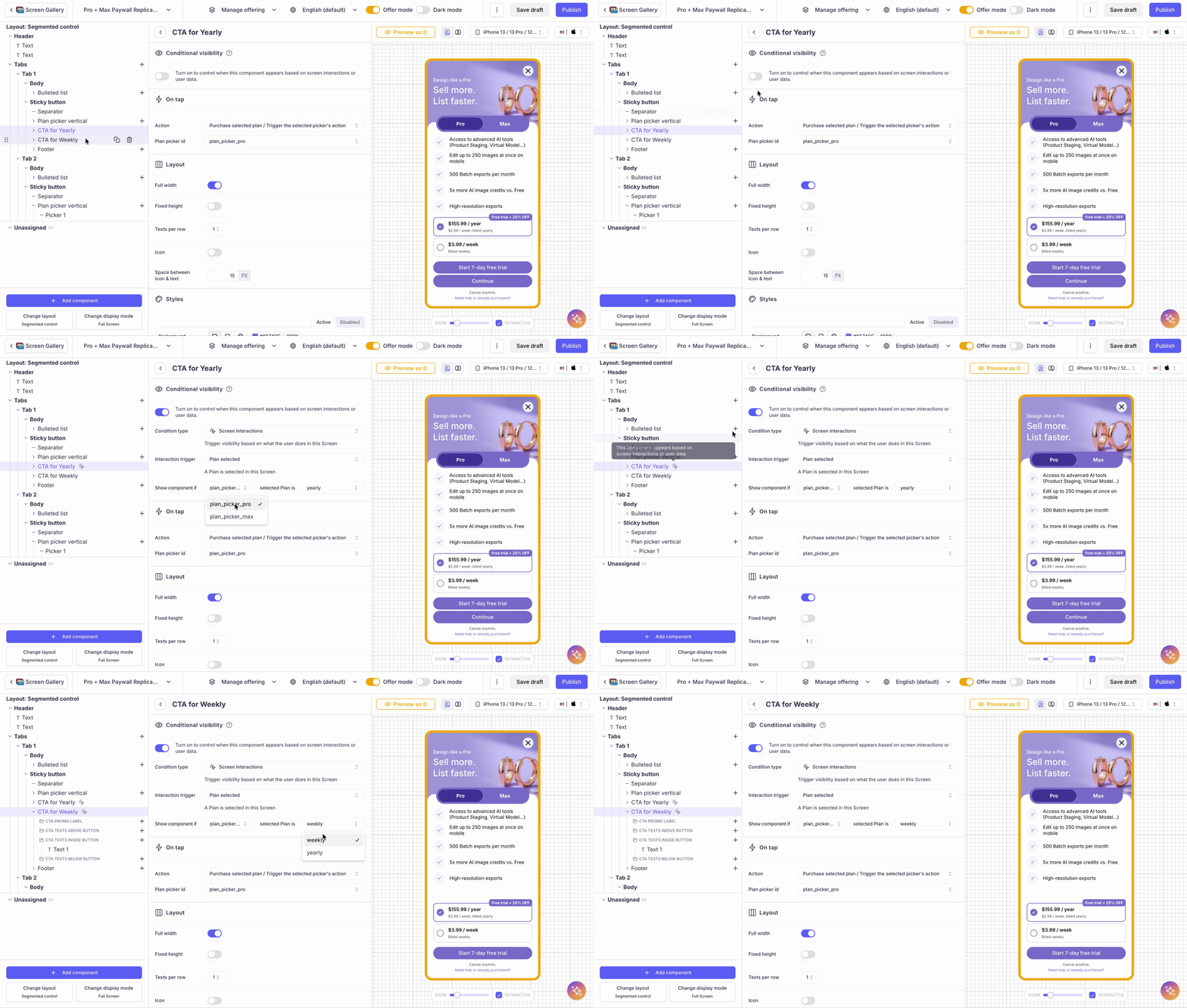
To display different CTA copies depending on the Plan selected:
- duplicate your Button / CTA and adapt the copy to each Plan
- configure a Conditional Visibility rule for each CTA / Button and associate with the desired Plan
- the CTA will then automatically hide / show when the associated Plan is selected
Quiz answer selected
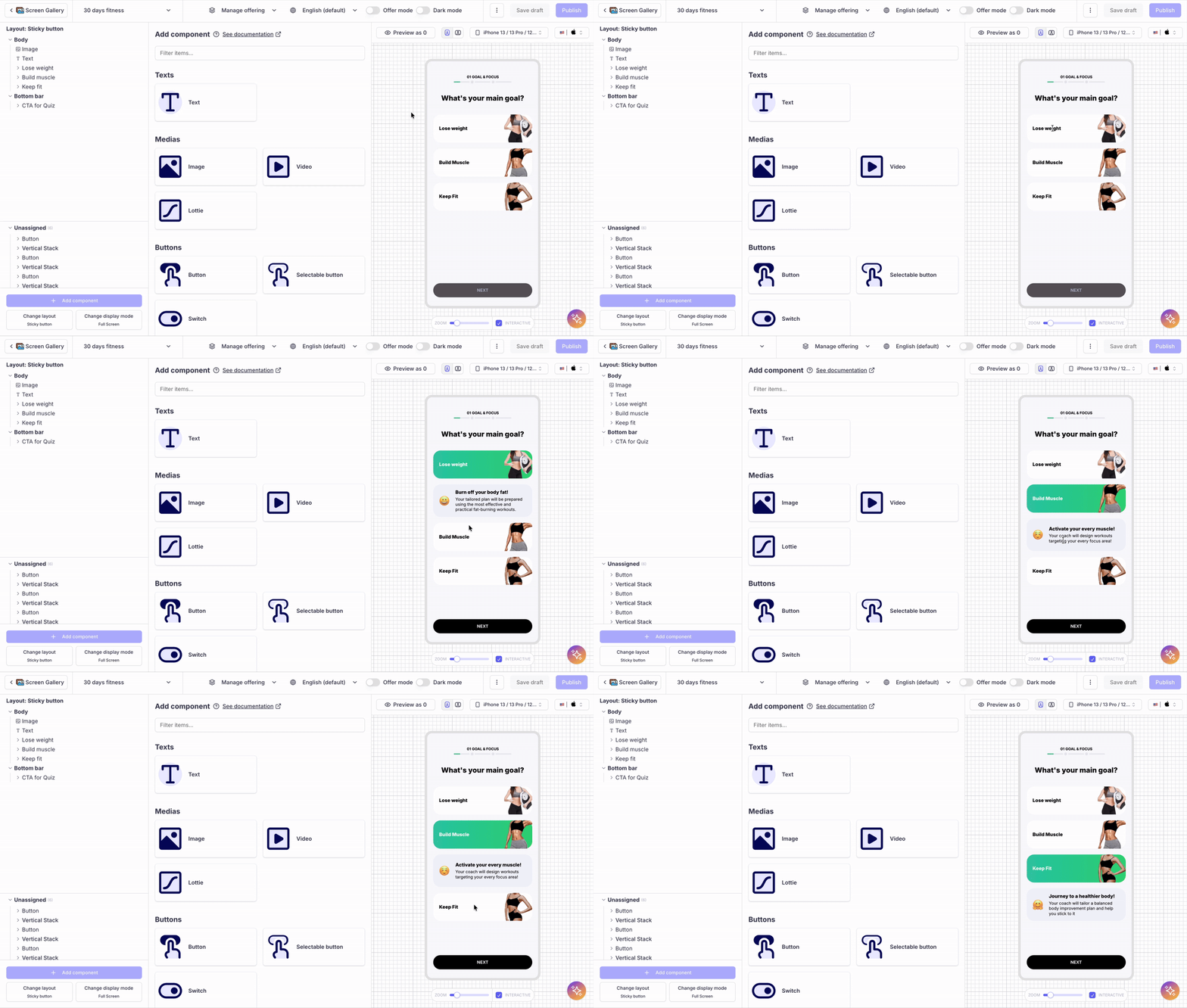
This interaction lets you show a component only when a particular answer is selected in a Quiz. This can be useful if you want to display additional information when the user selects a particular answer.
Example:
Switch state
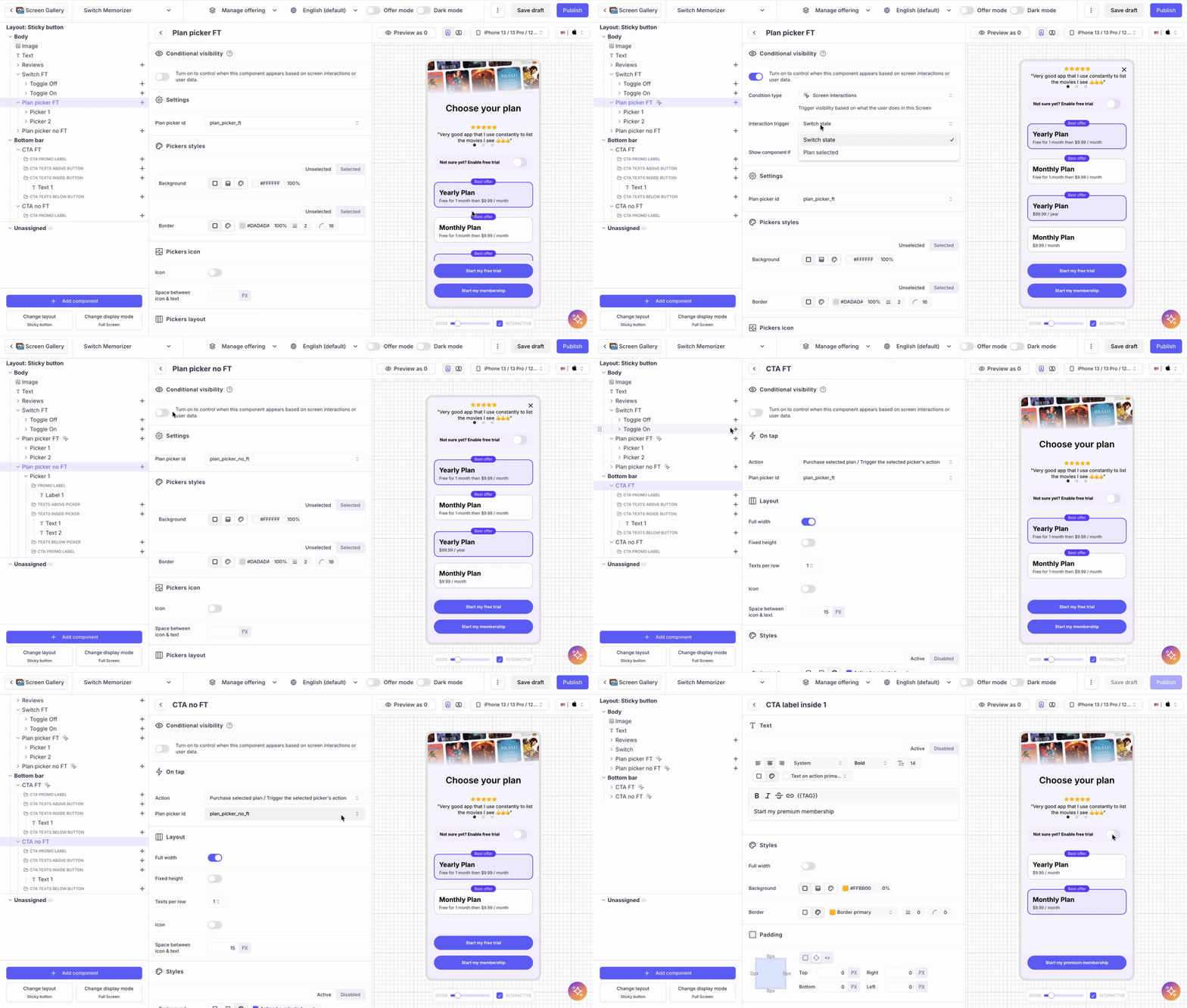
This interaction lets you show a component depending on whether a Switch is ON or OFF. This can be useful activate an optional free trial and adjust the copy / components accordingly.
Example:
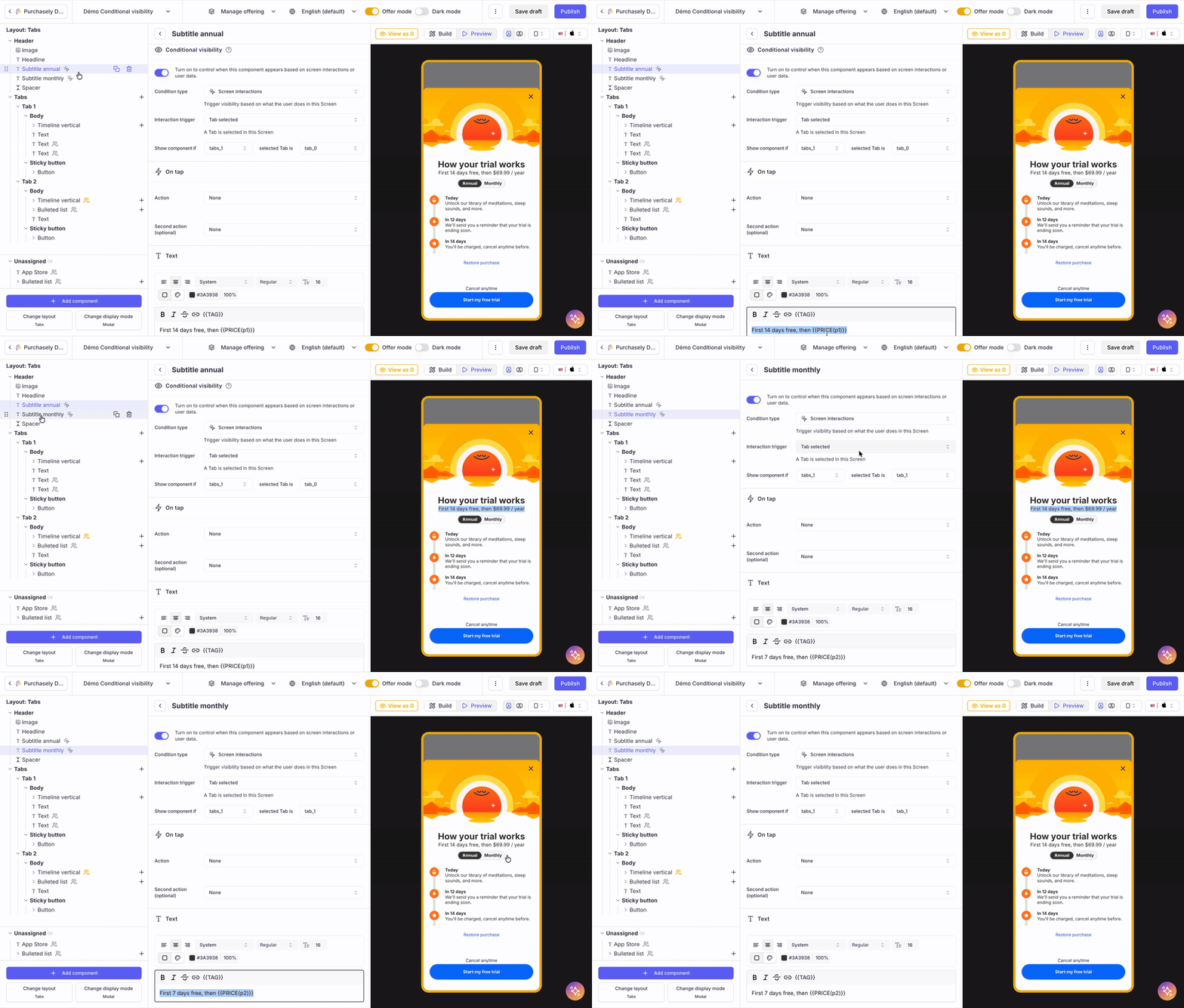
Tab selected
This interaction lets you show a component depending on whether a particular Tab / segmented control is selected or not. This can be update the header of a paywall based on the Tab / segmented control selected
Example:
User data
Use when visibility depends on the user profile or context.
Eligibility for an Offer
Requires SDK v5.6 and above
Eligibility-based rules are NOT retro-compatible with SDK below v5.6. You should upgrade to until SDK v5.6 and above to use them.
If your Screen is displayed by a SDK version below v5.6, components associated with this type of Conditional visibility ruled will simply not be displayed.
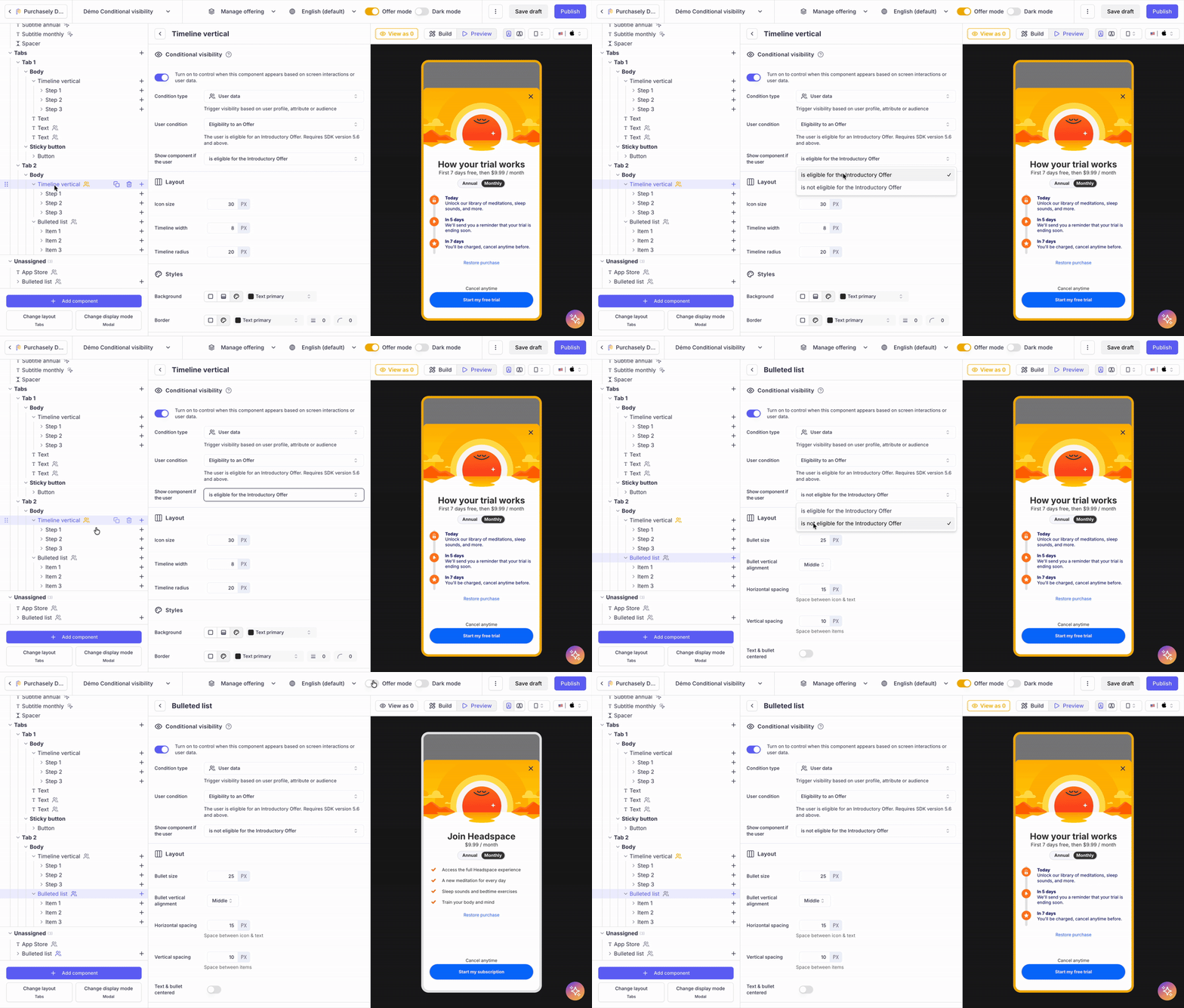
This user condition lets you display a component if the a user is eligible / not eligible to the Introductory Offer of any of the Offerings associated with the Paywall. Combined with Offer mode text override capabilities, it is particularly useful when you want to personalize your Paywall with a "Blinkist timeline" component - explaining how the free trial works - only when the user can still benefit from the free trial.
Example:
User attribute value
This user condition lets you display a component depending on the value of a user attribute. This is particularly useful if you want to tailor your Paywall / Screen based on the user insights (e.g.: how the user has responsed to a Quiz).
It is limited to one single user attribute and one single value. If you want to combine several User attributes and values with Boolean Operators, check Audience-based conditional visibility rules below.
Example:
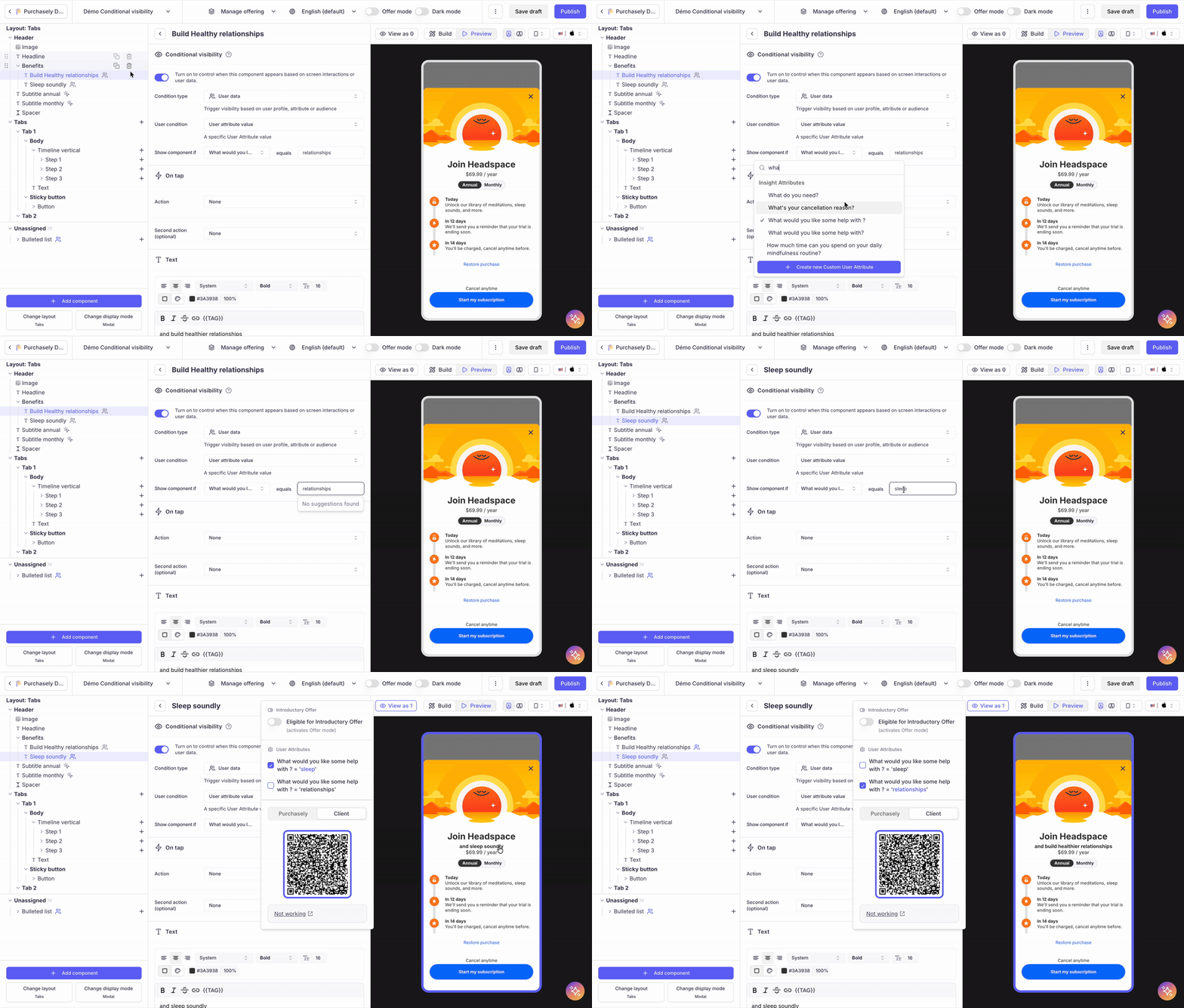
In this famous Paywall by Headspace, a benefit tailored to the user insights fetched during the onboarding has been added as a subtitle.
To visualize a component associated with a User attribute value, use the Preview widget and check the corresponding rule(s).
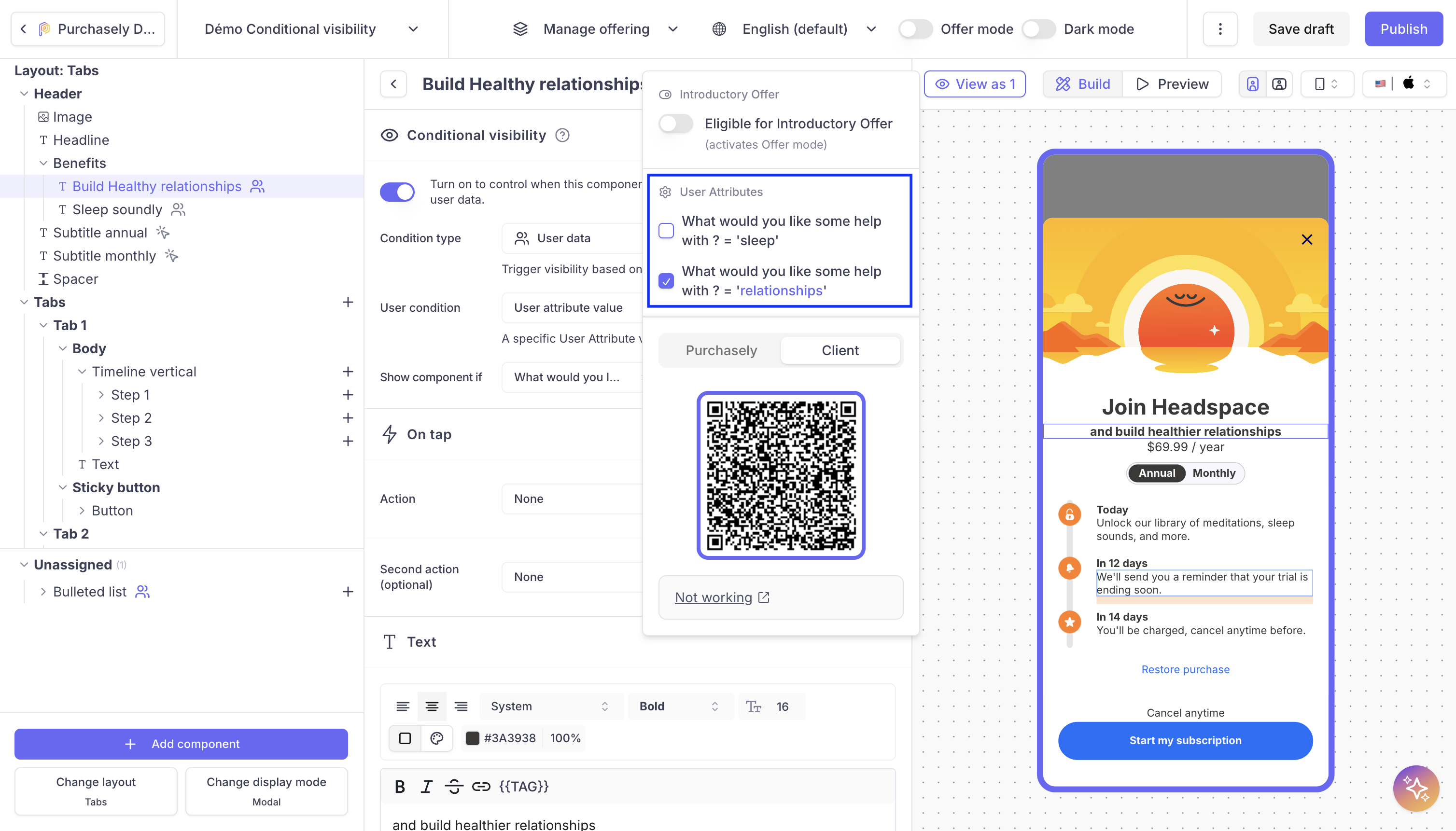
More info about the Preview
Audience
Only works with a Placement or within a Flow
For an Audience-based rule to work, you need to display or fetch the Screen through a Placement or the Screen must be integrated inside a Flow.
If the Screen containing the rule is directly fetched or opened from another Screen (using the Open Screen action), the Audience will not be evaluated and therefore the component associated with the Audience will not be displayed.
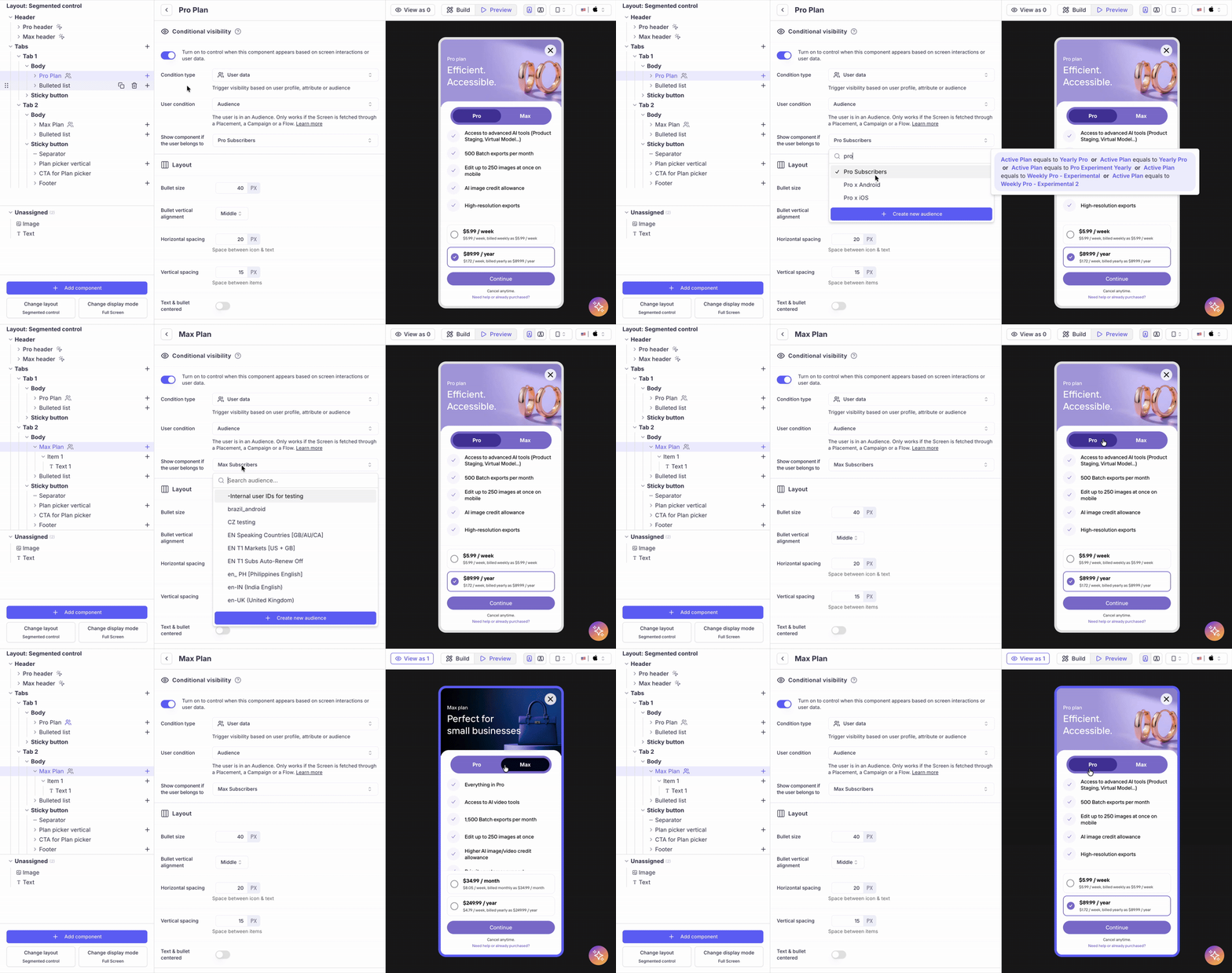
This user condition lets you display a component only if the User belongs to a particular Audience. This is particularly useful to tailor the Screen or Paywall to the user insights. The Audiences used are the same ones as those used to target users in a Placement.
Example:
To visualize a component associated with an Audience, use the Preview widget and check the corresponding rule(s).
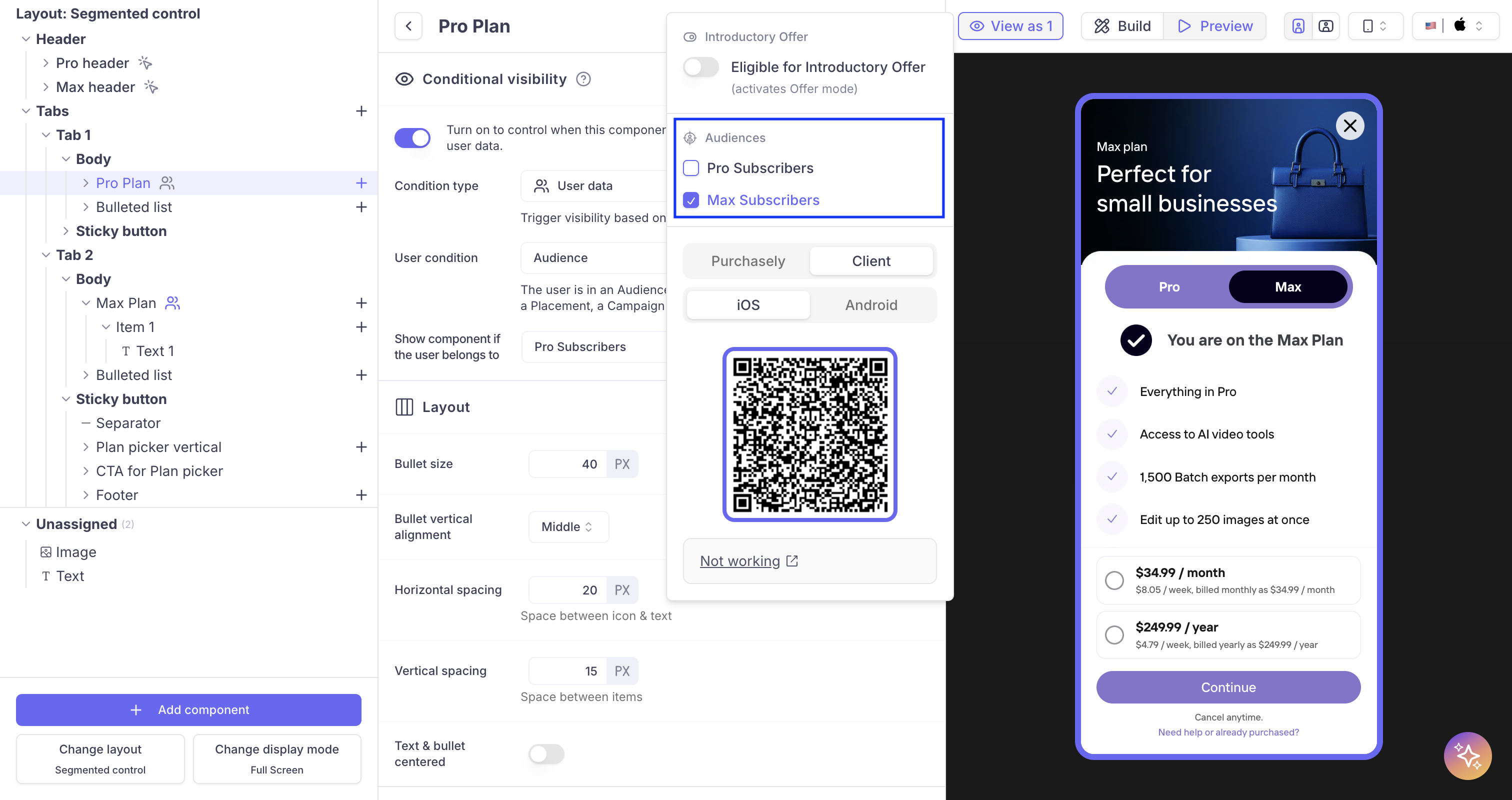
More info about the Preview
Updated 3 months ago