

Play Store - configuring Server to Server notifications
This page describes how to configure manually Server to Server notifications (known as Pub/Sub) with Google Cloud Console and Google Play Console
Connecting the Purchasely Cloud Platform with the App Store
If you get an error when you click on "Connect to Google" from Purchasely console, it means that you did not set the proper service account or the rights you provided for the service account are not sufficient for Purchasely to set up S2S automatically.
You can set it up yourself by following this procedure.
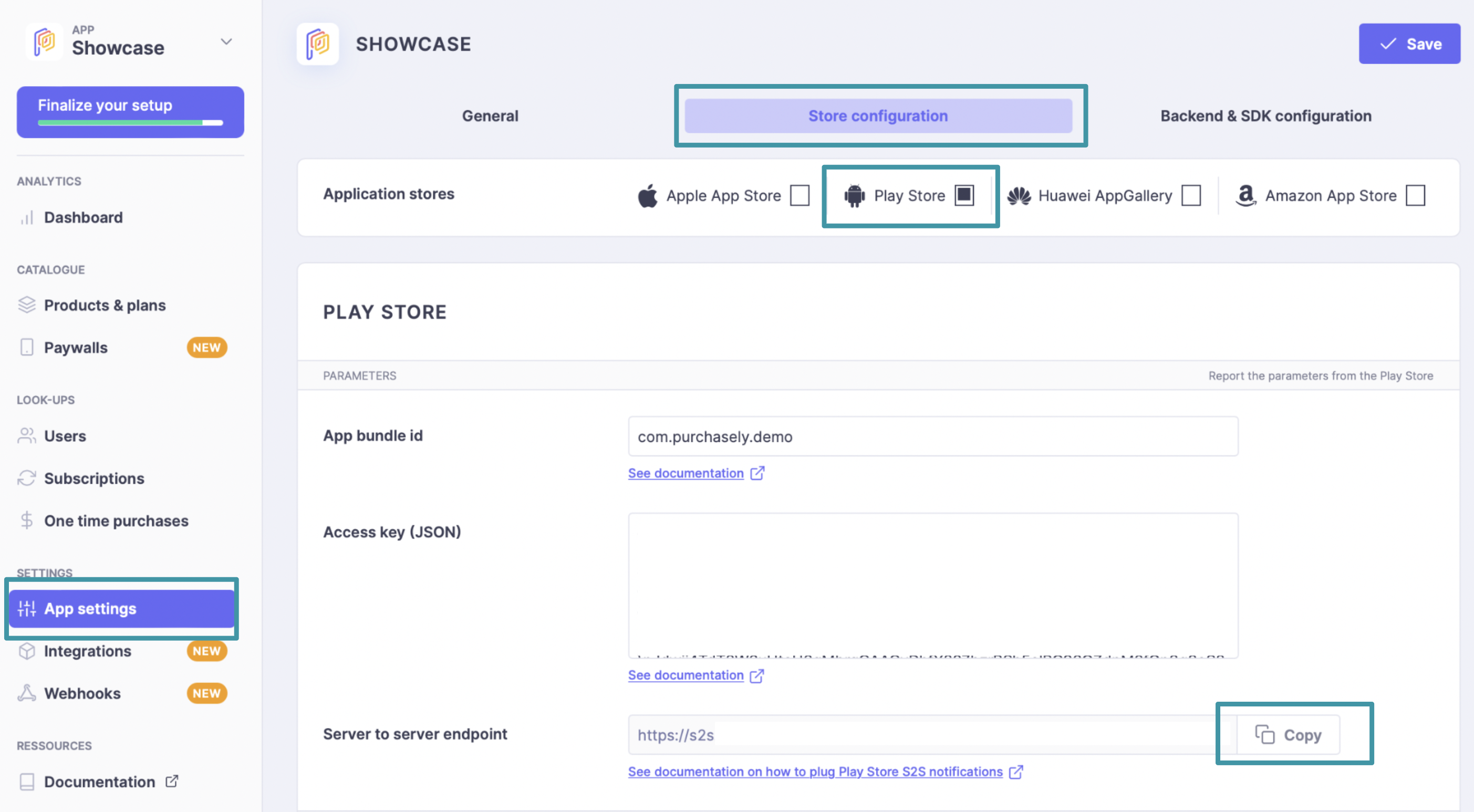
Getting the endpoint URL from the Purchasely Console
- Connect to the Purchasely Console
- Access the settings of the application you want to connect
- Get the value of the parameter
Google S 2 S Notifications Endpoint
Purchasely > Mobile Applications >[YOUR APPLICATION] > Application settings
Creating a new Pub/Sub Topic
- Connect to the Google Cloud Platform Console
- Create new Pub/Sub topic
Google Cloud Platform > PubSub > Topics >+ Create new topic - Suggested name for the topic
Playstore-S2S-notifications - Leave the encryption set on
Key managed by Google
Complex configurationIf you have multiple applications under the same Google Project, create one topic and one subscription per application.
Creating a subscription on the topic
- Access the topic you just created
- Click on
+ Create a subscription - Set the
Type of distributiontoPush - In the URL field, enter the value of the field Google Play S2S Notifications Endpoint retrieved from the Purchasely Console
- Set
no expiration date - Set the
confirmation delayto60 seconds - Set
Messages conservationto7 days
Multiple endpointsTo receive S2S notifications on mutiple endpoints, you can create another subscription linked to the same topic.
Adding a publisher to the topic
- Add a new Pub/Sub Editor to the topic in the Google Cloud Platform Console
Google Cloud Platform > PubSub > Topics >[Playstore-S2S-Notifications] >+ Add principal - Copy & paste the following value
[email protected]in thememberfield - Set the
roletoPub/Sub Publisher
Play Store configuration
-
Connect to the Google Play Console and go to the following section
Google Play Console >[YOUR APPLICATION] > Monetization > Setup -
Type the full name of the topic. It shall have the shape
projects/[YOUR PROJECTS]/topics/Playstore-S2S-Notifications -
Click on the button Send test notification.
You can send several notifications at the same time -
Click on Save changes
-
Check the good reception of the test notification at the
topiclevelin the Google Cloud Platform Console
Google Cloud Platform > Topics > Googleplay-S2S-Notifications -
Check the good reception of the test notification at the
subscriptionlevelin the Google Cloud Platform Console
Google Cloud Platform > Subscriptions > Purchasely-Subscriptions
Updated 11 months ago