

Transferring Apple and Google account
This article will guide you through process of transferring your Apple and Google account from one developer to another
Transfer of Apple account
- Identify which StoreKit version the app integrates:
- StoreKit 1 — verify that the shared app secret configured in App Store Connect matches the one set in the Purchasely console.
- StoreKit 2 — once the transfer is complete, create a new key in App Store Connect and add its credentials to the Purchasely console.
- Allow 5-10 minutes of delay for the service to resume once credentials are updated.
- Confirm that the StoreKit configuration on the new Apple developer account matches the one used previously.
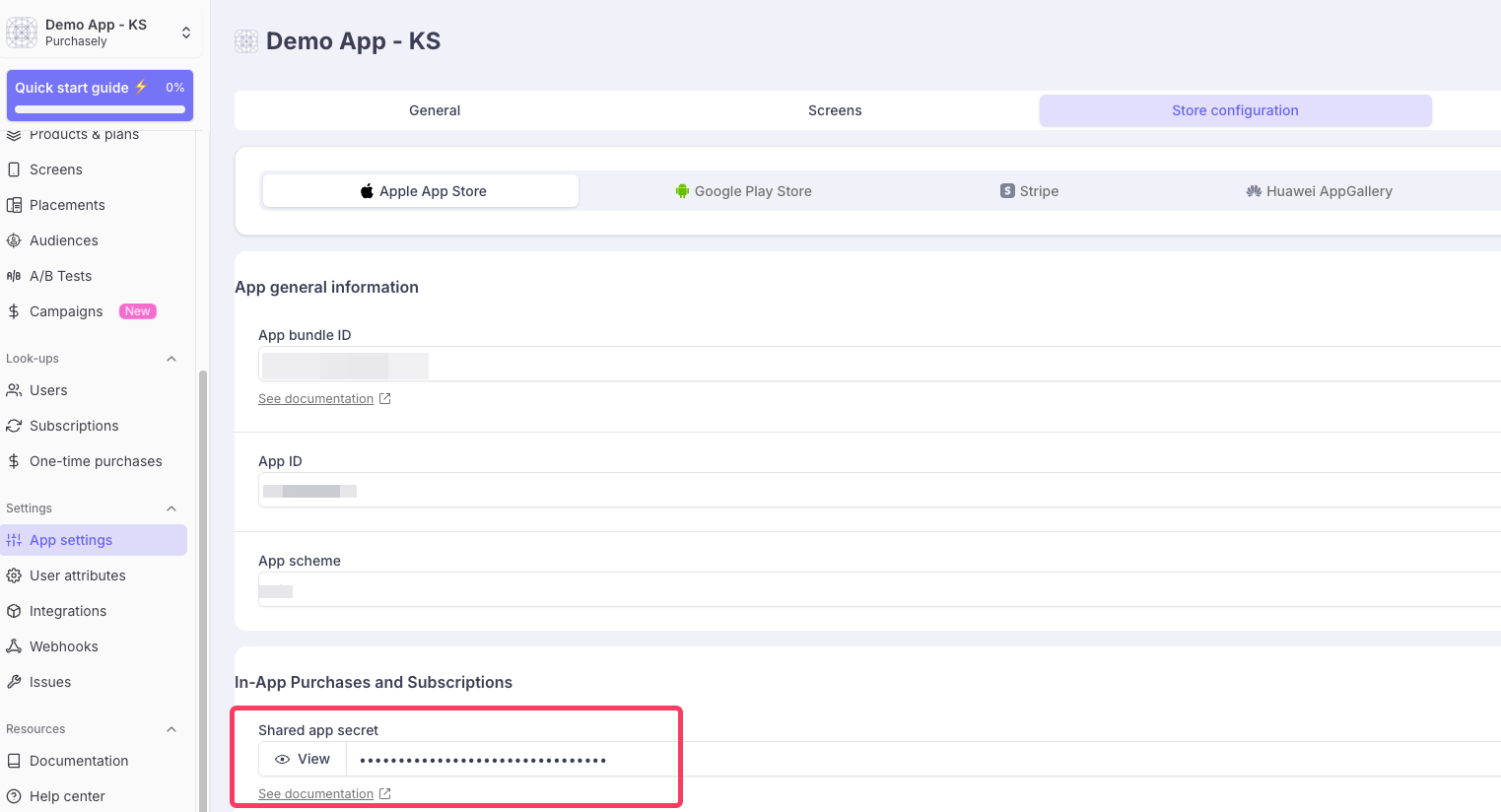
- Verify that the new Apple developer account has the Paid Applications Agreement signed and accepted. Without it, users will not see prices on paywalls.
Transfer of Google account
Follow the standard account transfer instructions for step-by-step guidance.
To avoid a 24-48 hour delay for Google to accept the new account credentials:
- When creating the new service account, complete only through step 6 of the procedure.
- Invite the old service account to the new developer console and grant it permissions on both the new and old accounts.
- Wait 48 hours, then complete step 7 of the procedure.
Keeping the old account active with the appropriate permissions during this window lets the transfer take effect without incurring the usual 24-48 hour delay.
If the Android development team manages this separately, share these instructions with them.
Updated 3 months ago
Did this page help you?