

SDK initialization
How to start Purchasely SDKs and all necessary parameters
Start
To ensure that Purchasely is ready as soon as possible, we advise starting the SDK immediately when your application launches. Purchasely will initialize in a background thread to ensure that your application launch time and user experience are not affected.
Major change in v6 — default running mode is nowobserverIn SDK v5 the default running mode was Full (Purchasely handles and validates purchases).
In SDK v6 the default isobserver(Purchasely only observes transactions, without processing them).This change is silent — your code keeps compiling. If you want Purchasely to handle the
purchase flow and validate receipts, you must now set the mode explicitly:
.runningMode(.full)on iOS,.runningMode(PLYRunningMode.Full)on Android.See the v6 migration guide for details.
import Purchasely

func application(_ application: UIApplication, didFinishLaunchingWithOptions launchOptions: [UIApplicationLaunchOptionsKey: Any]?) -> Bool {
    Purchasely
        .apiKey("X-API-KEY")
        .appUserId(nil) // optional if you already know your user id
        .logLevel(.debug)
        .start { error in
            print(error == nil)
        }
	return true
}
import android.app.Application
import io.purchasely.ext.Purchasely
import io.purchasely.ext.PLYRunningMode
import io.purchasely.google.GoogleStore
class YourApplication: Application() {
override fun onCreate() {
super.onCreate()
// ── Recommended — Kotlin DSL: configures AND starts the SDK in one call ──
Purchasely {
context(applicationContext)
apiKey("X-API-KEY")
userId(null) // optional if you already know your user id
onInitialized { error ->
if (error == null) {
// Purchasely setup is complete
}
}
}
// ── Alternative — fluent Builder (same behavior; the only form for Java) ──
Purchasely.Builder(applicationContext)
.apiKey("X-API-KEY")
.userId(null)
.stores(listOf(GoogleStore()))
.runningMode(PLYRunningMode.Full)
.build()
.start { error ->
if (error == null) {
// Purchasely setup is complete
}
}
}
}
import Purchasely from 'react-native-purchasely';

// Everything is optional except apiKey
// Example with default values
try {
    const configured = await Purchasely.builder('X-API-KEY')
        .appUserId(null)        // if you know your user id, set it here
        .logLevel('error')      // set to 'debug' in development mode to see logs
        .start();
} catch (e) {
     console.log("Purchasely SDK not configured properly");
}
// Everything is optional except apiKey
// Example with default values
final bool configured = await Purchasely.apiKey('X-API-KEY')
.logLevel(PLYLogLevel.error) // set to debug in development mode to see logs
.appUserId(null) // set a user id if you have one
.start();
if (!configured) {
print('Purchasely SDK not configured');
return;
}/**
* @params String apiKey
* @params StringArray stores : may be Google, Amazon and Huawei
* @params String userId
* @params Purchasley.LogLevel logLevel
* @params Purchasely.RunningMode runningMode
**/
Purchasely.start(
'X-API-KEY',
['Google'],
false, // false for StoreKit 2 (recommended), true for StoreKit 1
null, // user id of user
Purchasely.LogLevel.DEBUG,
Purchasely.RunningMode.full, // ⚠️ v6 default is Observer — set .full to handle purchases
(isConfigured) => {},
(error) => console.error(error)
);More details on the SDK running modes.
This call is mandatoryEnsure that
Purchasely.start()is the first method executed by your application.
This process does not block the main thread, allowing you to call other SDK methods immediately after invoking this method.
API Key
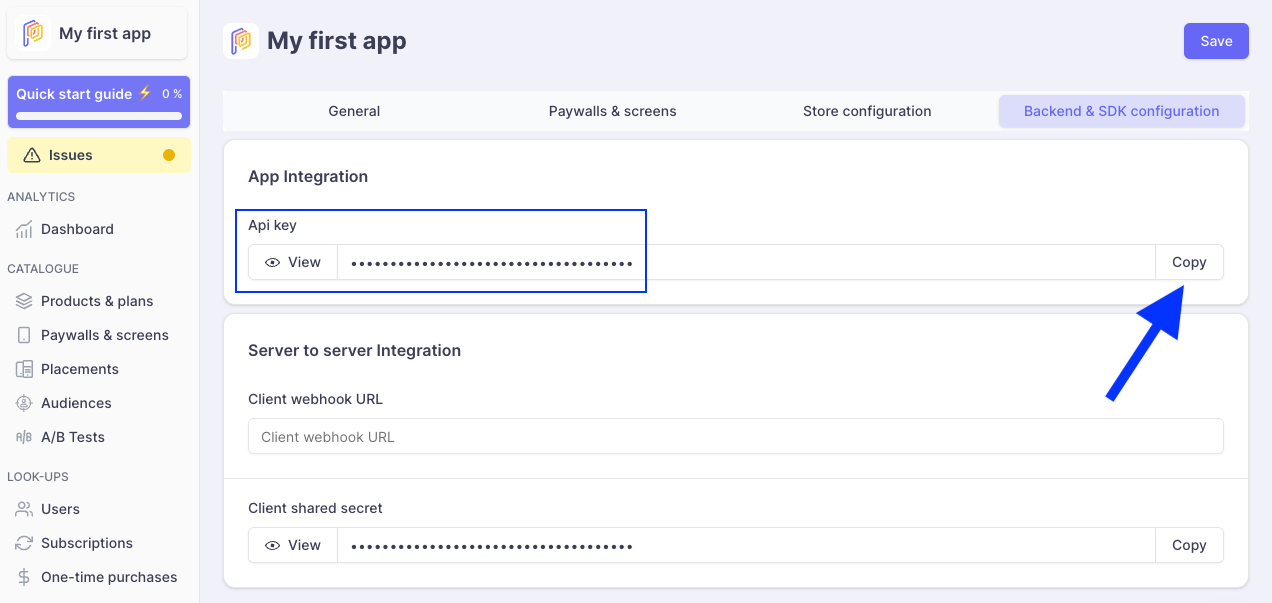
The API Key serves as a confidential identifier, enabling your application to authenticate with Purchasely. It's crucial to securely store this key within your application and ensure it is never disclosed publicly.
You can find your API Key in the section App settings / Backend & SDK configuration of the Purchasely Console and copy it by clicking on the Copy button.
User identification
There are 2 types of users in Purchasely platform
- connected user
- anonymous user
You can provide a user id with Purchasely.start() if the user is already signed-in or use Purchasely.userLogin() if the user signs in after your application has started.
You can find more information about users in the dedicated section
Callback on initialization
You can provide a callback method when you start the SDK. It will be automatically called when the SDK has finished initializing.
You can display a screen without waiting the SDK to be fully initialized.
The callback returns a single value:
error:nilwhen the SDK was initialized successfully and the configuration is correct. If it is notnil, you can still use Purchasely SDK, and it indicates the specific error that occurred.
Updated about 1 month ago
What’s Next
You can look at how to use deeplinks with Purchasely or skip directly to displaying screens