

Campaign configuration
Learn how to configure a Campaign: define the audience, set triggers and placements, schedule start/end dates, tune capping parameters, select a Screen or A/B test, and manage campaign priority.
This page walks you through every parameter available when creating or editing a Campaign.
Name and ID
Set the name and ID of your campaign. Both are used to track performance within Purchasely.
💡 Adding a category lets you better organize the list of campaigns.
WHO — Audience
Choose the Audience you would like to target with this campaign.
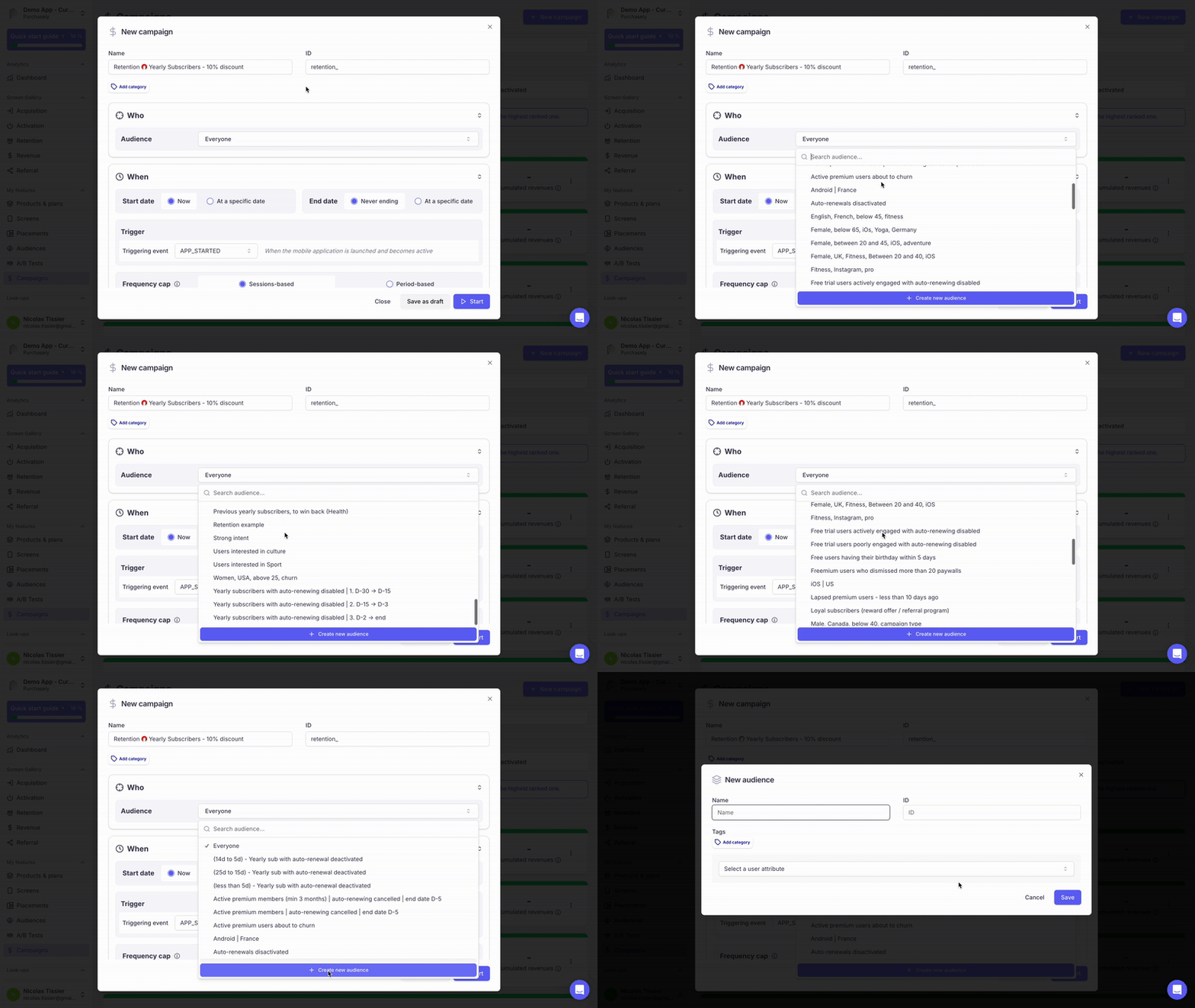
If you haven't configured the desired audience yet, click + Create new audience and define it directly from the modal.
WHEN — Trigger, scheduling and capping
The WHEN section controls trigger-based delivery. It determines when the campaign fires in response to an event, and how often a user can see it.
Trigger
By default, a campaign starts when the APP_STARTED event is triggered. This event occurs:
- When the app is launched for the first time.
- After the app is restarted following termination by the operating system (typically due to prolonged inactivity).
- When the user manually relaunches the app.
Custom Events as triggers (SDK 6.2.0 and later)From SDK 6.2.0 on iOS, Android, React Native, Flutter and Cordova, you can also select one of your Custom Events as the trigger, with optional conditions on its properties. The same dates, capping and consent rules apply. With an older SDK,
APP_STARTEDis the only trigger.
Scheduling (start & end date)
Define the campaign's activation and expiration times to automate promotional events (e.g. Black Friday sales) without requiring manual intervention in the Console.
All times are expressed in UTC/GMT.
Frequency cap
Control how often the campaign is displayed to prevent overexposure and user fatigue. The frequency cap can be configured in two ways:
Session-based — Limits campaign display based on app session count.
Example: If set to trigger every 3 sessions, the campaign will appear at most once every 3 app launches.
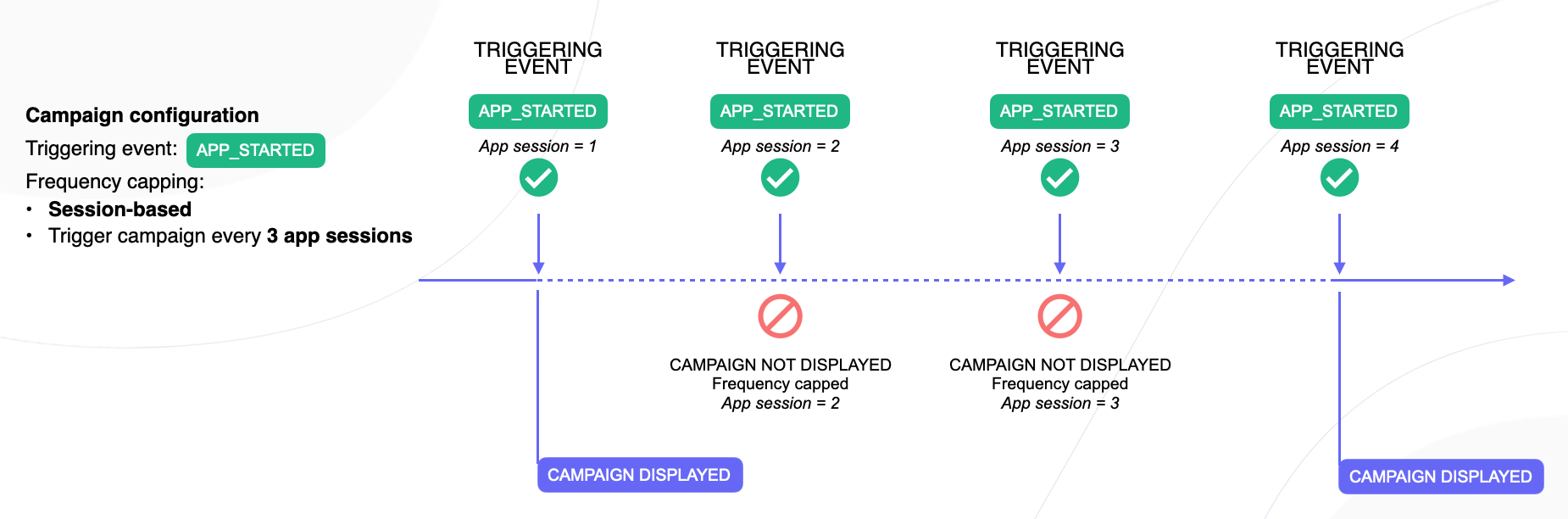
Note: the SDK generates a new session after 30 minutes of inactivity.
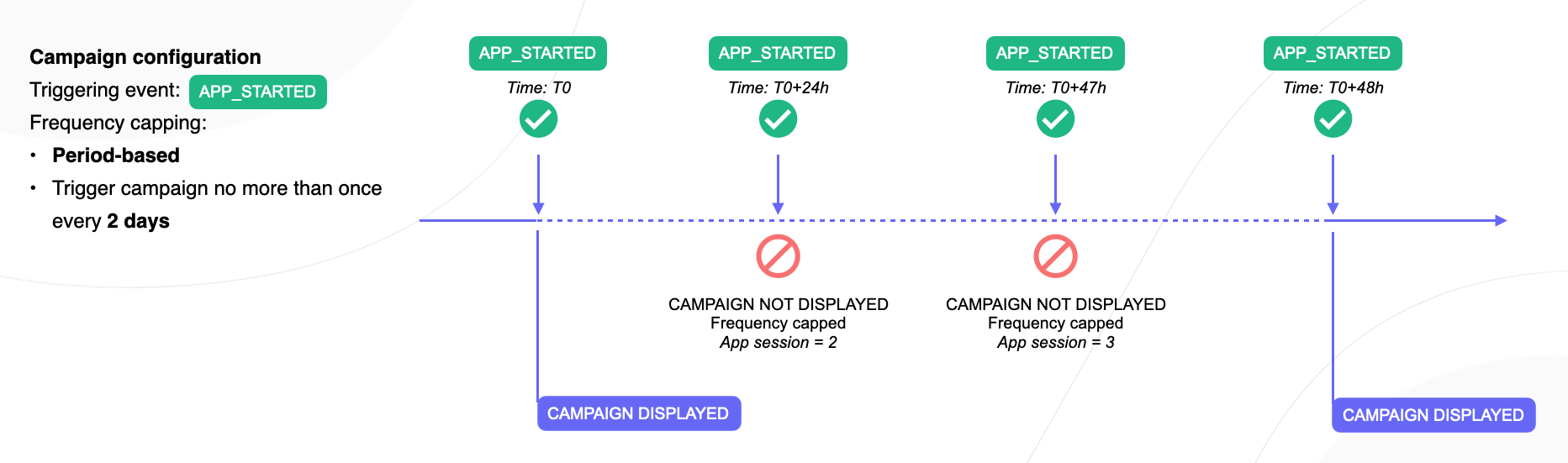
Period-based — Enforces a minimum time gap between consecutive displays.
Example: If set to a 2-day interval, the campaign will not be shown again until at least 48 hours have passed since the last display.
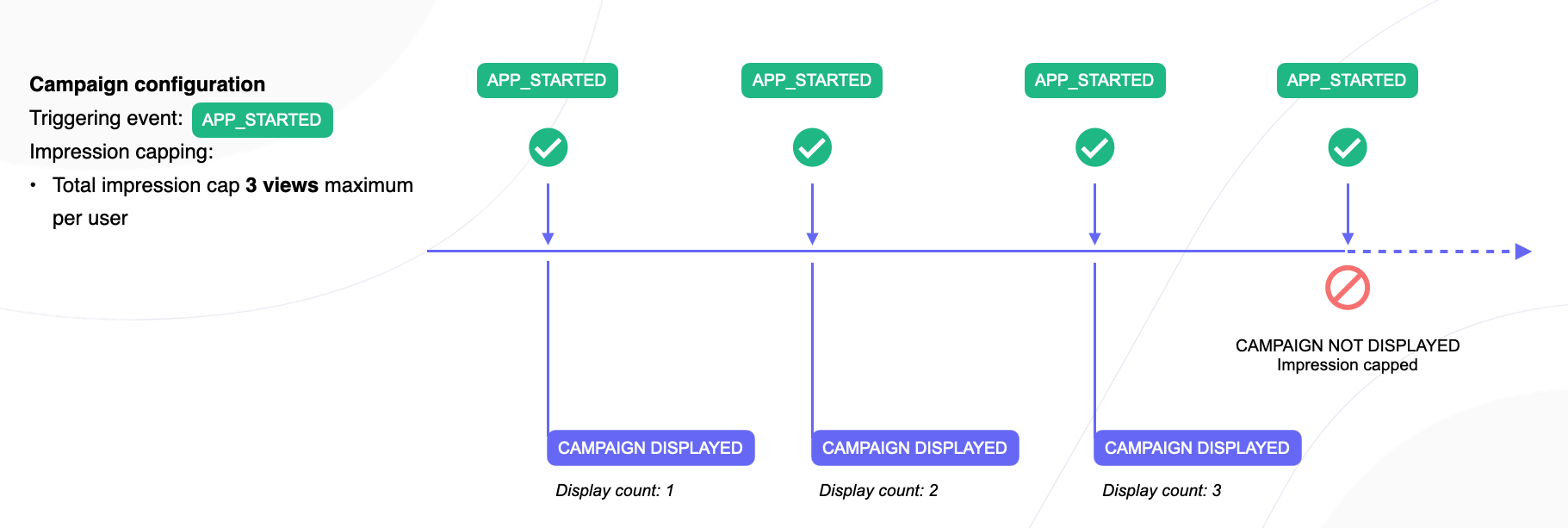
Impression cap
Restricts the total number of times a user can see the campaign throughout its entire duration.
Example: If set to 3, the campaign will not be displayed to a user after they have seen it three times, regardless of trigger or frequency cap settings.
Exposure window
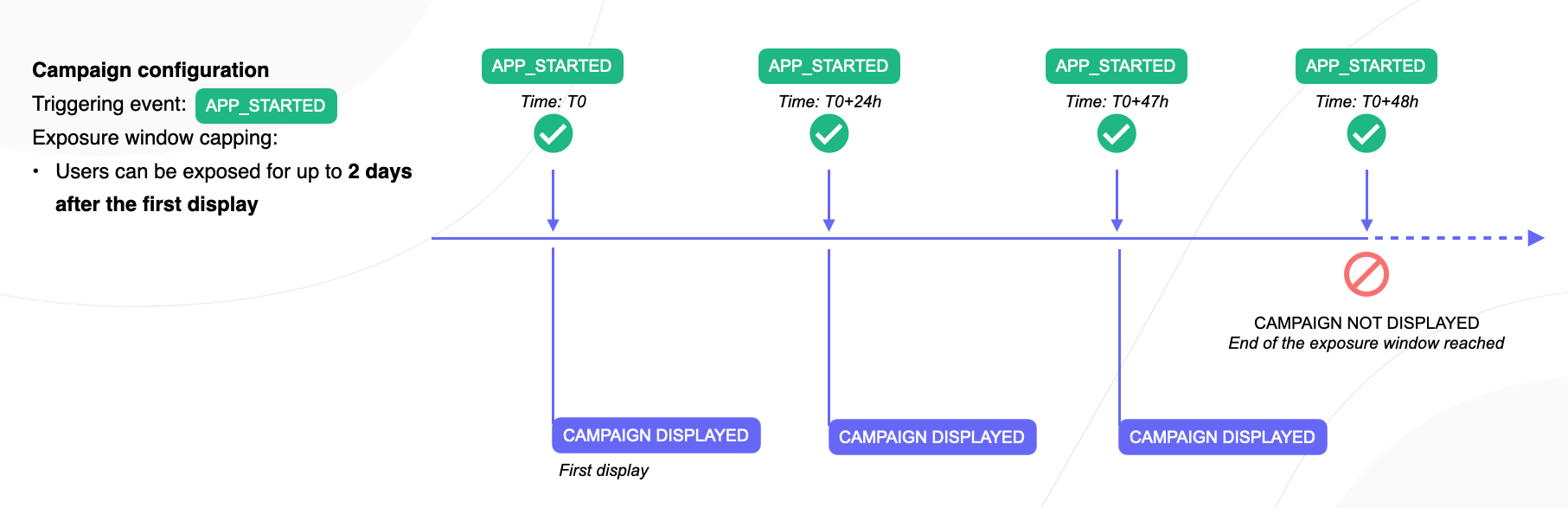
Defines the maximum time a user remains eligible to see the campaign after their first exposure. This is particularly useful for creating limited-time offers that expire after a defined period.
It can be combined with a countdown component integrated into the Campaign Screen to reinforce urgency.
Example: If set to 24 hours, the campaign will only be available to a user for 24 hours after their first exposure, even if the overall campaign period is longer.
Capping applies to trigger-based delivery onlyFrequency cap, impression cap, and exposure window are enforced only when the campaign is delivered through a trigger (
APP_STARTEDor a Custom Event). They do not apply when the campaign is delivered through a Placement.
All the above parameters can be combined to create highly customized campaign behaviors, allowing precise control over timing, frequency, exposure limits, and user experience.
WHERE — Placements
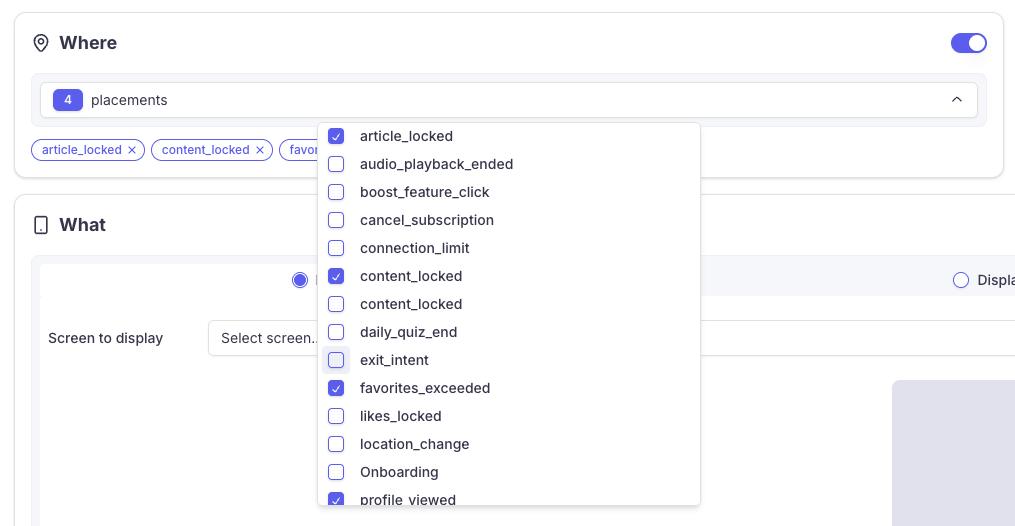
The WHERE section lets you associate the campaign with one or more Placements.
When a Placement is called by your app, the SDK evaluates every campaign targeting that Placement. If the current user matches the campaign's audience, the campaign's screen is displayed instead of the Placement's default rules.
Why use Placements in a Campaign?
Schedule content on Placements ahead of time. Assign start and end dates to the campaign and associate it with your Placements. The screen will appear automatically during the scheduled window and disappear when the campaign ends — perfect for Black Friday, seasonal promotions, or any commercial operation with known dates.
Centralize display ordering across Placements. Without campaigns, each Placement maintains its own ordered list of audience / screen rules. If you need the same priority order across several Placements, you must manually reorder every list. By moving those rules into campaigns, you define the priority once and it applies everywhere the campaign is associated.
How Placement-based campaigns interact with Placement rules
When a Placement is called, the SDK resolves which screen to show in the following order:
- Campaign rules first. All active campaigns targeting that Placement are evaluated in campaign priority order. The first campaign whose audience matches the current user wins.
- Placement-local rules second. If no campaign matches, the Placement falls back to its own locally-defined audience / screen rules (the existing behavior).
In other words, campaigns associated with a Placement override the Placement's own rules for the audiences they target.
WHAT — Screen or A/B test
In this section you select the Screen to be displayed, or configure an A/B test.
The Screen does not need to be a paywall — it can also be an onboarding screen, a user survey, or any other type of Purchasely Screen.
For an A/B test, it can be either a UI or a Price A/B test.
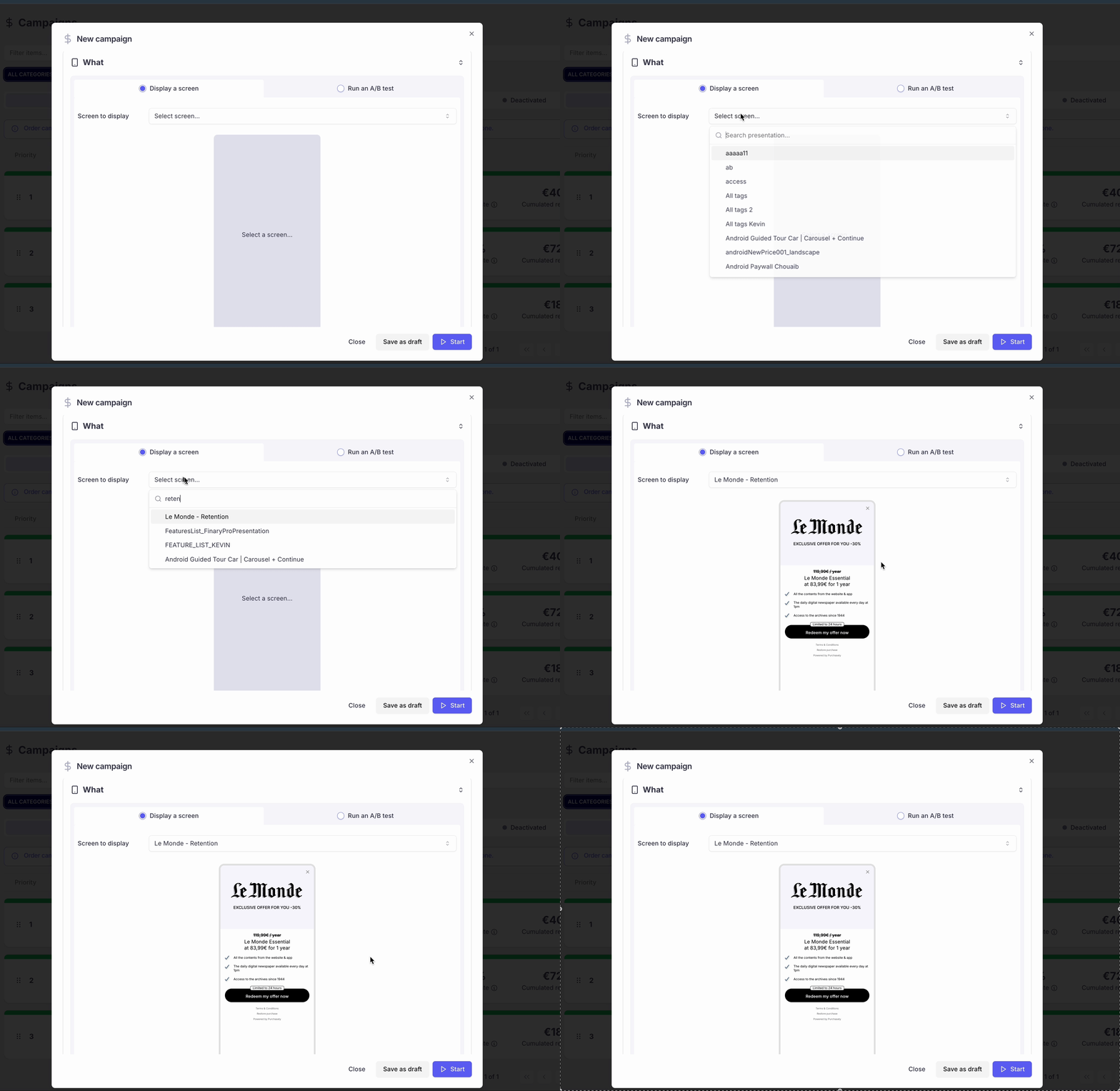
Once you are done with your setup, click the Start button at the bottom of the page to activate the campaign.
The results of an A/B test can be consulted in the A/B test section of the Console.
What can be changed after a campaign is started?
Once a campaign has been started, you can still adjust the capping parameters (start/end date & time, frequency cap, impression cap, exposure window) and the associated Placements, but you cannot change the campaign's name, ID, Audience, or Screen.
Campaign prioritization
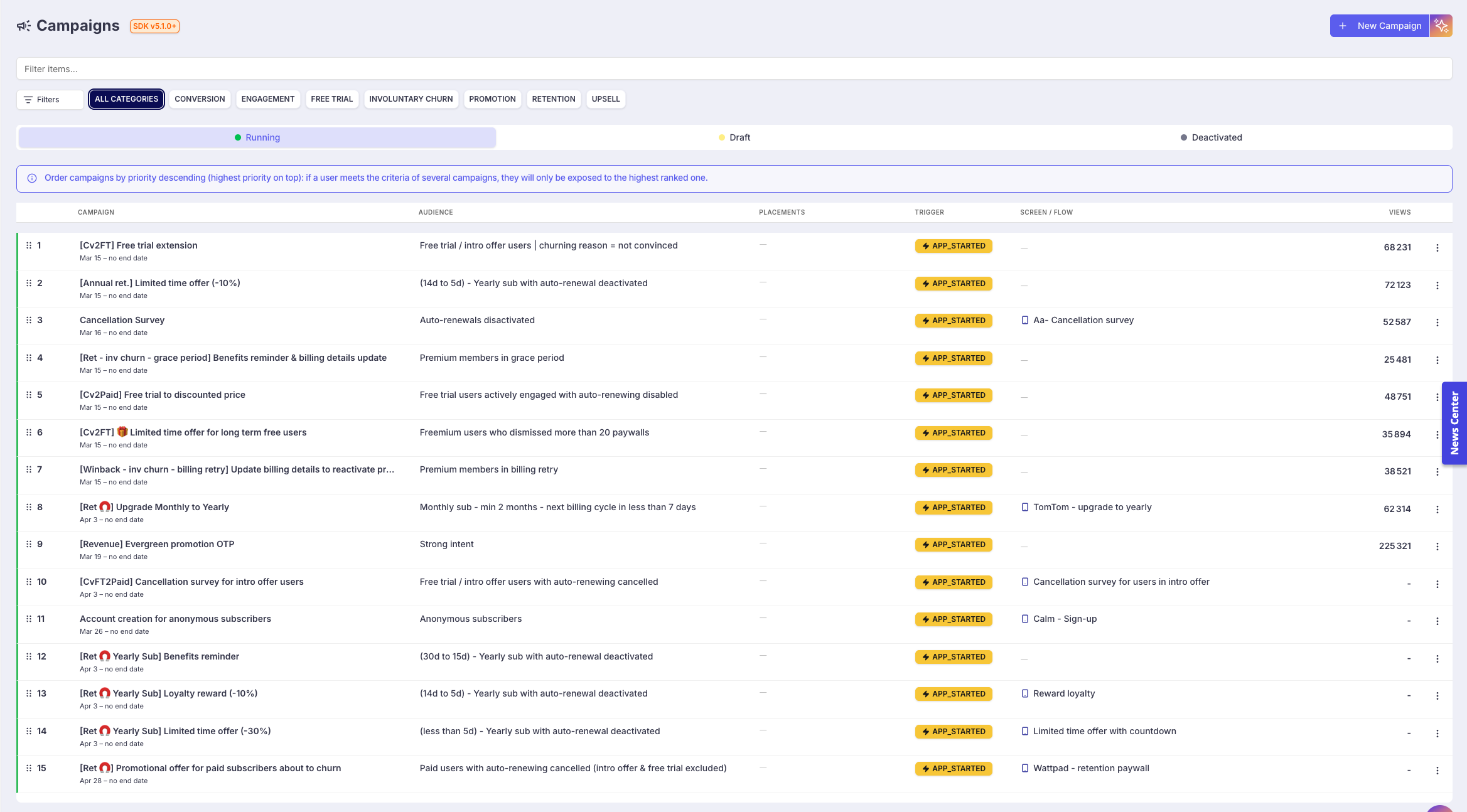
Active campaigns can be prioritized. This allows you to define which campaign a user should be exposed to when they are eligible for several campaigns at the same time.
If a campaign is currently capped for a user, the SDK automatically moves to the next eligible campaign in priority order.
You can reorder campaigns by drag-and-dropping them in the desired order. Campaigns higher in the list have a higher priority.
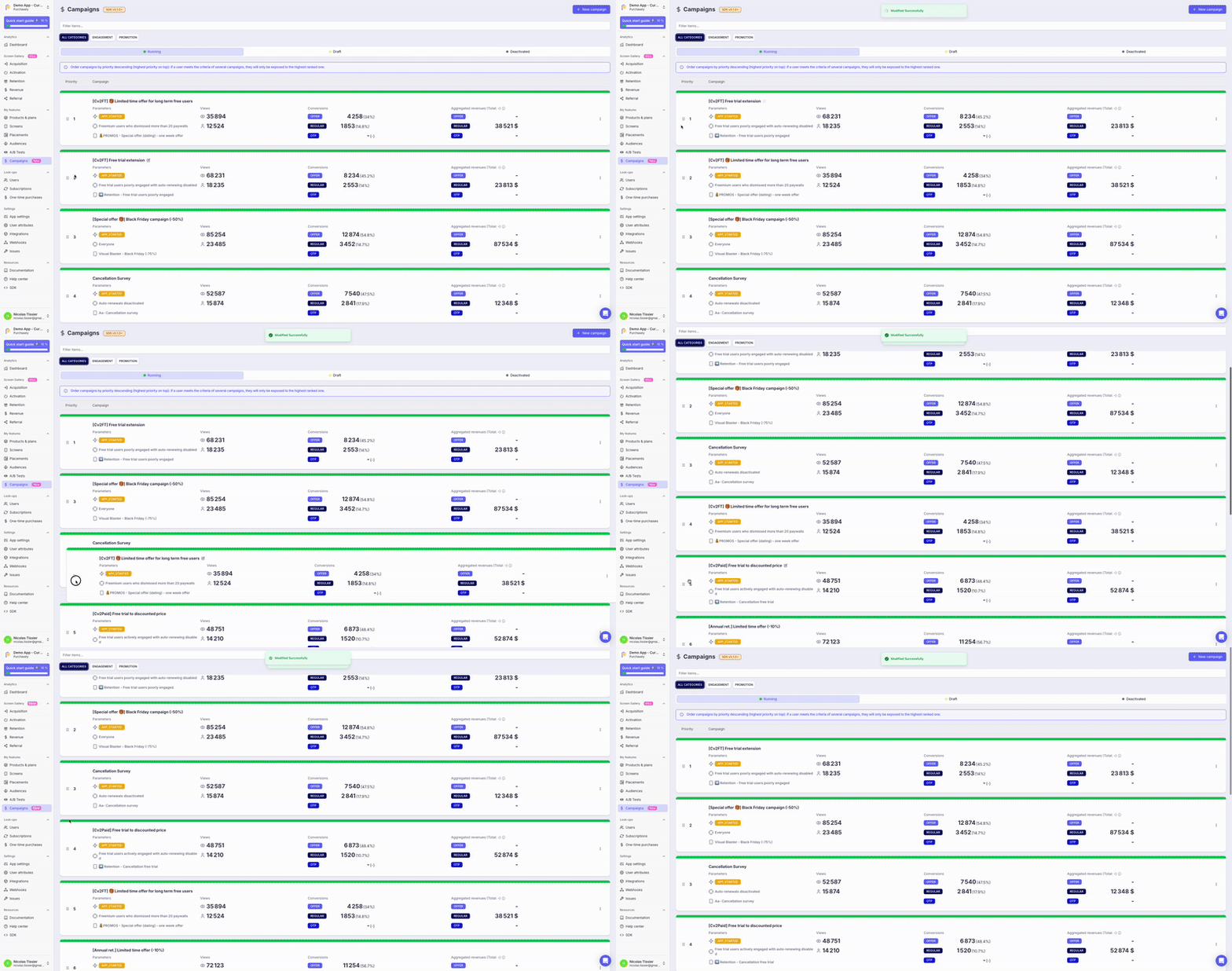
Following campaign results
The Campaigns feature allows you to follow monetization KPIs for each campaign you create.
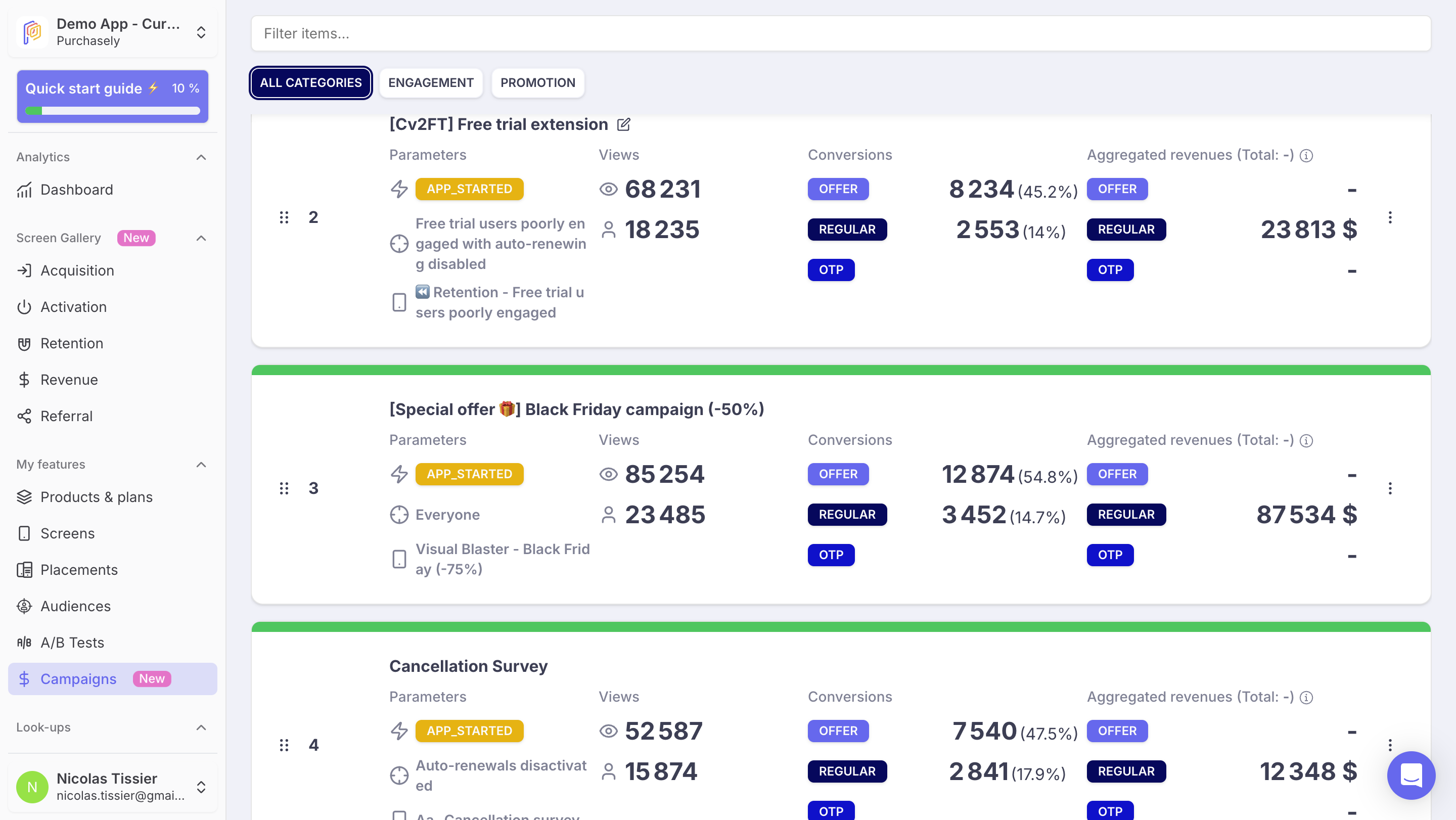
The KPIs include the number of Screens displayed, Unique Viewers, Conversions, and Aggregated Revenue. Here is how each one is computed.
Screens displayed
This KPI counts the total screens displayed for a given campaign. It leverages the UI / SDK event PRESENTATION_VIEWED and counts the total number of events carrying a campaign_id property matching the campaign.
Each occurrence of the event is counted — a same user seeing several screens associated with the campaign or seeing the same screen several times is counted multiple times.
Unique Viewers
This KPI counts the total unique viewers for a given campaign. It leverages PRESENTATION_VIEWED and counts the total number of unique users who generated an event with the matching campaign_id.
A same user viewing several screens or the same screen several times is counted only once.
Conversions to Offer
Counts the total number of unique users who converted to an Offer price through a screen associated with the campaign.
#CONVERSIONS_TO_OFFER = events meeting the following conditions:
offer_type IN ('FREE_TRIAL', 'INTRO_OFFER', 'PROMO_CODE', 'PROMOTIONAL_OFFER')
AND event_type IN (
  'SUBSCRIPTION_STARTED',
  'SUBSCRIPTION_REACTIVATED',
  'SUBSCRIPTION_UPGRADED',
  'SUBSCRIPTION_DOWNGRADED',
  'SUBSCRIPTION_CROSSGRADED'
)
A same user triggering several conversion events is counted only once.
Conversion Rate to Offer = #CONVERSIONS_TO_OFFER / #UNIQUE_VIEWERS
Conversions to Regular
Counts the total number of unique users who converted to a Regular price through a screen associated with the campaign.
#CONVERSIONS_TO_REGULAR = events meeting the following conditions:
offer_type = 'NONE'
AND event_type IN (
  'TRIAL_CONVERTED',
  'INTRO_OFFER_CONVERTED',
  'PROMOTIONAL_OFFER_CONVERTED',
  'PROMO_CODE_CONVERTED',
  'SUBSCRIPTION_STARTED',
  'SUBSCRIPTION_REACTIVATED',
  'SUBSCRIPTION_UPGRADED',
  'SUBSCRIPTION_DOWNGRADED',
  'SUBSCRIPTION_CROSSGRADED'
)
A same user triggering several conversion events is counted only once.
Conversion Rate to Regular = #CONVERSIONS_TO_REGULAR / #UNIQUE_VIEWERS
Conversions to OTP
Counts the total number of unique users who purchased a One-Time Purchase (consumable or non-consumable) through a screen associated with the campaign. It leverages the event TRANSACTION_PROCESSED with purchase_type = CONSUMABLE or NON_CONSUMABLE and the matching campaign_id.
A same user triggering several conversion events is counted only once.
Conversion Rate to OTP = #CONVERSIONS_TO_OTP / #UNIQUE_VIEWERS
Aggregated revenue
Revenue is aggregated depending on the Plan type (SUBSCRIPTION or OTP) and, for subscriptions, depending on the type of price paid (OFFER or REGULAR).
It leverages TRANSACTION_PROCESSED events carrying a matching campaign_id and groups them by purchase_type and offer_type:
AGGREGATED_REVENUE_OFFER= SUM ofamount_in_xxxfor allTRANSACTION_PROCESSEDevents withpurchase_type=RENEWING_SUBSCRIPTIONorNON_RENEWING_SUBSCRIPTIONandoffer_type≠NONE.AGGREGATED_REVENUE_REGULAR= SUM ofamount_in_xxxfor allTRANSACTION_PROCESSEDevents withpurchase_type=RENEWING_SUBSCRIPTIONorNON_RENEWING_SUBSCRIPTIONandoffer_type=NONE.AGGREGATED_REVENUE_OTP= SUM ofamount_in_xxxfor allTRANSACTION_PROCESSEDevents withpurchase_type=CONSUMABLEorNON_CONSUMABLE.
For auto-renewing subscriptions, revenue includes both the initial transaction and all subsequent renewals until the actual termination of the subscription.
Updated 7 days ago