

12-Month Commitment (Paid Monthly)
Sell an annual subscription paid in monthly installments with a 12-month commitment
A 12-month commitment paid monthly lets your users subscribe to an annual plan while paying month by month: they commit to the full year, but instead of being charged the total price upfront, they are billed a smaller amount every month for 12 months.
This billing structure lowers the entry barrier of your annual plan (a $9.99 first charge converts better than a $119.88 one) while securing 12 months of revenue.
- On the Apple App Store, this is the monthly subscription with a 12-month commitment billing plan introduced with iOS 26.4. It requires a dedicated configuration in the Purchasely Console, detailed in the Apple App Store section below.
- On Google Play, the equivalent mechanism is installment subscriptions. The commitment terms are configured in the Google Play Console, on a dedicated base plan that gets its own Plan in the Purchasely Console, detailed in the Google Play Store section below.
Apple App Store
Availability
- Apple App Store — the commitment billing plan requires iOS / iPadOS / tvOS / visionOS 26.4+ (and macOS Tahoe 26.4+), with general availability since 26.5
- Purchasely SDK 6.0+, in StoreKit 2 mode — available with our iOS, Flutter, React Native and Cordova SDKs
- Available in all countries except the United States and Singapore (Apple restriction). You don't need to handle this yourself: Purchasely automatically serves the 1 Year Upfront billing plan to users whose App Store country is not eligible, and to users on older iOS versions or older SDK versions
How it works
The 12-month commitment is not a new product: it is an additional billing plan on an auto-renewable yearly subscription in App Store Connect. An eligible yearly product can therefore be sold in two ways:
| Billing plan | User is charged | Example |
|---|---|---|
| 1 Year Upfront (default) | The full price, once a year | $119.88 today |
| Monthly with 12-Month Commitment | Every month, for 12 months | $9.99/month, $119.88/year in total |
With the monthly billing plan:
- Each monthly payment is an independent transaction that grants one month of access, like a regular monthly subscription.
- The user is committed to the full year: if they cancel during the commitment, the monthly billing continues until the end of the 12 periods, and they keep their access until the end of the commitment.
- At the end of the 12 payments, the commitment renews automatically for a new 12-month cycle, unless the user cancelled.
- Upgrades take effect immediately and end the commitment (standard Apple proration rules apply). Downgrades are deferred to the end of the commitment.
- The Billing Grace Period does not apply to commitments: if a monthly payment fails, access is suspended immediately and restored when the payment is recovered.
Configuring your Plan
The first step is to enable the monthly commitment billing plan on your yearly Plan in the Purchasely Console:
- Open your Plan in the Console (its Period must be 1 year (P1Y))
- Select the Apple application store and fill in the App Store Product id
- Under Commitment billing type, check Monthly with 12-Month Commitment
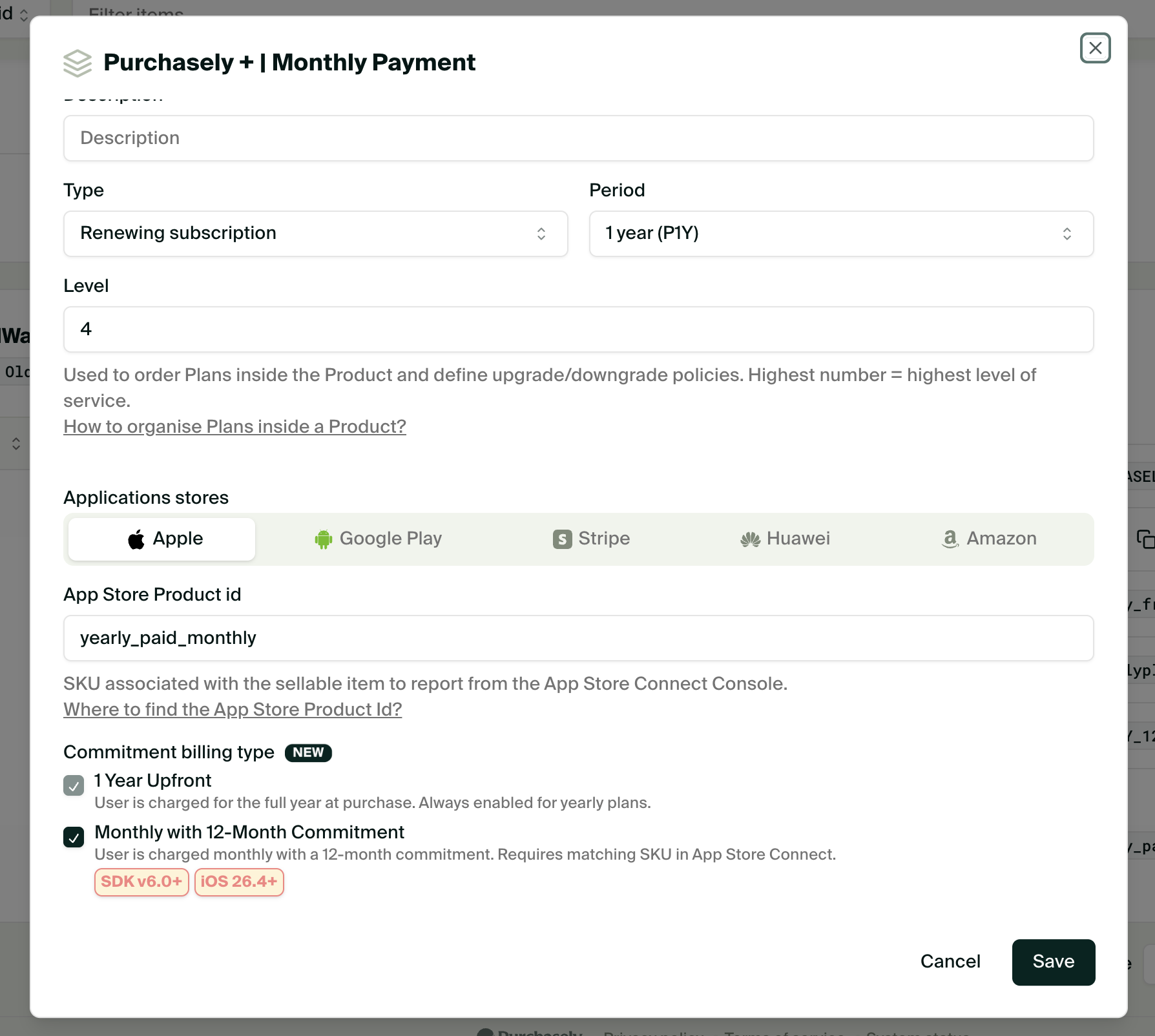
Enable Monthly with 12-Month Commitment for your Yearly plan
- 1 Year Upfront is always enabled for yearly plans and cannot be unchecked.
- Monthly with 12-Month Commitment requires the matching billing plan to be enabled on the same SKU in App Store Connect.
Disabling the option afterwardsIf you uncheck Monthly with 12-Month Commitment while some screens still use it, those screens automatically fall back to the 1 Year Upfront billing plan. No app update is needed.
Configuring your Screen
Once enabled on the Plan, the monthly commitment can be selected per offering in the Screen Composer:
- Open your Screen and go to the Offering tab
- Select the Plan for your offering
- A Commitment billing type field appears: select Monthly with 12-Month Commitment
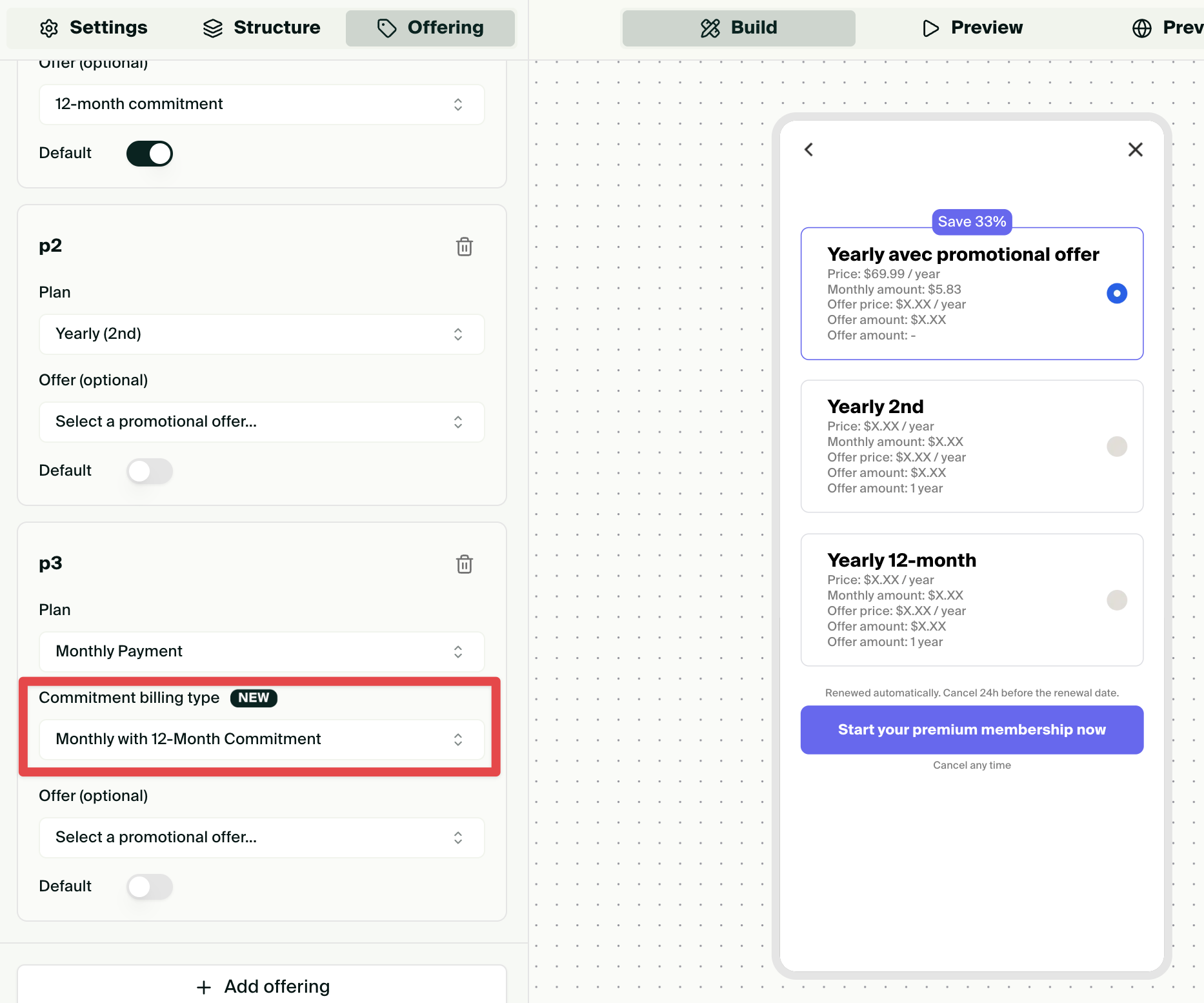
Select the billing type Monthly for your offering in your Screen
The Offer dropdown depends on the selected billing type: promotional offers are scoped to a billing plan, so changing the Commitment billing type resets the selected offer. Make sure your promotional offers are associated with the right billing plan when you create them.
Plan usage restrictionsOn a screen, the same plan can only be used once. This means you cannot have a 1 Year Upfront offering and a Monthly with 12-Month Commitment offering using the same plan (App Store product id). To display both billing options side by side on the same paywall, you need to use 2 different plans.
Displaying the right prices with Tags
When an offering uses the Monthly with 12-Month Commitment billing type, the price Tags are automatically interpreted against the commitment:
| Tag | Displays | Example |
|---|---|---|
{{PRICE}} | The total annual commitment price, with its period | $119.88/year |
{{AMOUNT}} | The total annual commitment amount, without period | $119.88 |
{{MONTHLY_AMOUNT}} | The monthly installment amount | $9.99 |
Example for a plan billed $9.99 every month, i.e. $119.88 over the 12-month commitment.
For offerings using 1 Year Upfront (or any plan without a commitment), the tags keep their usual behavior described in the Tags section.
Apple requirementApple requires you to display both the monthly billing price and the total commitment amount to the customer before they initiate a purchase. Combining
{{MONTHLY_AMOUNT}}and{{PRICE}}(or{{AMOUNT}}) in your offering copy — e.g. "{{MONTHLY_AMOUNT}}/month for 12 months ({{PRICE}} in total)" — covers this requirement by default.
SDK behavior
The billing plan is entirely driven by the Screen configuration: the SDK purchases with the billing plan you selected in the Console, with no code change required.
If your app takes over the purchase flow (Observer mode or a custom purchase action interceptor), you need to know which billing plan the offering is selling to pass the matching purchase option to StoreKit. The action interceptor gives you all the commitment information:
params.billingPlanType(iOS): the billing plan selected on the offering in the Screen Composer (upFront,monthly, orunspecifiedfor a regular plan)plan.commitmentInfo: the billing plans available on the store product, each with its billing price, billing period, total price and number of payments
Purchasely.interceptAction(.purchase) { info, params, completion in
    guard let plan = params?.plan,
          let productId = plan.appleProductId else {
        completion(.notHandled)
        return
    }

    // Billing plan selected on the offering in the Screen Composer:
    // .upFront, .monthly, or .unspecified for a regular plan
    let billingPlanType = params?.billingPlanType ?? .unspecified

    // Billing plans available on the store product (empty below iOS 26.4)
    for commitment in plan.commitmentInfo {
        print("""
        \(commitment.billingPlanType): \
        \(commitment.billingPrice) per \(commitment.billingPeriod), \
        \(commitment.totalPrice) in total over \(commitment.totalDuration) payment(s)
        """)
        // monthly: 9.99 per P1M, 119.88 in total over 12 payment(s)
        // upFront: 119.88 per P1Y, 119.88 in total over 1 payment(s)
    }

    Task {
        do {
            guard let product = try await Product.products(for: [productId]).first else {
                completion(.failed)
                return
            }

            var options: Set<Product.PurchaseOption> = []
            if billingPlanType == .monthly, #available(iOS 26.4, *) {
                options.insert(.billingPlanType(.monthly))
            }

            let result = try await product.purchase(options: options)
            // Process the result with your own purchase infrastructure,
            // then let the SDK synchronize the transaction
            completion(.success)
        } catch {
            completion(.failed)
        }
    }
}
await Purchasely.interceptAction(
PLYPresentationActionKind.purchase,
(info, payload) async {
if (payload is! PLYPurchasePayload) {
return PLYInterceptResult.notHandled;
}
final storeProductId = payload.plan.productId;
// Billing plans available on the store product
// (Apple only, empty below iOS 26.4 and on other platforms)
for (final commitment in payload.plan.commitmentInfo) {
debugPrint('${commitment.billingPlanType}: '
'${commitment.billingPrice} per ${commitment.billingPeriod}, '
'${commitment.totalPrice} in total over ${commitment.totalDuration} payment(s)');
// PLYBillingPlanType.monthly: 9.99 per P1M, 119.88 in total over 12 payment(s)
// PLYBillingPlanType.upFront: 119.88 per P1Y, 119.88 in total over 1 payment(s)
}
final success = await MyPurchaseSystem.purchase(storeProductId);
if (success) {
// SDK auto-synchronizes on success in observer mode
await info.presentation?.close();
return PLYInterceptResult.success;
}
return PLYInterceptResult.failed;
},
);Google Play Store
On Google Play, the same mechanism is called an installment subscription: the subscriber pays a fixed amount every month over a commitment period, and the plan renews automatically at the end of the commitment.
Availability
- Installment subscriptions are only available in a limited set of countries (Brazil, France, Italy and Spain at the time of writing). Refer to Google's documentation for the up-to-date list.
- No code change on your side: an installment base plan is sold through the standard base plan mechanism, like any other Google Play base plan.
- Unlike the App Store, there is no billing type to enable on your Plan or on your Screen. The commitment terms live in the Google Play Console, and the installment base plan gets its own Plan in the Purchasely Console.
How it works
Google Play does not attach the commitment to the subscription product: it is a separate base plan of that product, of type Installments. A yearly subscription product can therefore carry two base plans side by side:
| Base plan type | User is charged | Example |
|---|---|---|
| Auto-renewing (P1Y) | The full price, once a year | $119.88 today |
| Installments (P1M × 12) | Every month, for 12 months | $9.99/month, $119.88/year in total |
With an installment base plan:
- Each monthly payment grants one month of access, and the subscriber commits to the number of payments set in the Play Console (committed payments count).
- If the user cancels during the commitment, the monthly billing continues until the end of the commitment.
- At the end of the commitment, the base plan renews according to its renewal type: Renews with commitment starts a new commitment period, Renews without commitment falls back to a regular monthly subscription.
- The two base plans belong to the same subscription product, so a subscriber can hold only one of them at a time. Moving from one to the other is a plan change handled by Google Play.
Create your installment base plan in the Google Play Console, then declare it in Purchasely as described below.
Configuring your Plan
A Purchasely Plan references exactly one Google Play base plan, so the installment base plan needs its own Plan. You cannot add it to the Plan that already sells the yearly base plan, and the store reference of that Plan is locked as soon as a purchase has been recorded on it.
- Create a new Plan on the same Product, for example
MY_PLAN_INSTALLMENTS - Set its Period to 1 month (P1M), the billing period of the installment base plan
- Give it the same level as the yearly Plan, so your upgrade and downgrade rules stay consistent
- Select the Google Play application store, fill in the Play Store Product id and the Base plan id of your installment base plan
- Turn off the Backwards compatible option on this Plan
Keep the Backwards compatible option offWhen Backwards compatible is enabled, server events and exports report the bare Play Store product id instead of the full
productId:basePlanIdreference. With two base plans on the same product, an installment purchase and a yearly purchase would then be indistinguishable in your webhooks and your analytics.
Configuring your Screen
The yearly base plan and the installment base plan are two distinct Plans, so you can display both on the same Screen, each in its own offering. No commitment setting is involved.
Keep in mind that a Plan is only served on the platform where it has a store product: an offering bound to your Android installment Plan renders an empty price on iOS, where the commitment is carried by the yearly Plan itself. Serve a dedicated Screen per platform, for example with an Audience targeting the user platform.
Displaying the right prices with Tags
Purchasely reads the installment base plan as a monthly plan: the store reports the monthly charge and a monthly billing period. The commitment itself is not part of the price the SDK receives, so the Tags behave as they do for any monthly plan:
| Tag | Displays | Example |
|---|---|---|
{{PRICE}} | The monthly charge, with its period | $9.99/month |
{{AMOUNT}} | The monthly charge, without period | $9.99 |
{{MONTHLY_AMOUNT}} | The monthly charge | $9.99 |
{{YEARLY_AMOUNT}} | The monthly charge over a year, i.e. the total of a 12-payment commitment | $119.88 |
Write the commitment wording yourselfOn Google Play the commitment duration is not carried by the price, so no tag renders it. State it in your offering copy, for example "{{MONTHLY_AMOUNT}}/month for 12 months ({{YEARLY_AMOUNT}} in total)".
{{YEARLY_AMOUNT}}only matches the total commitment when the commitment lasts 12 monthly payments.
Server events
Each monthly installment billed to a committed App Store subscriber generates an INSTALLMENT_PAID webhook event (12 per year for a committed subscription). Refunding a past installment generates INSTALLMENT_REFUNDED instead, without closing the subscription or ending the commitment. Events for a committed subscription also carry dedicated commitment_* attributes (installment number, commitment expiration date, auto-renewal status, and more). See Lifecycle Events and Server Events Attributes for details.
Google Play installmentsCommitment events and attributes are currently fed by the App Store only. An installment subscription bought on Google Play is tracked as a regular monthly subscription: every monthly charge is reported as a subscription renewal, and no
INSTALLMENT_PAIDevent norcommitment_*attribute is sent.
Updated about 1 month ago