

Setup 3 · Verify your mobile app
Make sure your app can receive web subscribers: SDK version, custom URL scheme, app icon and favicon.
A Web2App Funnel ends in your app: the visitor pays on the web, opens the app, and the subscription is activated there. This third setup section checks that your app is ready for that handover. It takes about fifteen minutes and, unlike the previous sections, may require a new release of your app.
Open Web2App → Setup, section 3. Verify your mobile app setup: https://console.purchasely.io/web2app?tab=setup.
| Step | Required | Needs an app release? |
|---|---|---|
| 3.1 SDK version | Yes | Only if your app runs an SDK older than 6.1 |
| 3.2 App scheme | Yes | Only if your app does not declare a custom URL scheme yet |
| 3.3 App icon & favicon | Optional | No |
3.1 SDK version
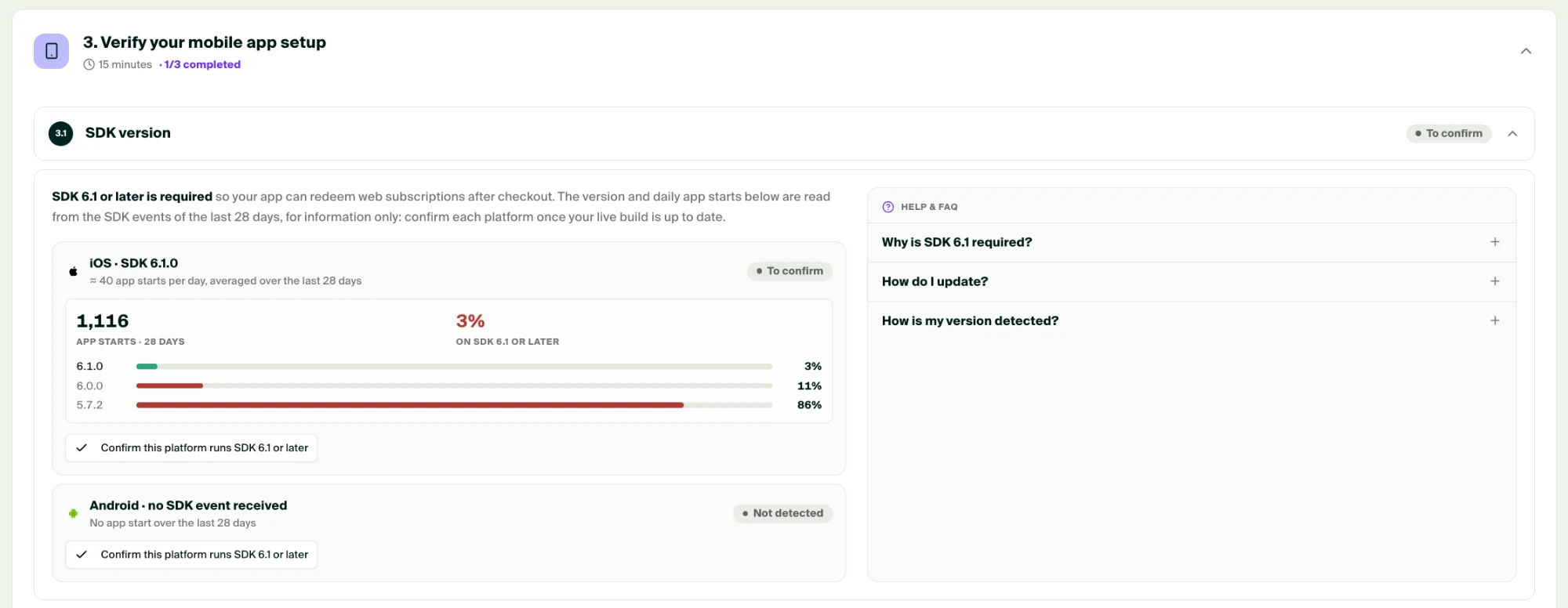
Activating a web subscription in the app relies on the Purchasely SDK: it intercepts the redemption link, calls Purchasely, refreshes the user's entitlements and confirms the activation to the user. This logic ships with SDK 6.1. Users running an older version of your app can still pay on the web, but cannot activate the subscription in the app.
| Requirement | Minimum SDK |
|---|---|
| Activate a web subscription in the app | 6.1 |
Trigger a Campaign on the REDEMPTION_CONSUMED event | 6.2 |
The step shows, for each platform, the SDK versions detected in the events received from your app over the last 28 days, with the average number of app starts per day and the share of each version. A platform with no event over the period shows Not detected.
- If needed, update the Purchasely SDK to 6.1 or later and ship a new build: iOS, Android, React Native, Flutter, Cordova.
- Once the new version is live on the stores, click Confirm this platform runs SDK 6.1 or later for each platform. The step is complete when every platform has been confirmed.
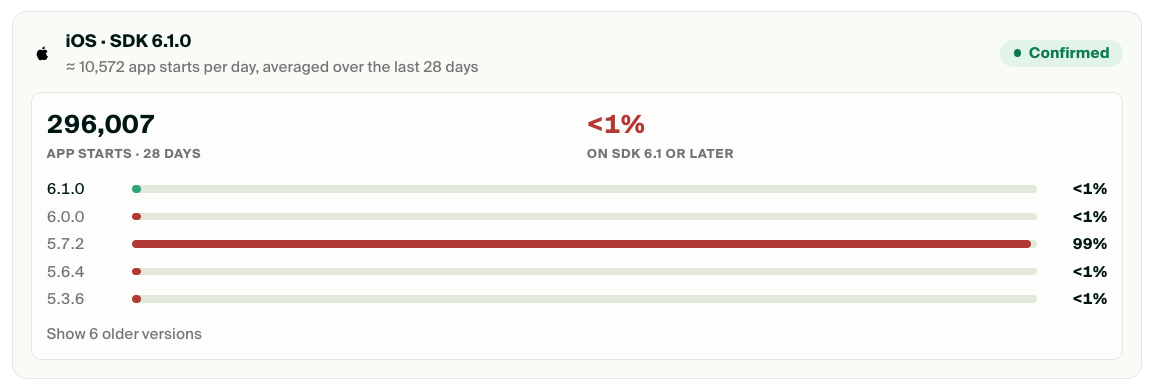
You do not need to wait for the rollout to reach a majority of your usersThe version breakdown is informative only. What matters is that a user who installs or updates your app today gets a build with SDK 6.1 or later, since web subscribers open the app right after paying. Before you confirm a platform, check three things:
- the build with SDK 6.1+ is the current version on the store,
- its phased or staged rollout is at 100% on the App Store and on Google Play, so every new install receives it,
- both iOS and Android are up to date: you cannot know which device a visitor will use when they subscribe on the web.
No code beyond deeplinksThe SDK handles the whole activation on its own. The only integration point is the one your app already has for deeplinks: the URL that opens the app must reach the SDK, including at initialization when the app is launched by the link. See SDK initialization and Deeplinks management. Optional hooks, to display a tailored welcome experience or react to the activation, are described in SDK integration.
3.2 Configure your app scheme
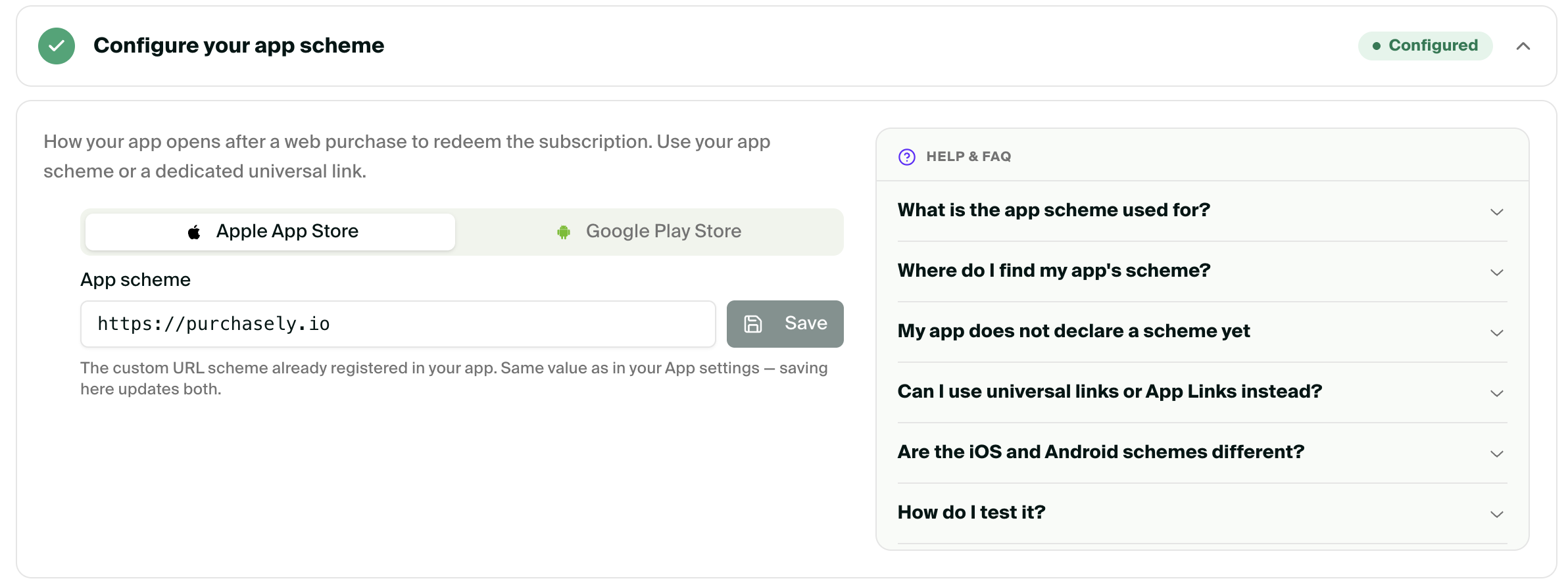
After the payment, the success screen and the receipt email open your app through a custom URL scheme, for example yourapp. The scheme tells the phone which app to open. Purchasely builds the link; you declare the scheme in your app and in the Console.
In the Console
- In step 3.2, select the Apple tab and enter your iOS scheme, for example
yourapp. - Select the Google tab and enter your Android scheme. It is usually the same.
- Save each tab. The scheme is shared with App settings → Stores, where you can also edit it.
Purchasely picks the iOS or Android scheme according to the device that opens the redemption link.
In your app
Your app must declare the same scheme. If it already handles Purchasely deeplinks, nothing changes.
- iOS: declare the scheme under URL Types in the target's Info tab (
CFBundleURLTypesinInfo.plist). See Apple's guide on custom URL schemes. - Android: add an
<intent-filter>with your scheme on the activity that starts the app. See Android's guide on deep links. - Make sure the URL received by the app is passed to the Purchasely SDK, at initialization and while the app runs, as described in Deeplinks management and SDK integration.
Custom schemes onlyRedemption links use a custom URL scheme. Universal links (iOS) and App Links (Android) are not supported yet for redemption.
How do I test it?
Open the sandbox URL of a Web Flow on your phone, pay with a Stripe test card, then tap the button on the success screen. Your app must open and confirm the activation. The Test and go live page walks through the full check.
3.3 App icon & favicon
Your funnels display your app's identity at several places: the browser tab and bookmarks, the success screen that sends the visitor to the app, the download prompts and the receipt email. This step controls the two images used there.
| Image | Where it appears | Requirements |
|---|---|---|
| App icon | Success screen, download prompts, receipt email | Square PNG or SVG, at least 512×512 px. By default, the icon set in App settings → General. |
| Favicon | Browser tab and bookmarks of your funnels | Square PNG or SVG, at least 48×48 px. |
Upload a dedicated image if you want your funnels to use a different visual than your app. Purchasely generates every size it needs from the file you upload.
Troubleshooting
| Problem | Cause and solution |
|---|---|
| The step shows Not detected for a platform. | Your app has not sent events for that platform in the last 28 days. Check the SDK initialization, or ignore the platform if you do not ship on it. |
| The success screen does nothing when tapped on my phone. | The scheme in the Console does not match the one declared in the app, or the app installed on the phone does not declare it yet. Compare both, then reinstall the build that declares the scheme. |
| The app opens but the subscription is not activated. | The URL is not forwarded to the Purchasely SDK, or the SDK is older than 6.1. See SDK integration. |
| The favicon does not update in my browser. | Browsers cache favicons aggressively. Open the funnel in a private window. |
Updated about 1 month ago
What’s Next
Next, forward your funnel events to Meta, Google Ads, TikTok and X.