

Custom Events
Declare your own business events in the Console, send them from your app or from a Screen, trigger campaigns with them and measure them as KPIs.
AvailabilityCustom Events are available from version 6.2.0 of the Purchasely SDK on iOS, Android, React Native, Flutter and Cordova. An older SDK sends no Custom Event and ignores the campaigns and the Screen actions that use them.
A Custom Event is a business event of your app, for example ARTICLE_READ, ARTICLE_SHARED or CHECKOUT_STARTED. With Custom Events, you can:
- Trigger a campaign when the event fires, and filter on the properties of the event.
- Send the event from a Screen with the Track event action, without app code.
- Measure the event as the primary KPI of an experiment.
This page uses one example from start to end: a news app sends ARTICLE_READ when the user reads an article, and ARTICLE_SHARED when the user shares it.
1. Declare the event properties
A property is a value that an event sends, for example the id of the article. You declare a property once for the app. Then you link it to each event that sends it. Two events can use the same property.
Open Targeting > Events in the Purchasely Console and select the Properties tab.
-
Type the name of the property.
-
Select its type:
string,int,float,bool,dateorarray of strings. -
Click Add.
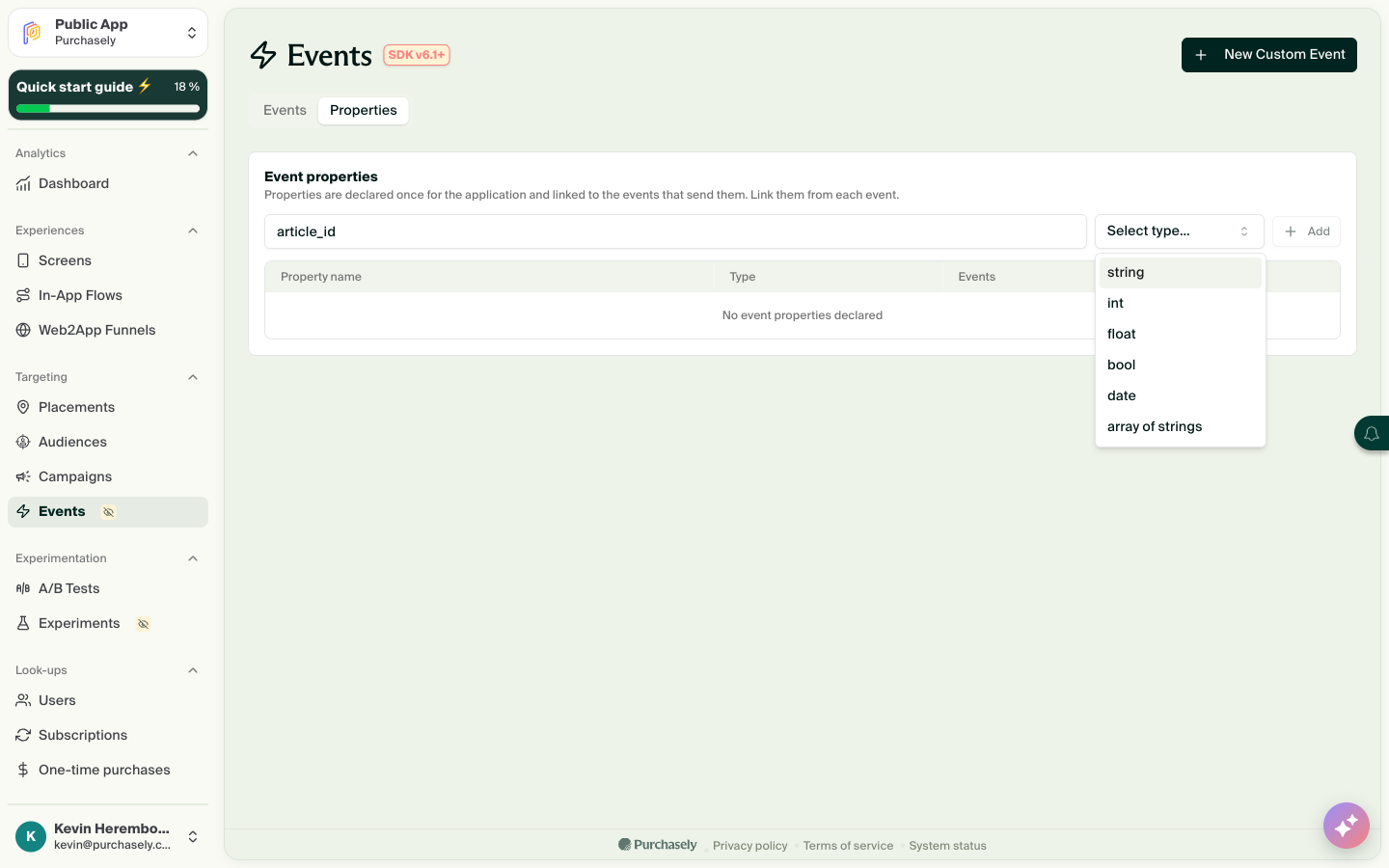
The Properties tab, with the list of property types
The Events column shows the events that use each property. In this example, category is shared by ARTICLE_READ and ARTICLE_SHARED.
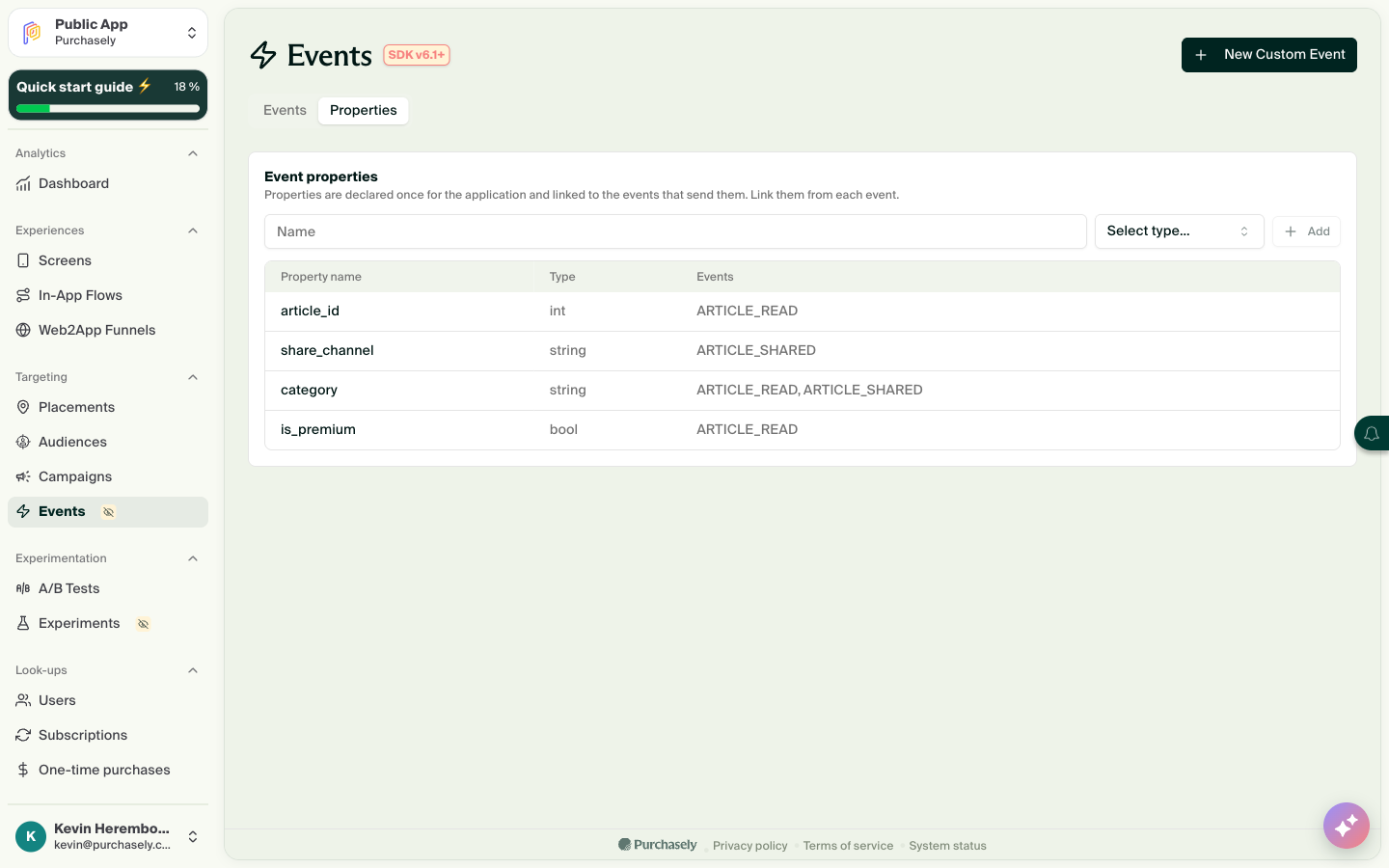
The Properties tab: category is linked to two events
A change to a property applies to every eventA property is shared by all the events of the app. When you rename, retype or delete a property in the Properties tab, the change applies to every event that uses it.
2. Create the event
In Targeting > Events, click New Custom Event.
-
Type the Name of the event. Use the exact name that your app sends. The SDK compares names exactly, case and spaces included:
ARTICLE_READandarticle_readare two different events. -
Optionally, click the color button to select the color of the event in the Console, and add Tags to sort your events.
-
In Event properties, select Link an existing property... to add a property that you declared before.
-
Click Create.
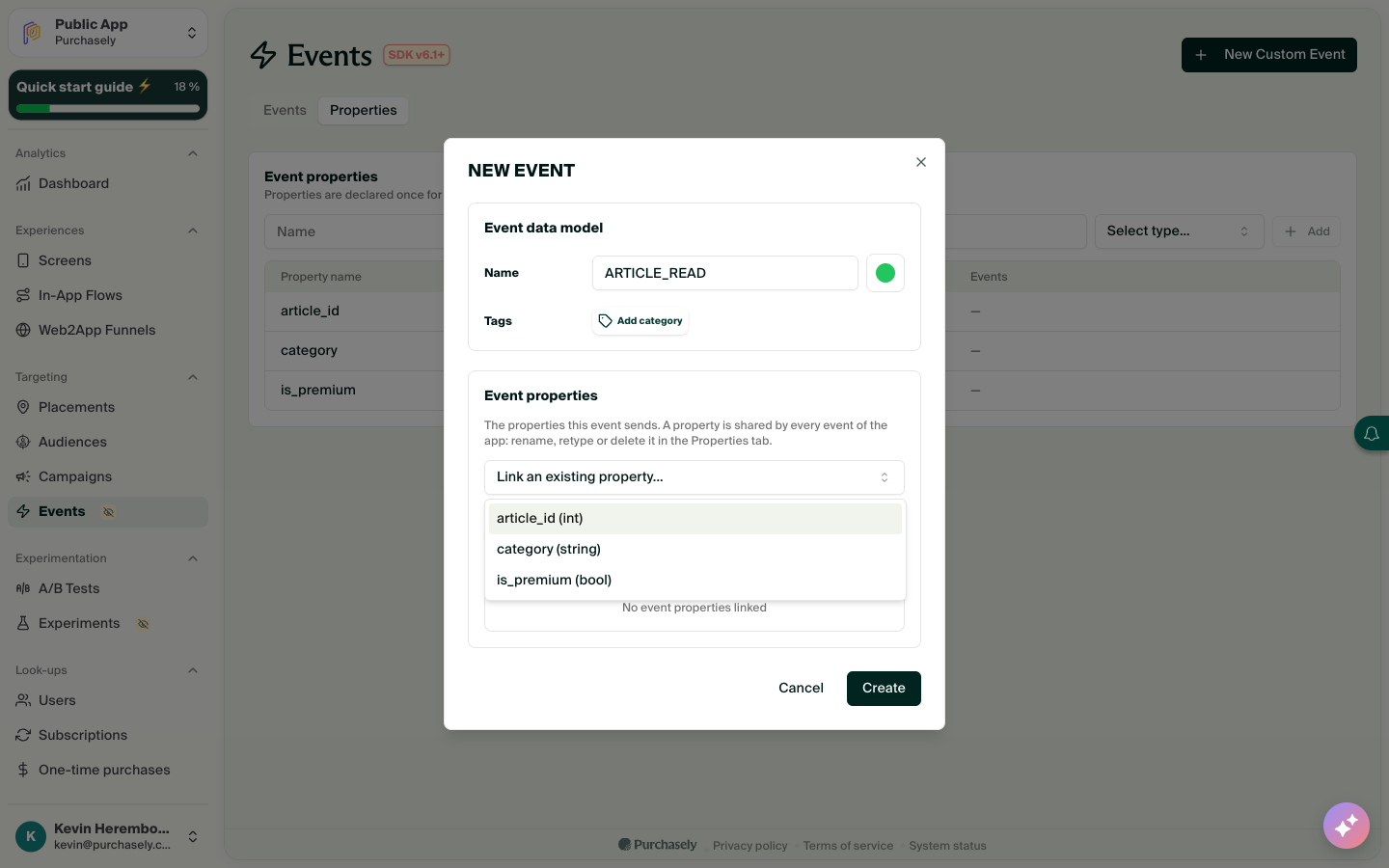
Link an existing property to the event
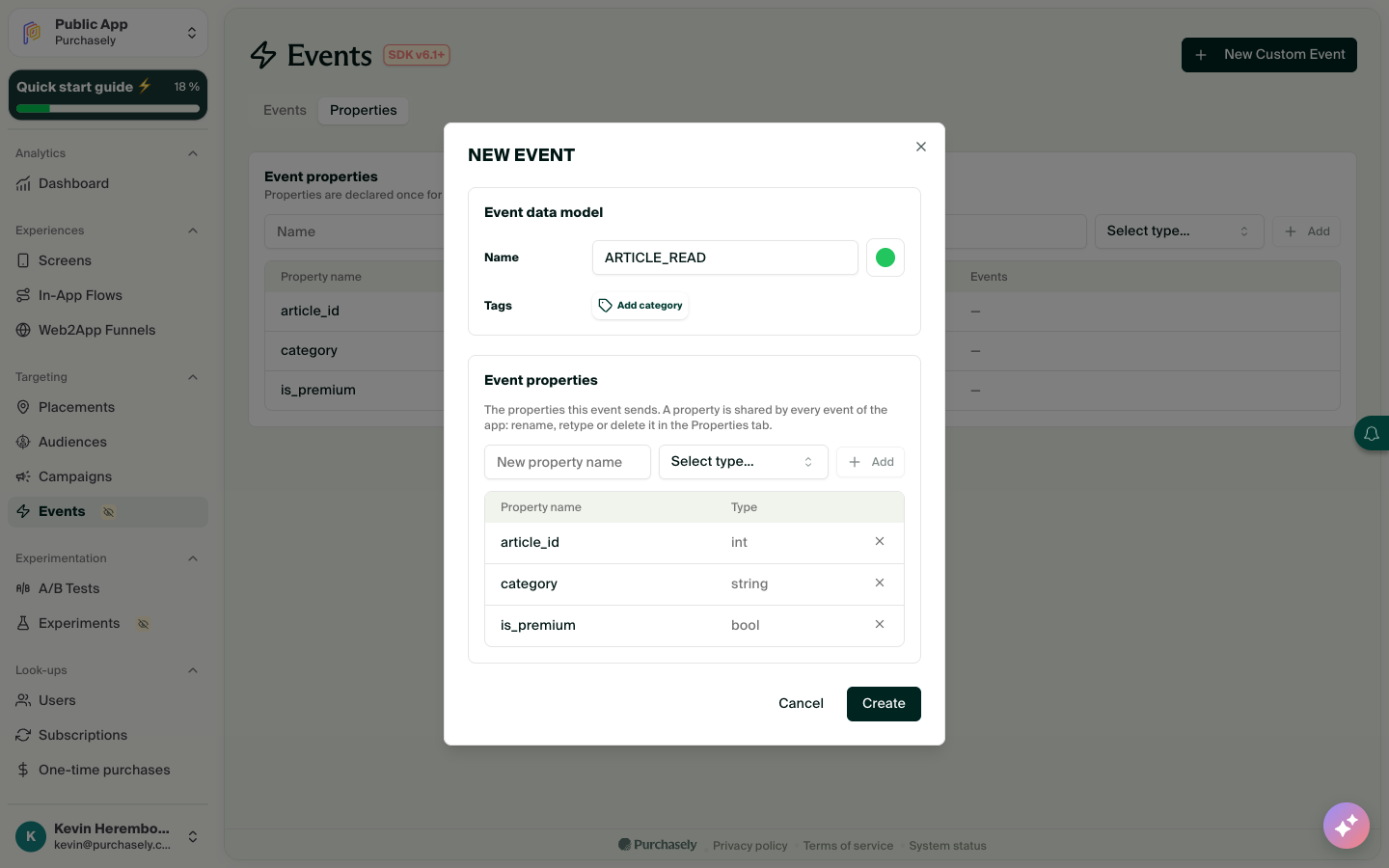
The ARTICLE_READ event with three linked properties
You can also create a new property directly in the event dialog: type its name, select its type and click Add. The Console marks it new, and adds it to the Properties tab when you save the event. In this example, ARTICLE_SHARED reuses category and creates share_channel.
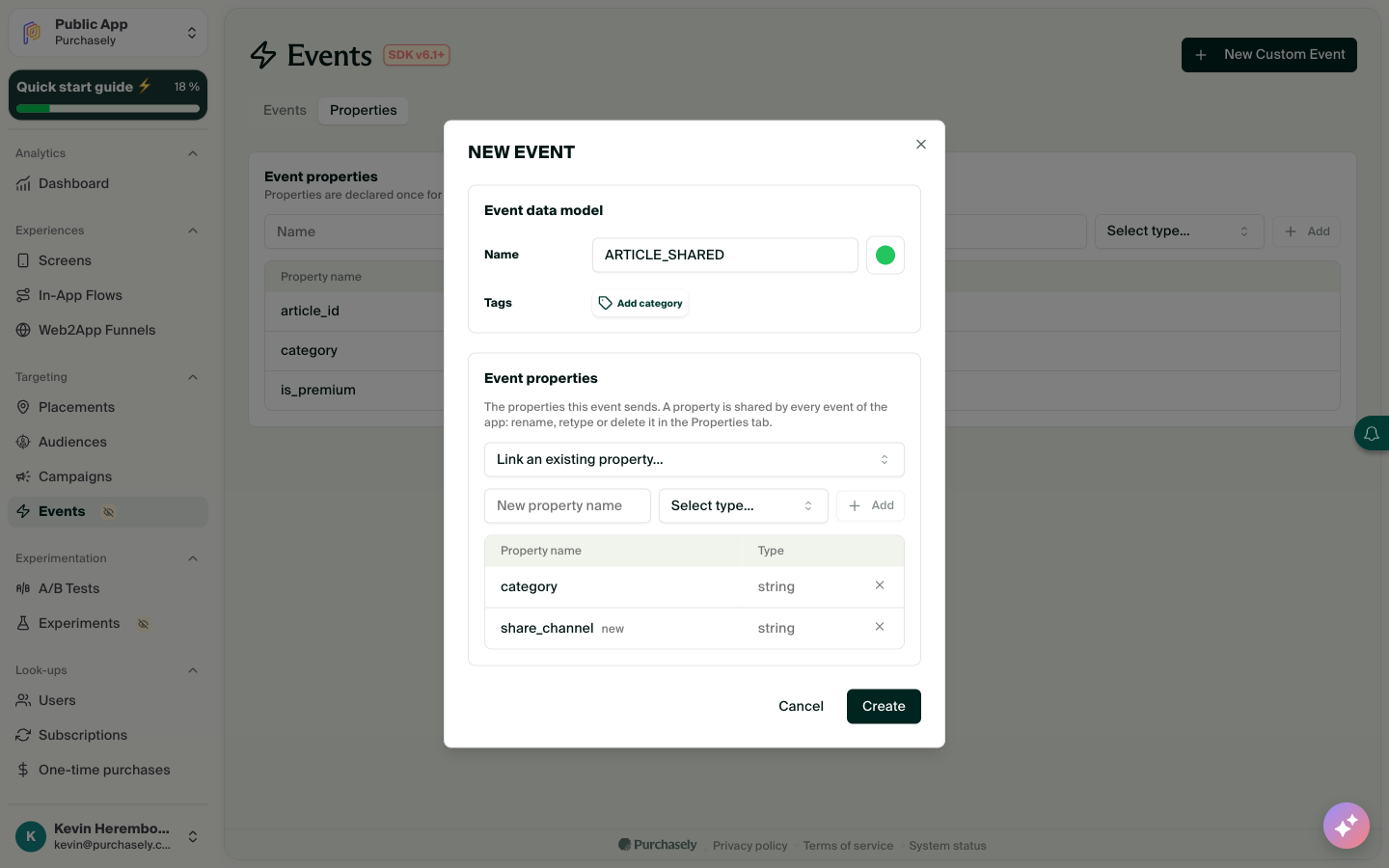
ARTICLE_SHARED reuses category and creates share_channel
The Events tab shows one card for each event.
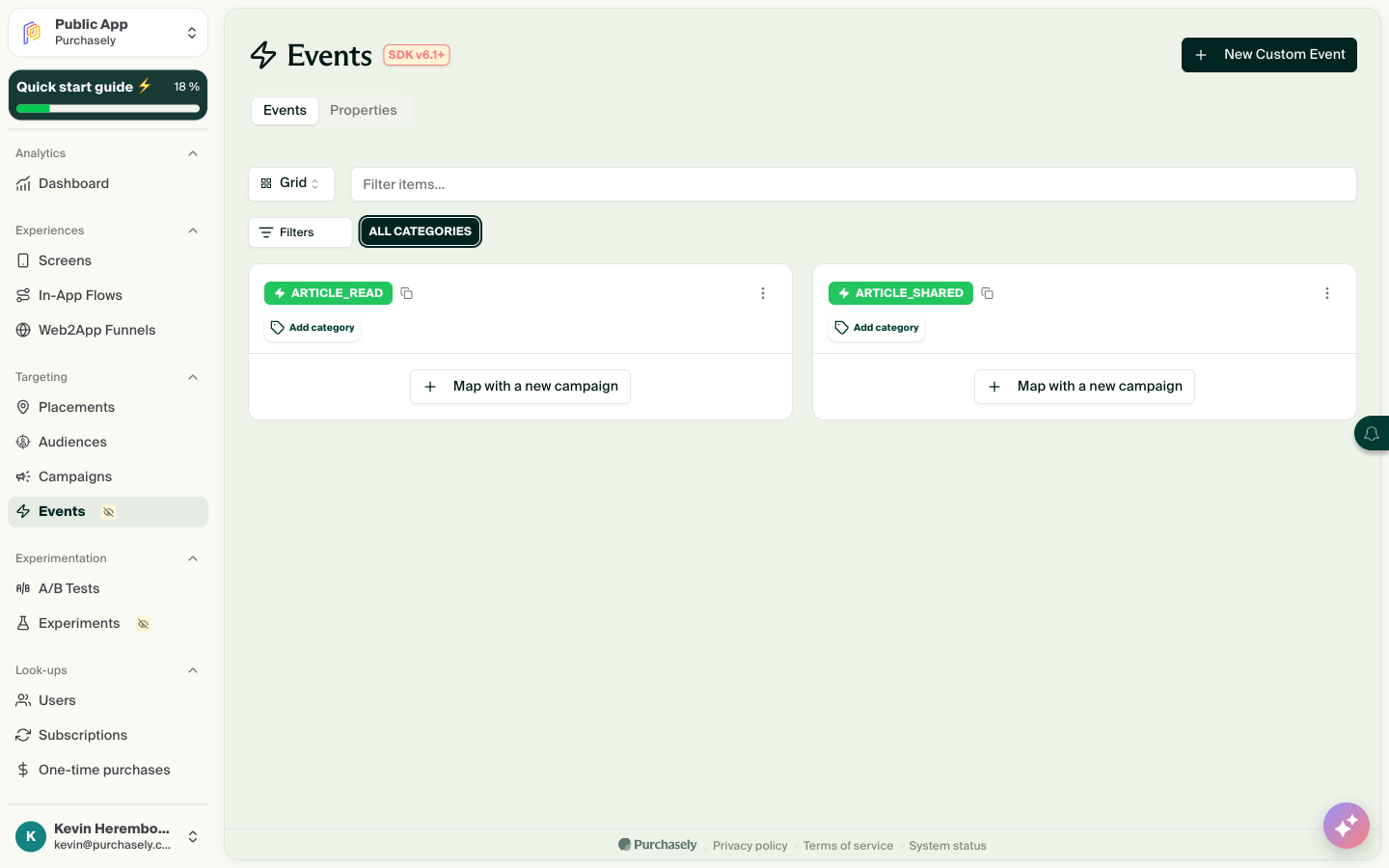
The Events tab with the ARTICLE_READ and ARTICLE_SHARED cards
Only declared events are sentThe SDK sends only the event names that are declared in the Console. It ignores an event that is not declared, without an error. A typo in the name in your app code makes the event silent.
3. Send the event from your app
Call emit when the action occurs in your app. Send the properties that you declared for the event:
Purchasely.emit(name: "ARTICLE_READ", properties: [
    "article_id": 42,
    "category": "sport",
    "is_premium": true
])
[Purchasely emitWithName:@"ARTICLE_READ"
properties:@{@"article_id": @42, @"category": @"sport", @"is_premium": @YES}];Purchasely.emit("ARTICLE_READ", mapOf(
"article_id" to 42,
"category" to "sport",
"is_premium" to true
))Map<String, Object> properties = new HashMap<>();
properties.put("article_id", 42);
properties.put("category", "sport");
properties.put("is_premium", true);
Purchasely.emit("ARTICLE_READ", properties);Purchasely.emit('ARTICLE_READ', {
article_id: 42,
category: 'sport',
is_premium: true,
});await Purchasely.emit('ARTICLE_READ', {
'article_id': 42,
'category': 'sport',
'is_premium': true,
});Purchasely.emit('ARTICLE_READ', {
article_id: 42,
category: 'sport',
is_premium: true
});The native call returns immediately and never throws. You can call emit before start().
On Cordova, you can give a success callback and an error callback as the third and fourth arguments. Both are optional.
Properties
- The name and the property keys are sent as given: no case change and no trim.
- Supported types are numbers, booleans, strings, dates and lists of strings. On Android:
Int,Long,Float,Double,Boolean,String,Dateand a list ofString. - Dates are sent as ISO 8601 strings. On React Native, Flutter and Cordova, pass a date as an ISO 8601 string. On Flutter, a
DateTimeor any value that the platform channel cannot encode makes the call fail. - On React Native, Flutter and Cordova, the bridge checks no property type. The backend casts each value to the type that you declare in the Console.
- On iOS and Android, the SDK drops a value that it cannot send, such as
NaNor a custom object, and logs a warning. It sends the rest of the event normally. This does not apply to Flutter: see the previous bullets.
What the event carries
Each event carries your custom user attributes and the built-in attributes, as they were at the moment of the call.
Consent
When the user refuses the analytics data processing purpose, the SDK sends no new Custom Events.
Separate from the SDK events
Custom Events have their own queue and their own retries. They never reach your PLYEventDelegate (iOS), your EventListener (Android) or the event listener of your React Native, Flutter or Cordova app. The UI/SDK events of Purchasely keep their content and their delivery.
Android: exhaustivewhenonPLYEvent
PLYEventhas a new internal subclass for Custom Events. If your Kotlin code useswhen (event)onPLYEventwithout anelsebranch, add anelsebranch.
4. Trigger a campaign with the event
There are two ways to start:
- On the card of the event, in Targeting > Events, click Map with a new campaign. The Console opens a new campaign with the event already selected as the trigger.
- In a campaign, turn on the When section and select the event in Trigger.
The Trigger list contains APP_STARTED, the SDK events that can be triggers, and your Custom Events. You can select more than one event: the campaign starts when one of them fires.
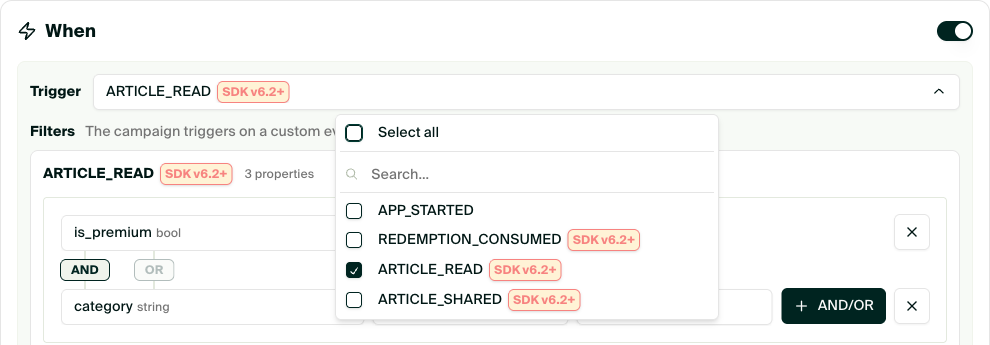
The Trigger list of a campaign, with ARTICLE_READ selected
Filter on the properties
Under Filters, click Filter on properties to start the campaign only when the properties of the event match. Each condition has a Property, an Operation and, for most operations, a value.
- Click AND/OR to add a condition to the group, then select AND or OR between the conditions.
- Click Add condition group to add a group of conditions.
In this example, the campaign starts when the user reads a premium article of the sport category:
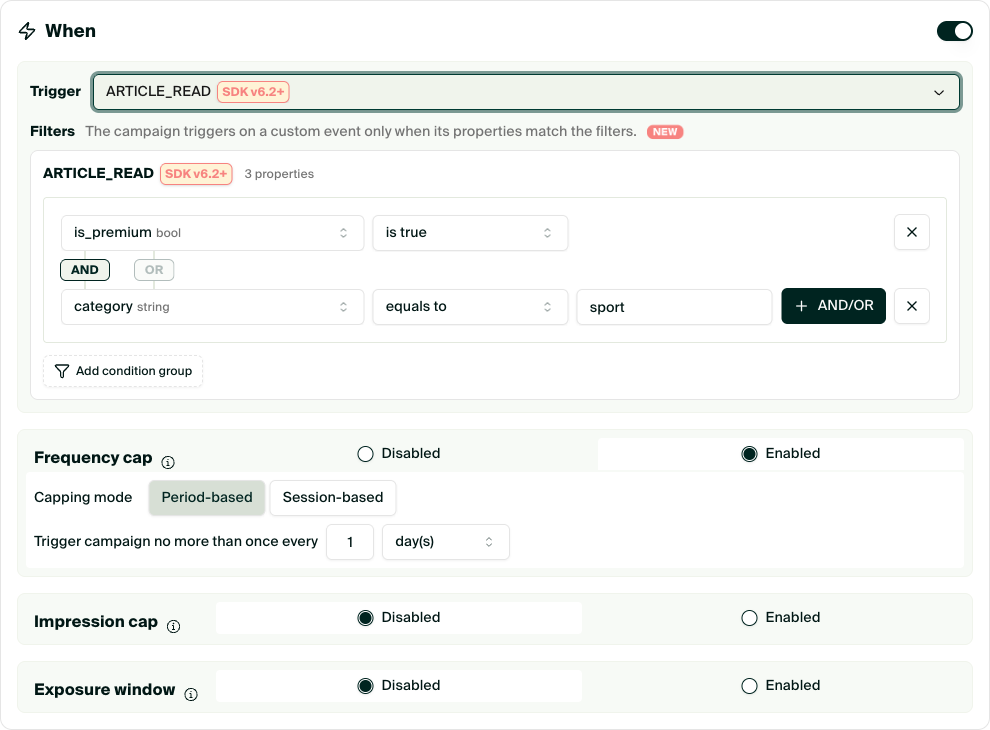
Filters: is_premium is true AND category equals to sport
The operations depend on the type of the property:
| Type | Operations |
|---|---|
string | equals to, is different from, contains, starts with, ends with, is one of |
int | equals to, is different from, is greater than, is greater than or equal to, is less than, is less than or equal to, is between |
bool | is true, is false, is true or not set, is false or not set |
Rules of the trigger
The same rules as for an APP_STARTED trigger apply:
- The start and end dates of the campaign
- The frequency cap, the impression cap and the exposure window
- The
campaignsdata processing purpose allowCampaigns: when it isfalse, the SDK keeps the campaign until your app sets it totrueagain
A Custom Event never opens the campaigns of a Purchasely event that has the same name.
5. Send the event from a Screen
The Track event action of the Screen Composer sends one of your Custom Events when the user taps a component. You do not need app code for this action.
- In the Screen Composer, select the component, for example a button.
- In On tap > Action, select Track event.
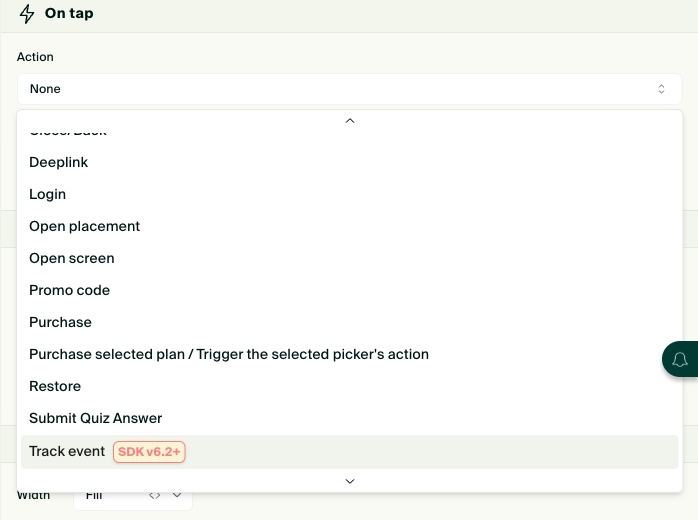
The Track event action in the Action list
- In Custom event, select the event.
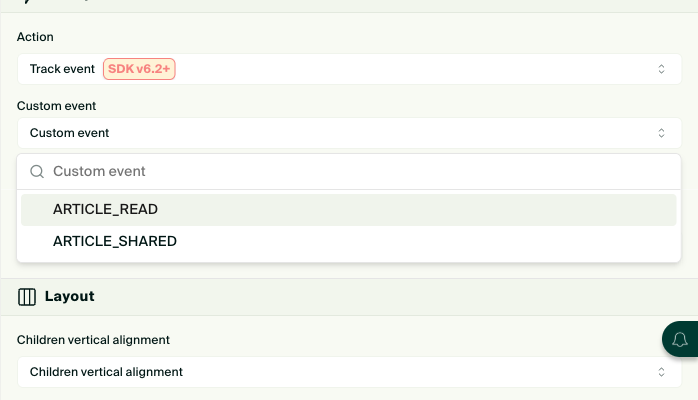
Select the custom event of the Track event action
- Optionally, select a Second action, for example Close/Back.
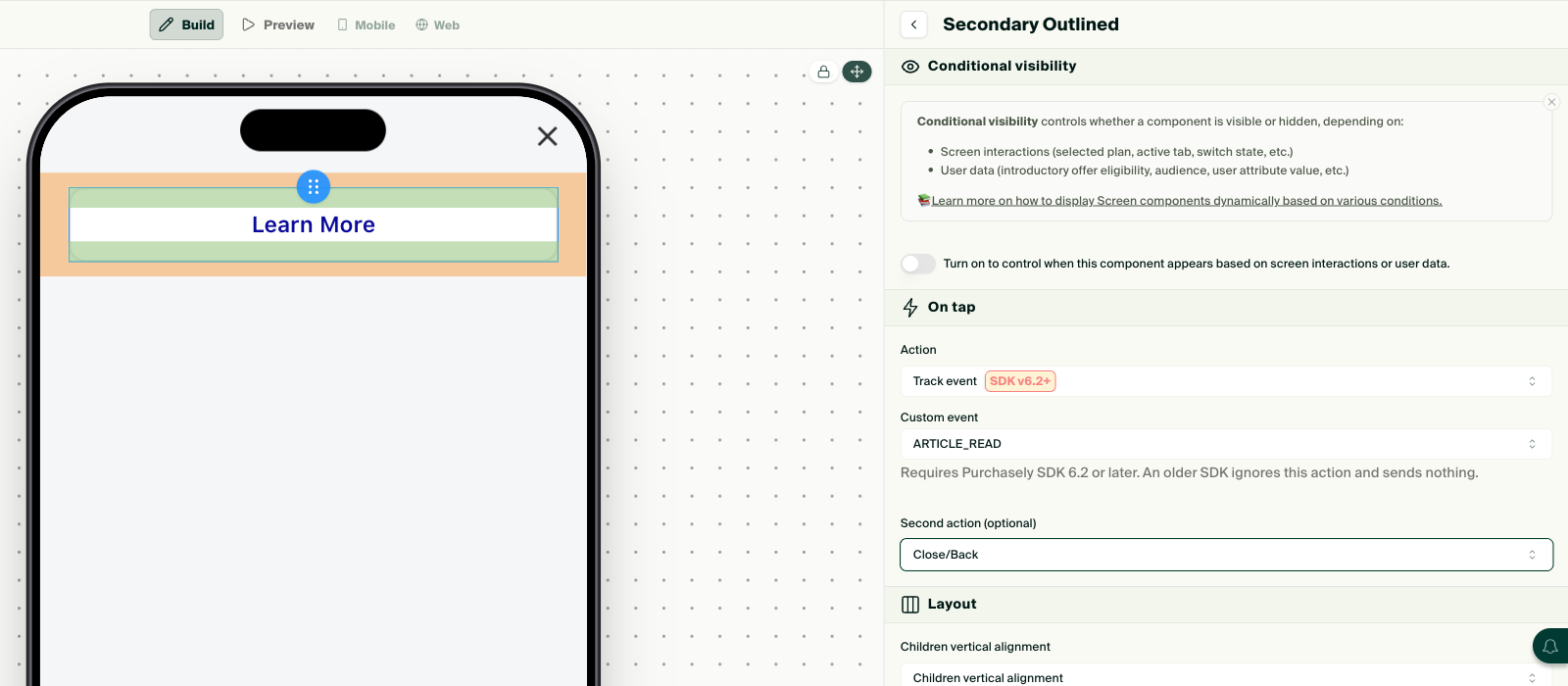
A Learn More button that sends ARTICLE_READ and then closes the Screen
The event carries the context of the Screen: presentation, placement, audience, A/B test and variant, campaign, and flow and step. You do not set property values in the action.
- Your app cannot intercept this action.
- This action never blocks the actions next to it. A button that tracks an event and then purchases still closes the paywall after the purchase.
- An SDK older than 6.2 ignores this action and sends nothing.
6. Measure the event in an experiment
When you create an experiment, the Primary KPI step lists your Custom Events under Custom Events. Select one to make it the metric that determines the winner. In this example, the experiment measures the number of shared articles.
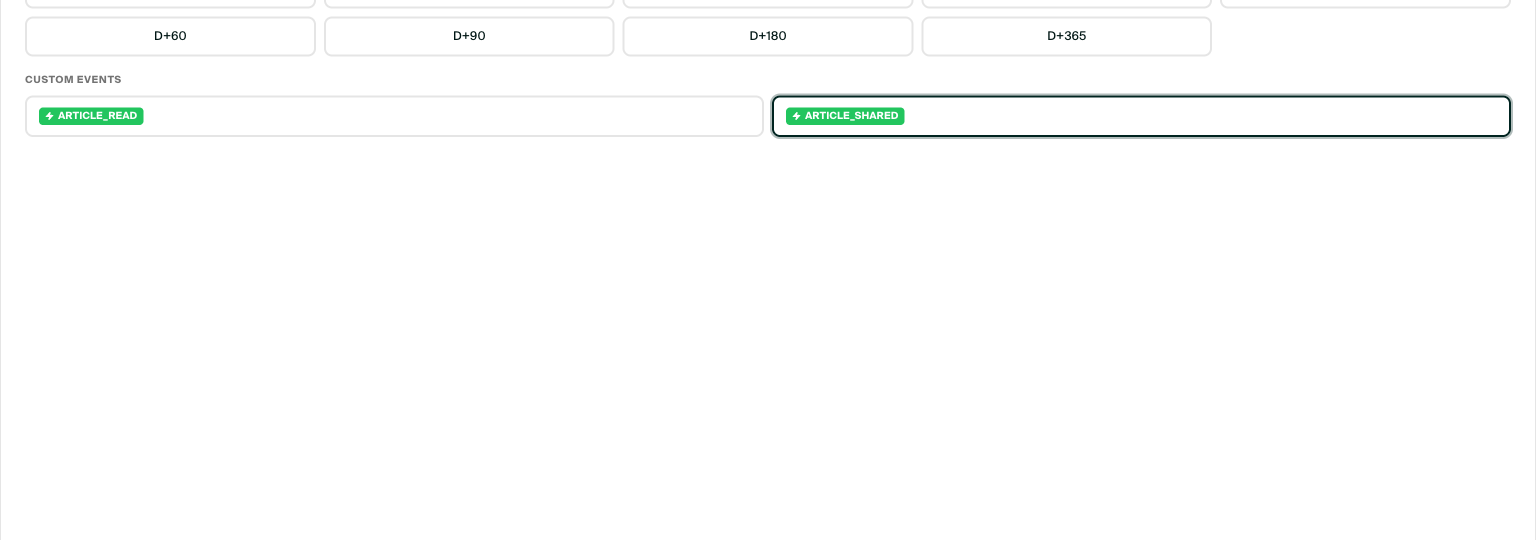
The Primary KPI step of an experiment, with ARTICLE_SHARED selected
A Local experiment can also target your Custom Events in its When section, the same way as a campaign trigger. Refer to Measuring experiment impact for more details.
7. Best practices with more than one analytics tool
Most apps send the same events to more than one tool, for example Google Analytics for Firebase, Amplitude, Piano Analytics and Purchasely. These rules keep the events correct in all the tools.
Send each event from one place
Put all the tracking calls in one class of your app. Your screens call this class, and this class sends the event to each tool. Do not put Purchasely.emit calls directly in your screens.
enum AppEvent {
    static let articleRead = "ARTICLE_READ"
    static let articleShared = "ARTICLE_SHARED"
}

enum Tracker {
    static func track(_ name: String, _ properties: [String: Any] = [:]) {
        // Firebase, Amplitude, Piano: call each SDK here
        Purchasely.emit(name: name, properties: properties)
    }
}

Tracker.track(AppEvent.articleRead, ["article_id": 42, "category": "sport"])
object AppEvent {
const val ARTICLE_READ = "ARTICLE_READ"
const val ARTICLE_SHARED = "ARTICLE_SHARED"
}
object Tracker {
fun track(name: String, properties: Map<String, Any> = emptyMap()) {
// Firebase, Amplitude, Piano: call each SDK here
Purchasely.emit(name, properties)
}
}
Tracker.track(AppEvent.ARTICLE_READ, mapOf("article_id" to 42, "category" to "sport"))With one class, a new tool needs one change only, and no screen forgets a tool.
Use one list of event names
- Keep the event names as constants, as in the previous example. Purchasely ignores an event name that is not declared, without an error, so a typo makes the event silent.
- Select names that all your tools accept. For example, a Firebase event name has a maximum of 40 characters, contains only letters, digits and
_, starts with a letter, and does not start withfirebase_,google_orga_.ARTICLE_READis correct in Firebase and in Purchasely. - If a tool needs a different name, change the name for this tool in the tracking class only. Keep one name in your app code.
Use the same properties in all the tools
- Use the same property keys and the same types in all the tools. In Purchasely, the types must agree with the types that you declare in the Console.
- Send dates as ISO 8601 strings.
- Do not send personal data, such as an email address or a name, in the properties.
Declare in Purchasely only the events that you use
Declare in the Console only the events that you need for a campaign trigger, a trigger filter or an experiment KPI. The tracking class can send all the events to Purchasely: the SDK sends only the declared events and ignores the other events.
Do not send a Purchasely SDK event again with emit. The Trigger list of a campaign already contains the SDK events that can be triggers.
Identify the user in all the tools at the same time
- Call
Purchasely.userLoginandPurchasely.userLogoutat the same time as the login and logout calls of your other tools. Refer to Identifying users. - Set the same user attributes in all the tools.
- Give the ids of the other tools to Purchasely, for example the Firebase app instance id or the Amplitude device id. Purchasely then attaches its server events to the same user in these tools. Each integration page gives the attribute to set.
Apply the same consent to all the tools
Keep one consent choice in your app, and apply it to all the tools. When the user refuses analytics, revoke the analytics purpose in Purchasely with revokeDataProcessingConsent (refer to Privacy settings), and stop the other tools too. Without the analytics purpose, Purchasely sends no Custom Event.
Count each event one time only
The same action can reach your analytics tool by more than one path:
- Your tracking class (your own events)
- The Purchasely UI/SDK events that your event listener sends to your tool
- The Purchasely server events that an integration sends to your tool, for example a purchase or a renewal
For each event, use one path only. For example, if Purchasely sends the purchase server events to Amplitude, do not also send a purchase event to Amplitude from your app.
Know the limit of the Track event action
The Track event action of a Screen sends the event to Purchasely only. Your app receives no signal: the action does not go to your action interceptor or to your event listener. If you also need this event in another tool, send it from your app with your tracking class, not with this action.
Updated 8 days ago