

Setup 2 · Domains, emails & wallets
Serve your funnels from your own subdomain, send emails from your own domain, and enable Apple Pay and Google Pay at checkout.
The second setup section is about the identity of your funnels: the domain they run on, the sender of the emails they trigger, and the wallets your visitors can pay with. It takes about ten minutes, plus the time your DNS provider needs to propagate records.
Open Web2App → Setup, section 2. Configure your domain: https://console.purchasely.io/web2app?tab=setup. The web domain is also available under App settings.
| Step | Required | What it changes |
|---|---|---|
| 2.1 Web domain | Yes, to complete the setup | Funnels run on start.yourapp.com instead of web.purchasely.io |
| 2.2 Email domain | Optional | Emails are sent from [email protected] instead of a Purchasely address |
| 2.3 Apple Pay & Google Pay | Optional | Wallets appear in the Stripe checkout |
Your funnels work without a custom domainEvery Web Flow gets a live URL and a sandbox URL on
web.purchasely.ioas soon as it is created. The custom subdomain and the email domain only replace the Purchasely defaults with your brand.
2.1 Web domain
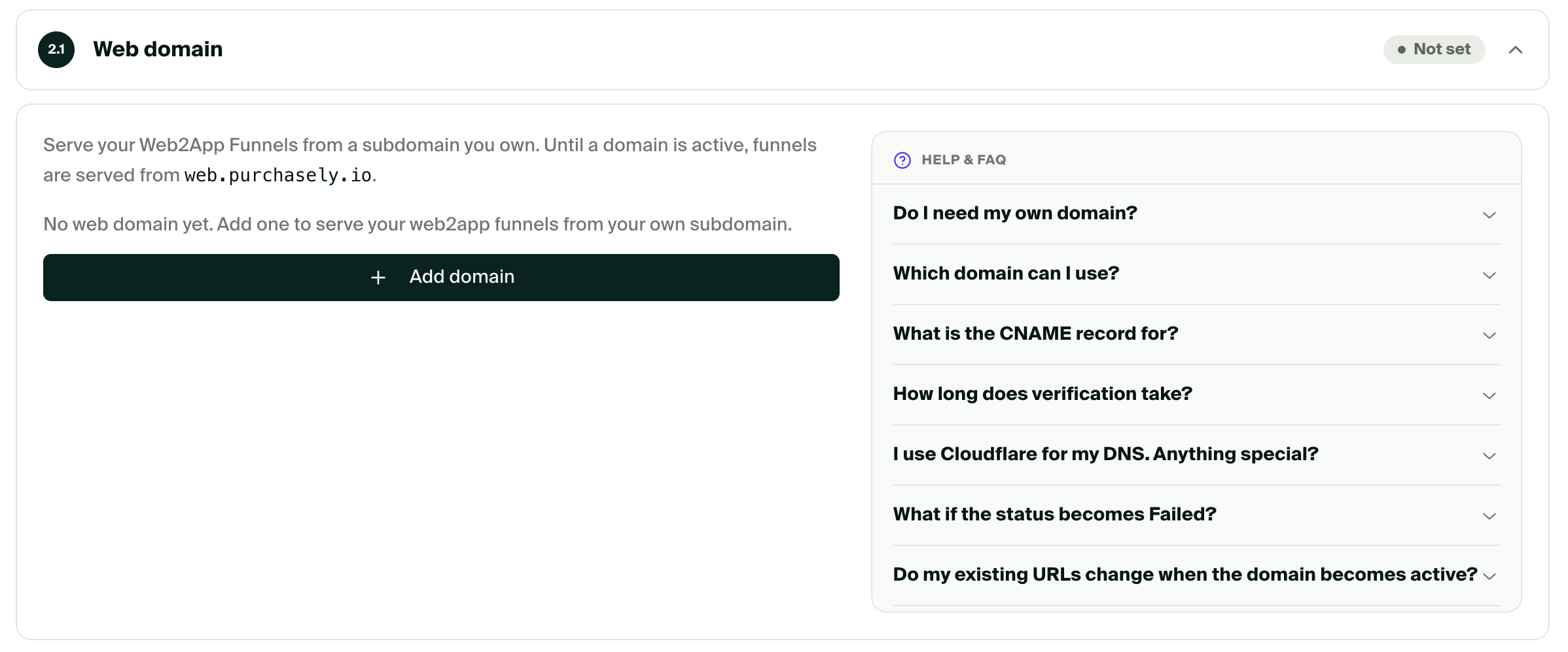
By default, funnels are served from web.purchasely.io. With a custom domain, the visitor sees your brand in the address bar, and the domain matches the one they clicked in your ad.
Choose a subdomain
Use a first-level subdomain of a domain you own, for example start.yourapp.com, go.yourapp.com or join.yourapp.com.
- An apex domain (
yourapp.com) cannot be used: your website already lives there, and Purchasely needs the whole host. - A deeper subdomain (
start.web.yourapp.com) is not supported either. - A subdomain can be attached to one Purchasely app only.
Add the CNAME record
- In step 2.1, enter your subdomain and save. The status switches to Verifying and the record to add is displayed.
- At your DNS provider, create a CNAME record:
| Type | Name | Value |
|---|---|---|
| CNAME | start (or the full name start.yourapp.com, depending on your provider) | web.purchasely.io |
- Wait for propagation. Purchasely re-checks the record every five minutes; click Check now to force a check. Once the record resolves, the SSL certificate is issued automatically and the status becomes Active.
Verification usually completes within 10 to 20 minutes, but DNS propagation can take a few hours. Until the domain is active, your funnels keep working on web.purchasely.io.
Statuses
| Status | Meaning |
|---|---|
| Not set | No subdomain configured. Funnels run on web.purchasely.io. |
| Verifying | Waiting for the CNAME record or for the SSL certificate. Funnels still run on web.purchasely.io. |
| Active | The subdomain serves your funnels with a valid certificate. Your live and sandbox URLs now use it. |
| Failed | The record was not found after seven days. Remove the domain, fix the record and add it again. |
If you use Cloudflare for your DNSLeave the CNAME record DNS only (grey cloud). A proxied record prevents Purchasely from issuing the certificate.
2.2 Email domain
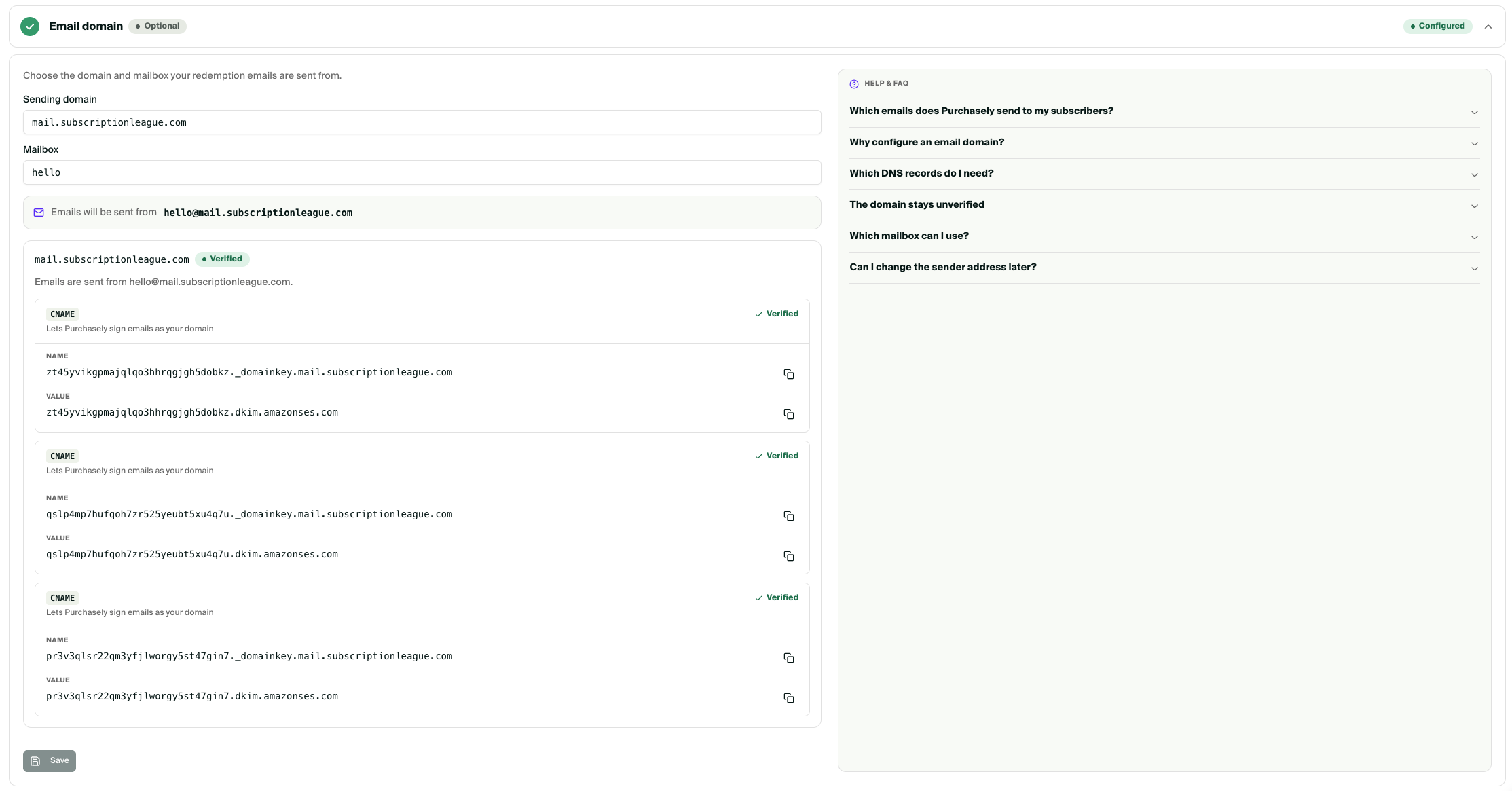
After a purchase, Purchasely emails the customer a receipt containing the link that activates the subscription in your app. By default it comes from [email protected], with your app name as sender. With an email domain, it comes from your brand, for example [email protected], which improves trust and deliverability.
Add the DNS records
- In step 2.2, enter the sending domain, your domain (
yourapp.com) or a subdomain (email.yourapp.com), and the mailbox, for examplewelcome. Save. - Click Verify sending domain. Purchasely shows six DNS records.
- Add them at your DNS provider. Names are shown in full; if your provider appends your domain automatically, enter only the part before it.
| Type | Name | Value | Purpose |
|---|---|---|---|
| CNAME | <token1>._domainkey.email.yourapp.com | <token1>.dkim.amazonses.com | DKIM key used to sign your emails (required) |
| CNAME | <token2>._domainkey.email.yourapp.com | <token2>.dkim.amazonses.com | DKIM key (required) |
| CNAME | <token3>._domainkey.email.yourapp.com | <token3>.dkim.amazonses.com | DKIM key (required) |
| MX | bounce.email.yourapp.com | feedback-smtp.eu-west-1.amazonses.com, priority 10 | MAIL FROM: bounces come back through your domain (recommended) |
| TXT | bounce.email.yourapp.com | v=spf1 include:amazonses.com ~all | MAIL FROM: SPF passes for your domain (recommended) |
| TXT | _dmarc.email.yourapp.com | v=DMARC1; p=none; | DMARC policy (recommended) |
The exact names and values are displayed in the step, with a copy button for each. For the MX record, enter the priority in its own field (Cloudflare and most providers have one). Only the three DKIM records are required: they are enough for your emails to pass DMARC. The MAIL FROM records also make SPF pass for your domain. Gmail and Yahoo require a DMARC record from senders of more than 5,000 emails a day. A domain can have only one DMARC record: if yours already has one, on this name or on your main domain, skip it. The row then shows as verified, and your policy keeps applying. What are DKIM, SPF and DMARC?
- Purchasely re-checks the records every five minutes; click Check now to force a check. The status switches to Verified once the three DKIM records resolve. Verification is attempted for 72 hours; after that, Retry verification generates three new DKIM records (the MAIL FROM and DMARC records do not change).
Until the domain is verified, emails are sent from the Purchasely address. You can change the sending domain or the mailbox at any time: a new mailbox applies right away, a new domain needs its own verification.
2.3 Apple Pay & Google Pay
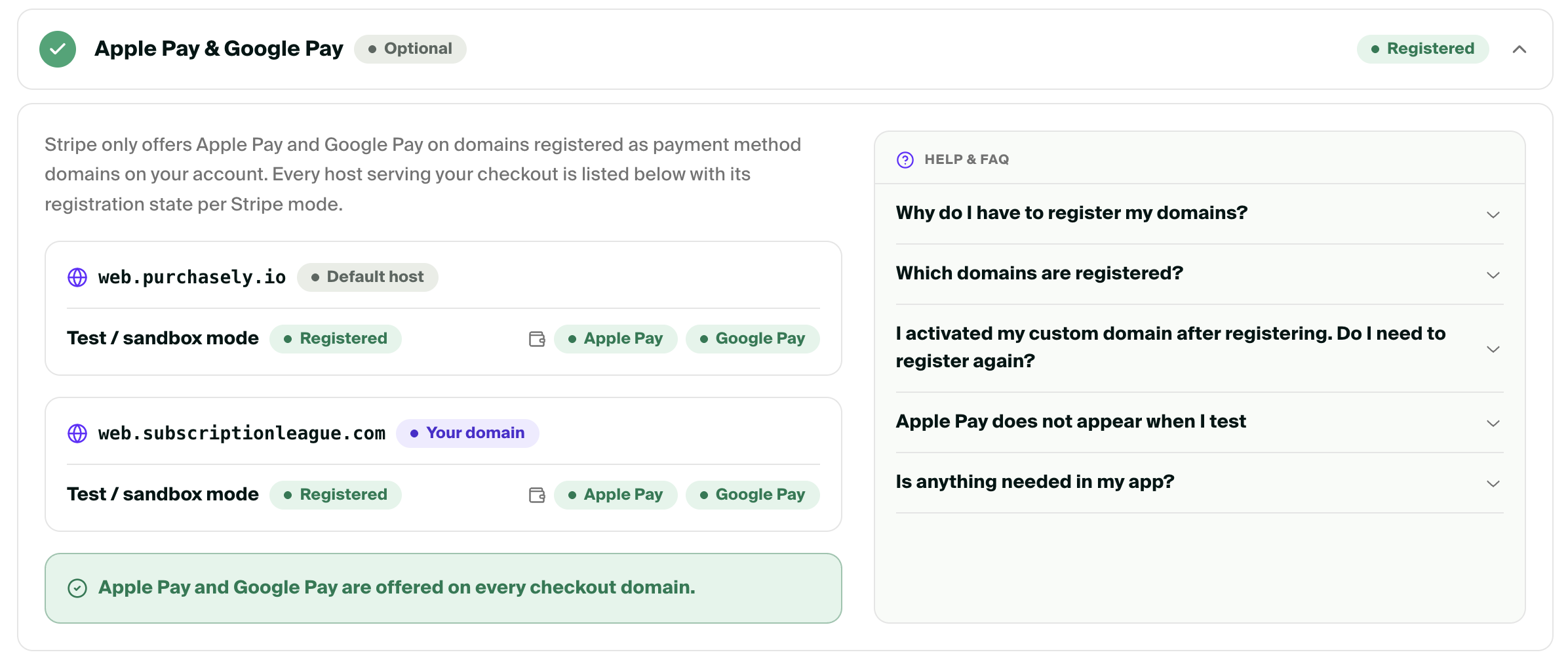
Apple Pay and Google Pay let visitors pay in one tap from their wallet, without typing a card number. Stripe only shows a wallet on a checkout page if the domain hosting the page has been registered on your Stripe account. Purchasely does that registration for you.
Stripe must be connected (step 1.1) before you can register domains.
- Step 2.3 lists every host your checkouts can run on:
web.purchasely.ioand your custom subdomain once it is active, for each connected Stripe mode. - Click Register. Purchasely registers all the hosts, in live and test mode, as payment method domains on your Stripe account.
- Each host shows a status per wallet. Apple Pay and Google Pay appear in your checkouts as soon as the registration is done.
When your custom web domain becomes active, its registration is triggered automatically. Nothing to do in Stripe, and nothing to do in your app.
What the visitor seesApple Pay only appears in Safari on Apple devices, and Google Pay only on browsers where the visitor has a Google Pay wallet. Visitors without a wallet see the regular card form.
Troubleshooting
| Problem | Cause and solution |
|---|---|
| The web domain stays in Verifying for hours. | The CNAME record is missing, points to another value than web.purchasely.io, or is proxied by Cloudflare. Check the record with your provider and click Check now. |
| This domain is not available. | The subdomain is an apex domain, has several levels, or is already attached to another Purchasely app. |
| The email domain stays unverified. | One of the three records is missing or has the wrong name. Some providers add your domain automatically: enter only the part before it. After 72 hours, click Retry verification and add the new records. |
| Apple Pay does not appear in the checkout. | Register the hosts in step 2.3 and test in Safari on an iPhone or a Mac with a card in Wallet. |
The wallets appear on web.purchasely.io but not on my subdomain. | The subdomain was activated after the registration. Click Register again. |
Updated 23 days ago
What’s Next
Next, check your mobile app: SDK version, app scheme, icon and favicon.