

Meta Pixel & Conversions API
Report your funnel events to Meta Events Manager, from the browser and from Purchasely's servers, to optimize Facebook and Instagram campaigns.
The Meta integration sends your funnel events to a dataset in Meta Events Manager. The Meta Pixel reports events from the visitor's browser; the Conversions API reports purchases again from Purchasely's servers, so a conversion is never lost to an ad blocker or an in-app browser. Both are configured from the same screen in the Console.
| Purchasely event | Meta event | Browser | Server |
|---|---|---|---|
| Page View | PageView | Yes | — |
| Screen Viewed | ViewContent | Yes | — |
| Purchase Tapped | InitiateCheckout | Yes | — |
| Purchase | Purchase, with value and currency | Yes | Yes, when an access token is set |
Browser and server copies of a purchase share the same event ID, so Meta deduplicates them and counts one conversion.
One dataset, one ad accountUse a dedicated dataset for your Web2App funnels, connected to a single ad account. Sharing a pixel between several ad accounts, or sending browser and server events to different datasets, creates discrepancies in Events Manager.
1. Create a dataset and get the Pixel ID
Skip this step if you already have a pixel for your website: its Dataset ID is the Pixel ID.
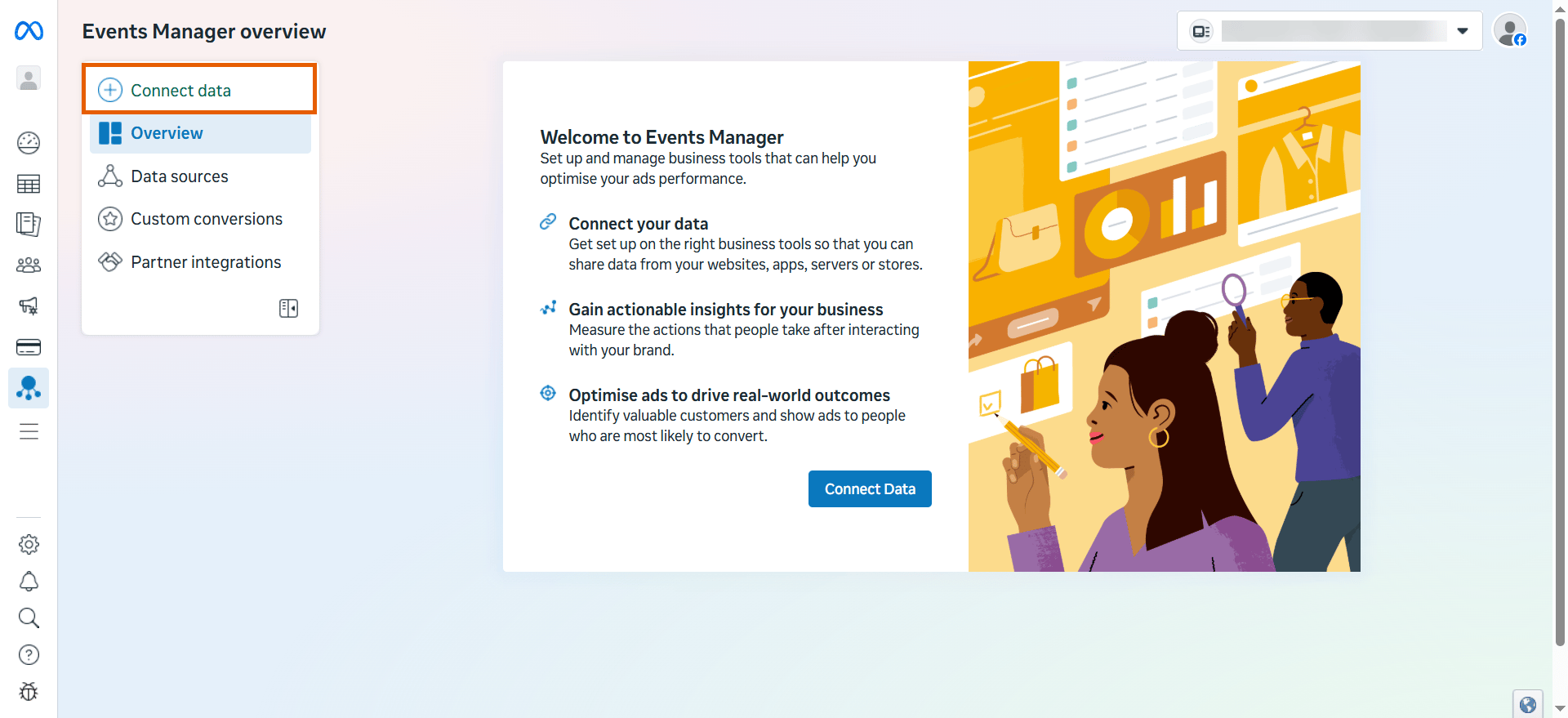
- Open Meta Events Manager and click Connect data.
-
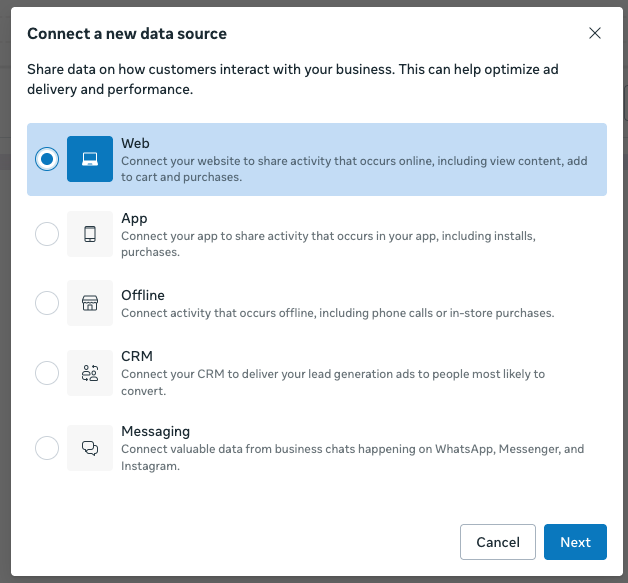
Select Web and continue.
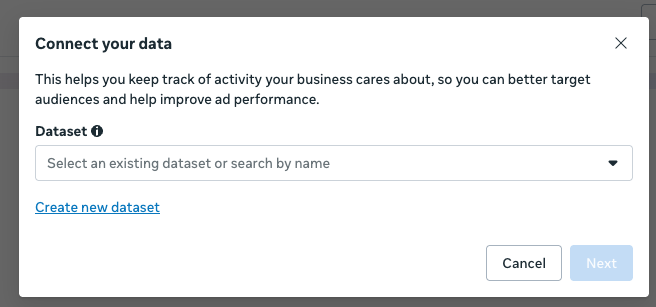
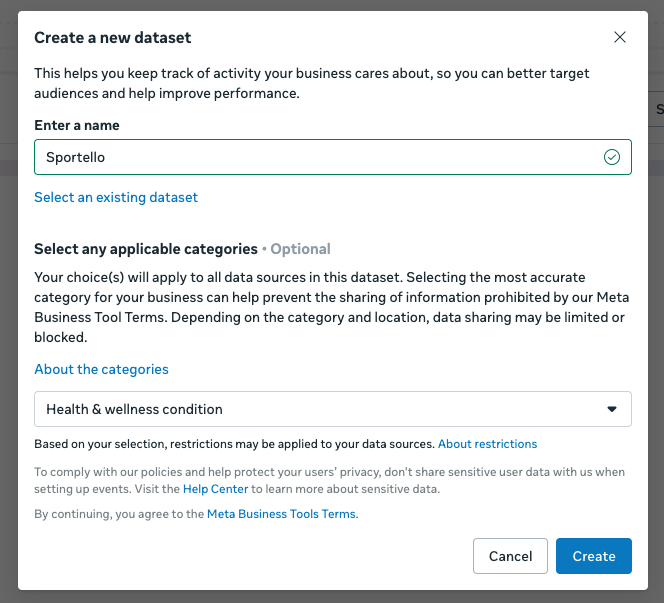
- Click Create new dataset, name it after your app and create it.
- Open the dataset, then its Settings tab, and copy the Dataset ID. This is your Pixel ID: a number, without letters.
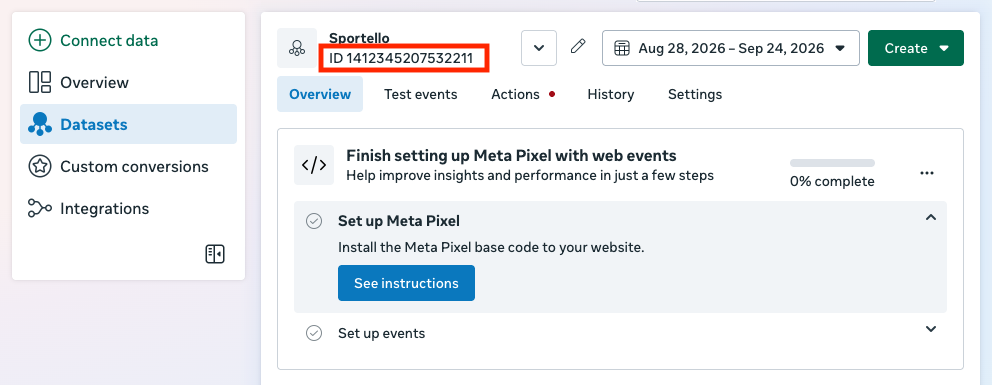
2. Enter the Pixel ID in the Console
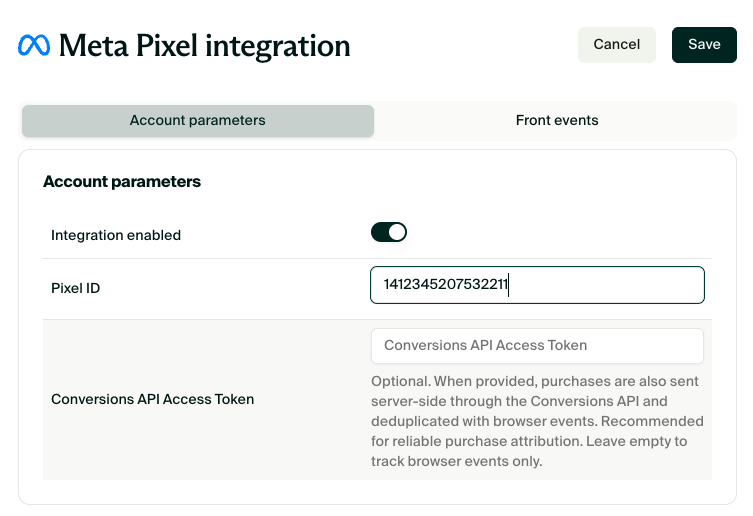
- In Web2App → Setup, section 4. External integrations, open Meta Pixel.
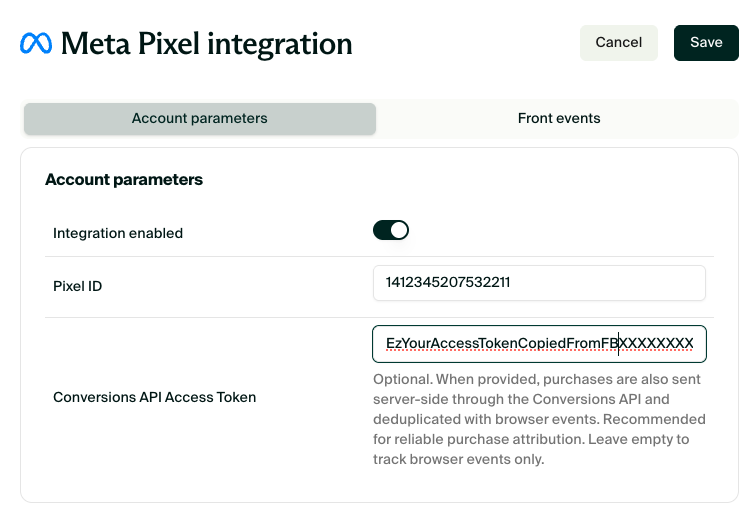
- Enable the integration and paste the Dataset ID into Pixel ID.
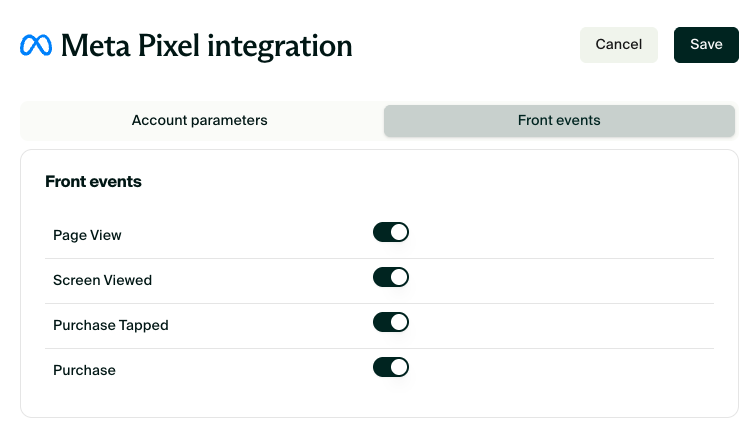
- In the Front events tab, keep the four events enabled, or disable the ones you do not want to send.
- Save.
Browser events start flowing to your dataset within minutes. Continue with the Conversions API to secure your purchase events.
3. Generate a Conversions API access token
You need to be an admin of the Meta business portfolio.
- In Events Manager, open your dataset. On the overview, click Set up Conversions API (or Start your setup in the Conversions API card).
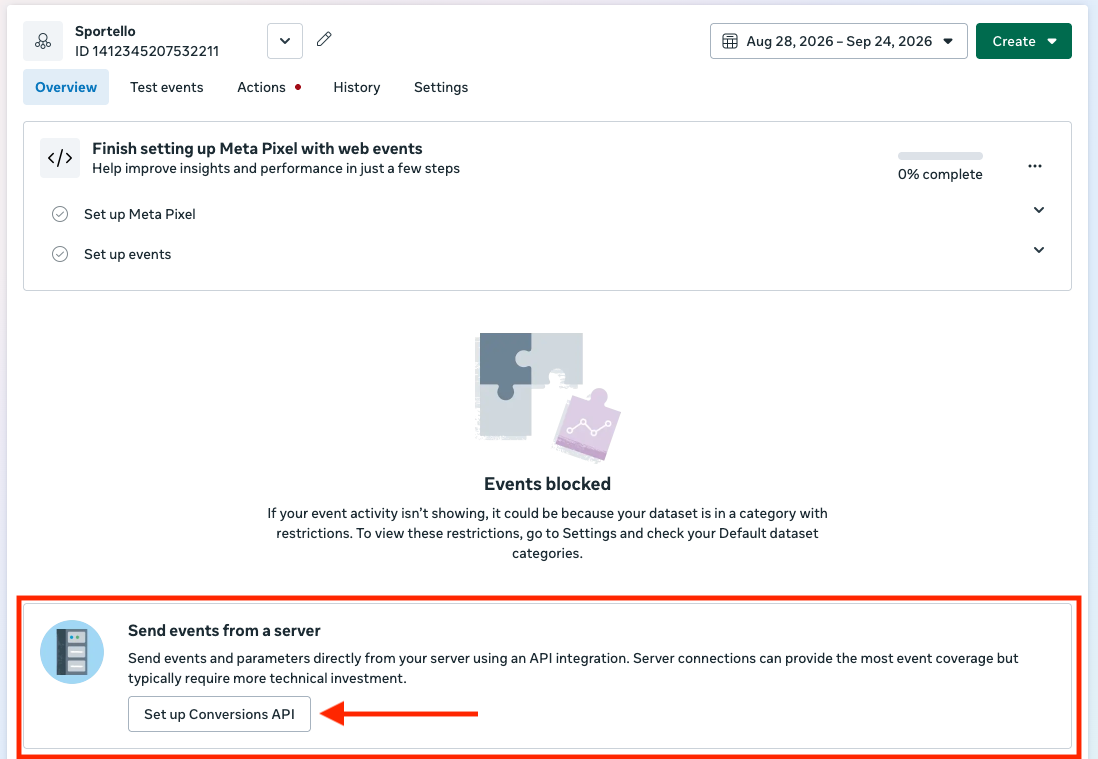
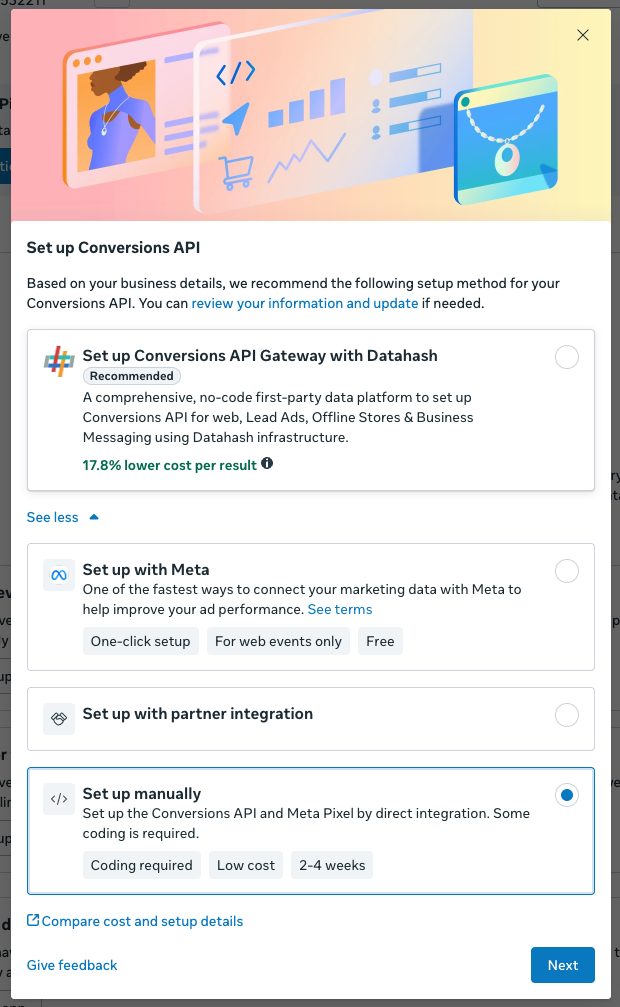
- Click See other ways to set up, select Set up manually and continue.
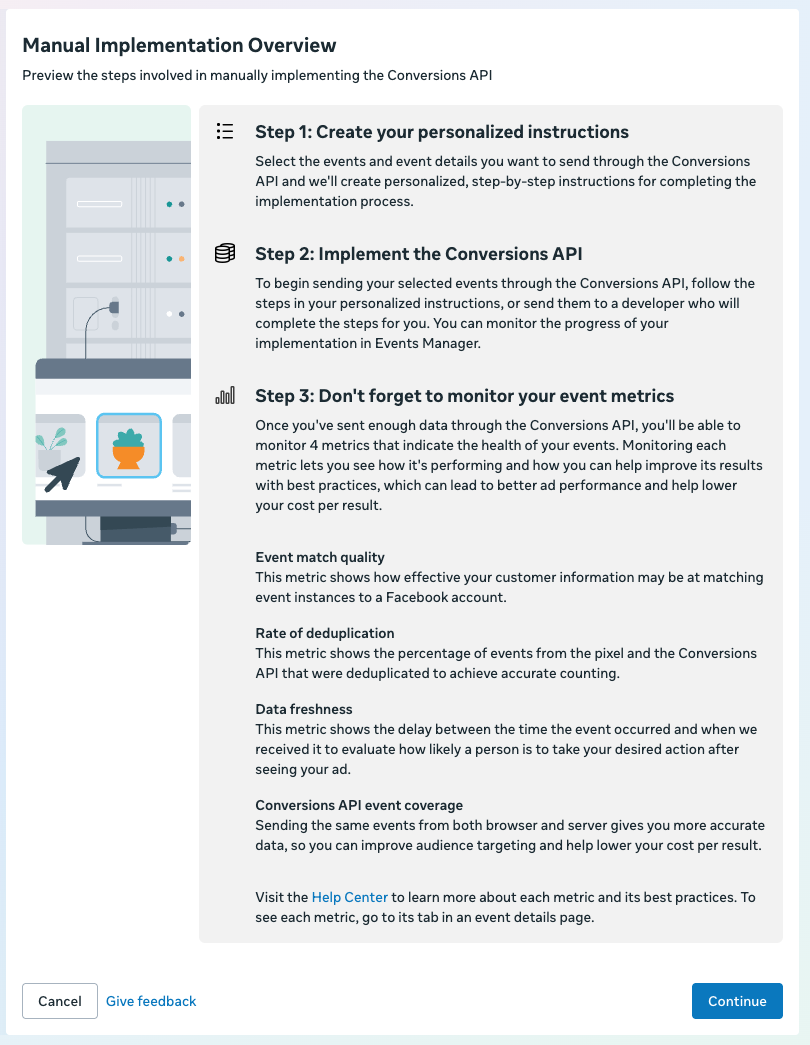
- Select Conversions API and Meta pixel, then Start CAPI setup and Finish on the instructions screen.
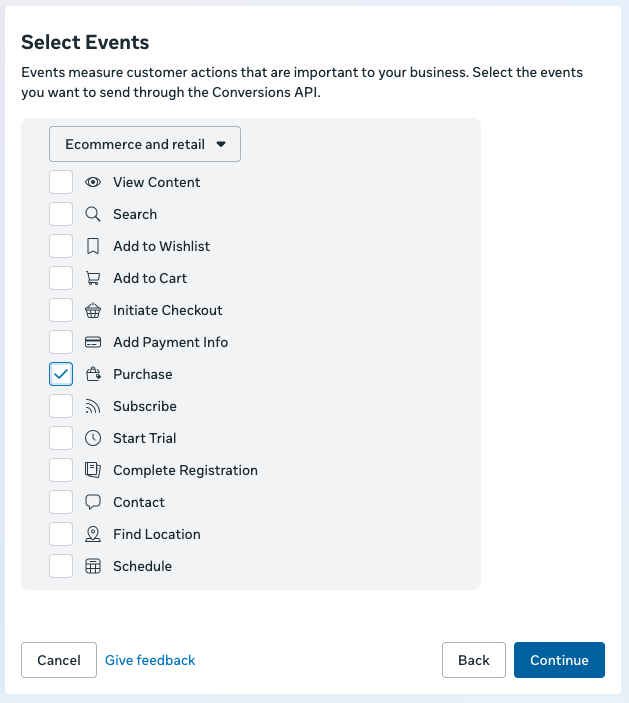
- Under Manual implementation, tick Events sent using pixel code, add Purchase under Additional events, and continue through the parameters and review steps.

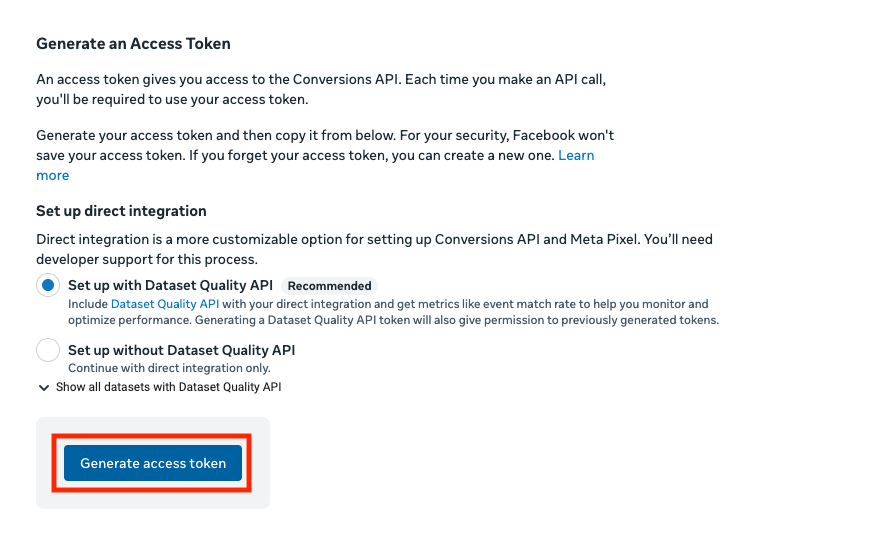
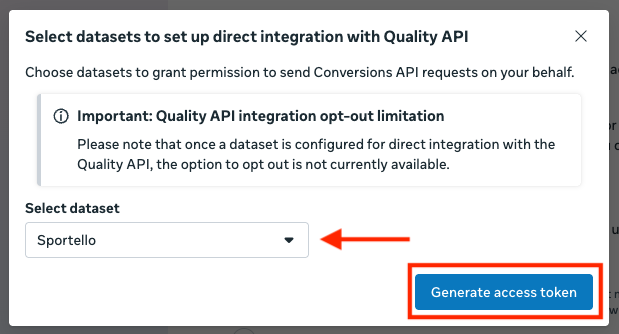
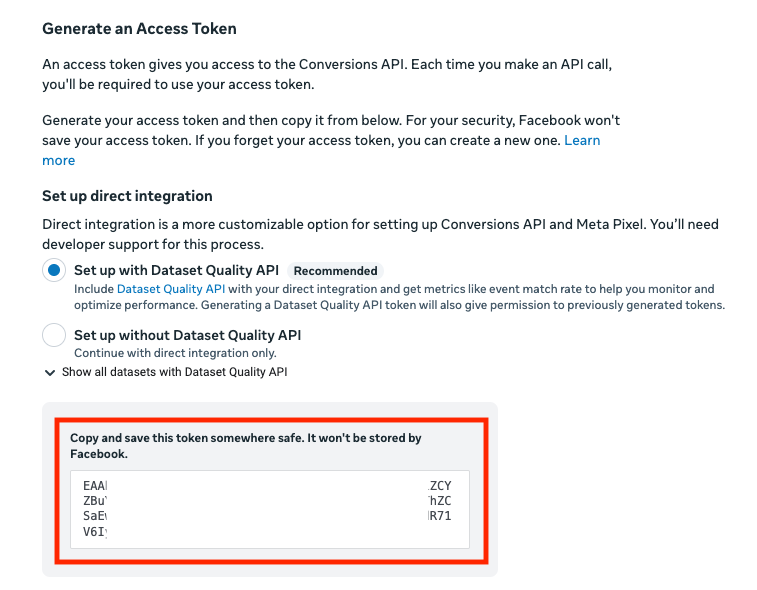
- On the Using the Conversions API page, go to Generate an access token, choose Set up without Dataset Quality API, click Generate Access Token and copy the token.
4. Enter the access token in the Console
Back in the Meta Pixel integration of the Console, paste the token into Conversions API Access Token and save. Purchases are now also sent from Purchasely's servers. The token is stored encrypted and never exposed to the browser.
5. Check that events arrive
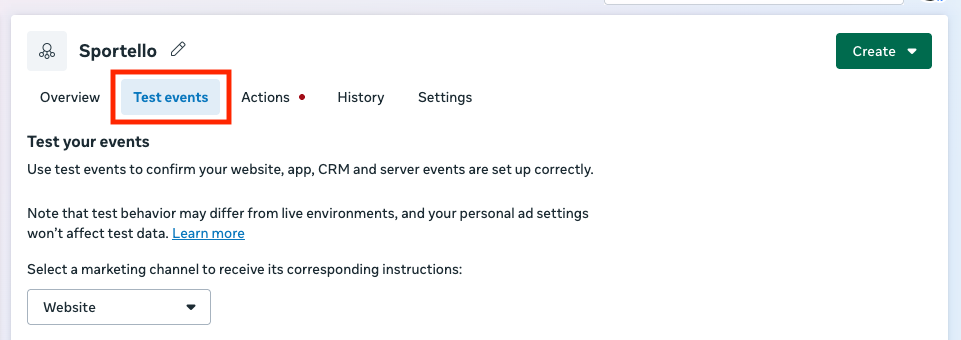
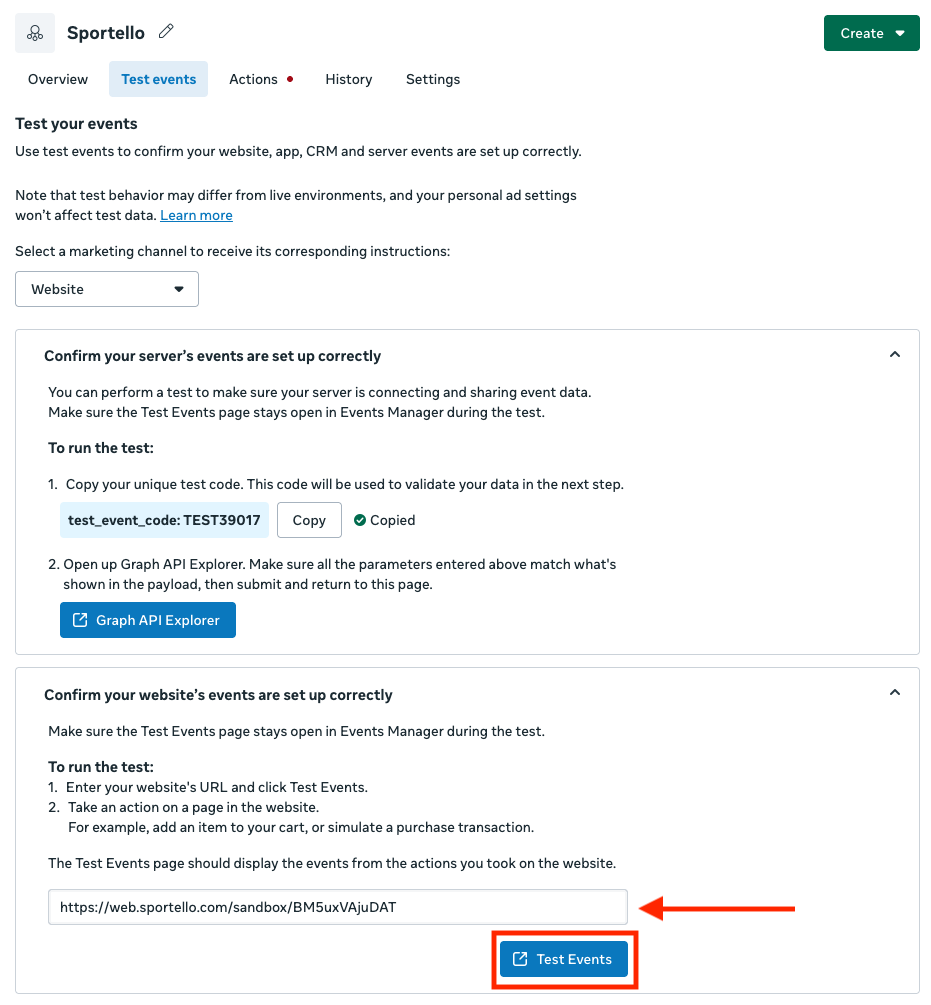
- In Events Manager, open your dataset and go to the Test events tab.
- Copy the sandbox URL of a Web Flow and paste it in the Test Events field from Meta, then click on Test Events
- Browse a few screens and complete a purchase with a Stripe test card.
PageView,ViewContent,InitiateCheckoutandPurchaseappear in the tab.
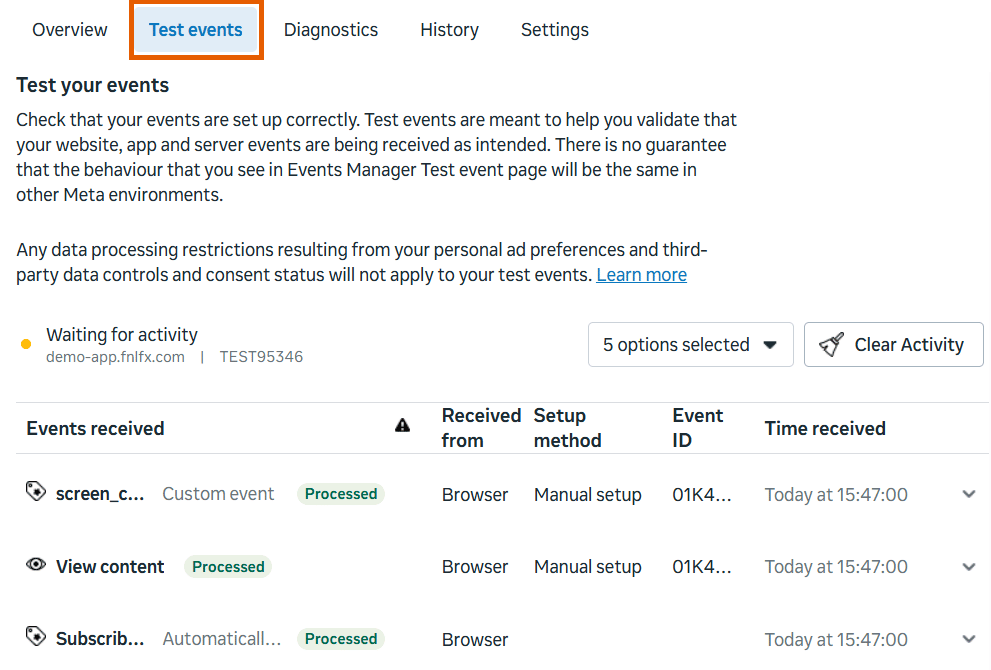
- To confirm the Conversions API, click Manage integrations on the dataset overview: Conversions API shows Active or Waiting for first event. Once a purchase has been made, the
Purchaseevent shows Multiple in the Integrations column, meaning it was received from both the browser and the server.
Sandbox purchases are real events for Meta. Use the Test events tab, or a dedicated test dataset, if you do not want them mixed with live traffic.
Troubleshooting
| Problem | Cause and solution |
|---|---|
| No event appears in Events Manager. | The Pixel ID must be the numeric Dataset ID, and the integration must be enabled. Check the Front events tab too. |
| Events appear but Meta shows a domain warning. | Add your funnel domain (web.purchasely.io or your subdomain) to the dataset's traffic permissions allow list in Events Manager. |
Purchase is counted twice. | Browser and server events reach different datasets, or the Pixel ID in the Console does not match the dataset of the token. Use the same dataset for both. |
| Purchases from in-app browsers are missing. | Configure the Conversions API access token: server events do not depend on the browser. |
Updated about 1 month ago