

Build a Web Flow
Create a Web Flow in the Console: chain your Screens, let Purchasely add the checkout and the Redeem step, and publish it on its live and sandbox URLs.
A Web Flow is built with the same Flow editor and the same Screen Composer as your In-App Flows. If you have already built a Flow in Purchasely, you know most of what follows; this page focuses on what is specific to the web. If not, start with Building a Flow with the Flow Composer and come back here.
Open Web2App → Flows
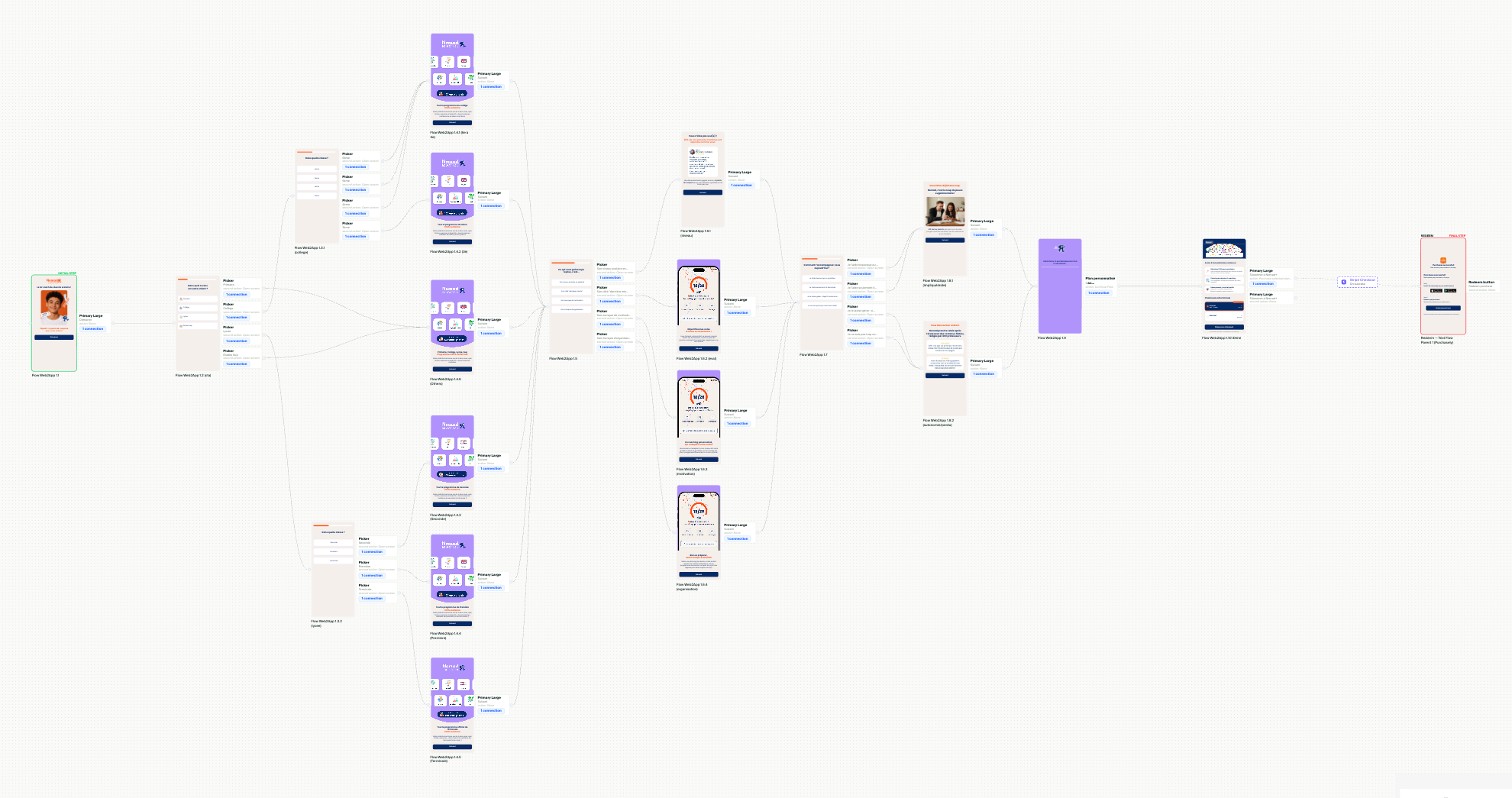
What a Web Flow is made of
| Element | Description |
|---|---|
| Screens | The steps of your funnel: landing, quiz, text input, paywall… Each one is a Screen built in the Composer or generated from a prompt. A Screen can be shared with your In-App Flows: it renders in HTML on the web and natively in the app. |
| Transitions | The arrows between Screens. A transition is triggered by an action on a Screen (a button, a quiz answer) and can carry conditions on the user attributes collected earlier. |
| Stripe Checkout | Not a Screen you edit. When a Screen contains a purchase action, the purchase opens a secure Stripe checkout page embedded in the funnel. |
| Redeem step | The success step that sends the subscriber to the app, in two steps: the store links to install the app, then the redemption button that activates the subscription. Purchasely creates it and wires it for you as soon as a purchase action exists. |
1. Create the flow
- In the Flows tab, click New Web Flow. The Flow editor opens on an empty web flow.
- In the settings panel, give the flow a name and a vendor ID you will recognize in your data.
The flow gets its live URL and sandbox URL as soon as it is saved. Both are shown in the settings panel with a copy button and a QR code to open them on your phone. The sandbox URL runs the same flow against Stripe test mode: use it to test and to demo, and share only the live URL in your campaigns.
2. Add your Screens
Add a step from the editor, then either pick an existing Screen, create one in the Composer or generate one from a prompt. When you create a Screen from a Web Flow, the Composer opens on its Web platform tab, with a web preview.
A typical funnel chains:
- a landing Screen with your promise and social proof,
- a few quiz Screens whose answers are saved as user attributes,
- a loading or "building your plan" Screen that makes the personalization visible,
- a paywall Screen with one or more purchase actions.
Quiz answers and text inputs are stored as user attributes. Use them to branch the flow with conditional transitions, exactly as in an In-App Flow (see Tailoring Flows to the user insights), and to personalize later Screens with dynamic text. They follow the user into the app once the subscription is redeemed.
Keep the answers you want to use laterBy default, an answer collected on the web only drives the flow. To store it in the user's profile, so that it is available in the app after the redemption, in your webhooks and for targeting, tick the box that saves the user attribute when you configure the quiz or the text input.
The Web components & AI generation page details the components specific to the web: text input, custom HTML, spin wheels and other generated components.
3. The purchase, the checkout and the Redeem step
As soon as a Screen of the flow contains a purchase action, Purchasely:
- adds a Redeem step at the end of the flow,
- connects the purchase action to it, with a Stripe Checkout chip on the transition.
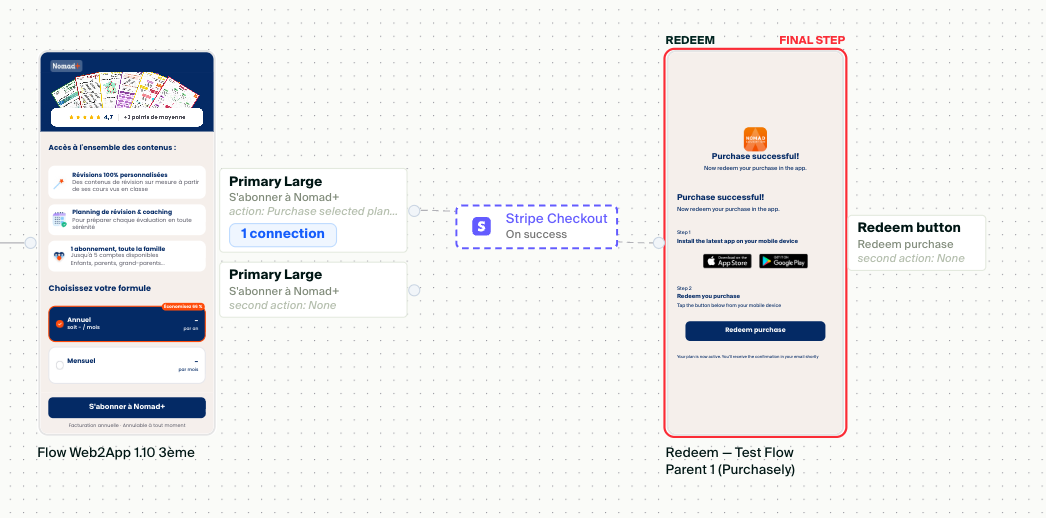
At runtime, the purchase opens the Stripe checkout over the funnel. After a successful payment, the visitor lands on the Redeem step, which opens your app and activates the subscription; a receipt with the same link is emailed to them. See After the purchase.
The Redeem step is managed for you:
- it cannot be deleted, moved or set as the first step,
- it does not accept manual connections: only purchase actions lead to it,
- its Screen is generated from your app icon and brand colors. You can edit it freely in the Composer, as long as you keep the redemption button that opens the app.
Every plan needs a Stripe priceIf a purchase action sells a plan without a Stripe price, the editor shows a warning: on the web the checkout cannot start, and the Redeem step is never reached. Map the plan in Setup 1 · Connect Stripe.
4. Transitions and animations
On the web, every transition is full screen. Instead of the mobile display modes, the flow settings offer a Web transition animation applied between all steps: Fade, Slide, Tiles, Curtain or None.
5. Custom JavaScript (optional)
The settings panel of a Web Flow has a Custom JavaScript field, executed on every page of the funnel. Use it for scripts you need on the web only, such as a consent manager or an analytics tag not covered by the ad platform integrations. A Screen can also carry its own script from its settings in the Composer.
6. Publish
As with In-App Flows, changes to the structure of a Web Flow (steps, transitions, settings) are visible on the live URL only once you publish the flow from the editor. Changes made to a Screen inside the flow, in the Composer, are reflected immediately on the live URL.
The Publish flow on Web toggle in the flow's header controls whether the flow is served at all. It is on by default when the flow is created. Turn it off to take a funnel offline: its URLs then return an HTTP 404 page. Turn it on again to bring it back.
Since Screen edits go live at once, iterate on the sandbox URL or on a duplicate of the flow, and edit the Screens of a live funnel only when you are ready. See Test and go live for the full checklist.
Managing your Web Flows
The Flows tab lists your Web Flows with a Web badge, and a green TEST badge when an A/B test is running on the flow. From a flow's menu you can:
- Edit it,
- Duplicate it, to create a campaign-specific variant in seconds,
- Duplicate for In-App, to turn the funnel into an In-App Flow that reuses the same Screens,
- Delete it.
One funnel per campaignDuplicate a proven funnel for each campaign and adapt its first Screens to the promise of the ad. Every duplicate has its own URLs, so you can read results funnel by funnel in your ad platforms and in Purchasely.
Troubleshooting
| Problem | Cause and solution |
|---|---|
| The Redeem step does not appear. | No Screen of the flow has a purchase action yet. Add a purchase action to your paywall Screen. |
| A warning says a plan has no Stripe price. | Map the plan to a Stripe price in Setup 1, or replace the plan in the purchase action. |
| The live URL returns a 404 page. | Publish flow on Web is off, or the flow was deleted. |
| My changes to the flow are not visible on the live URL. | Structural changes need the flow to be published from the editor. Screen edits are live immediately. |
| Quiz answers are not visible in the app after redemption. | The option that saves the user attribute to the profile is not ticked on the quiz or text input. |
| The funnel looks different from the Composer preview. | Check the Screen on the Web platform tab of the Composer: some properties differ per platform. |
Updated about 1 month ago
What’s Next
Next, discover the components and AI generation available for web Screens.