

Stripe Managed Payments
Let Stripe be the merchant of record on your web checkout: what it changes, what it costs, and how to activate it in Stripe and in Purchasely.
On the App Store and the Play Store, Apple and Google are the merchant of record: they sell to the customer, collect and remit taxes, and handle refunds and chargebacks. On the web, by default, you are the merchant of record. Stripe Managed Payments gives you the store model back on your Web Flows: Stripe becomes the merchant of record and takes on that operational burden, for an additional fee.
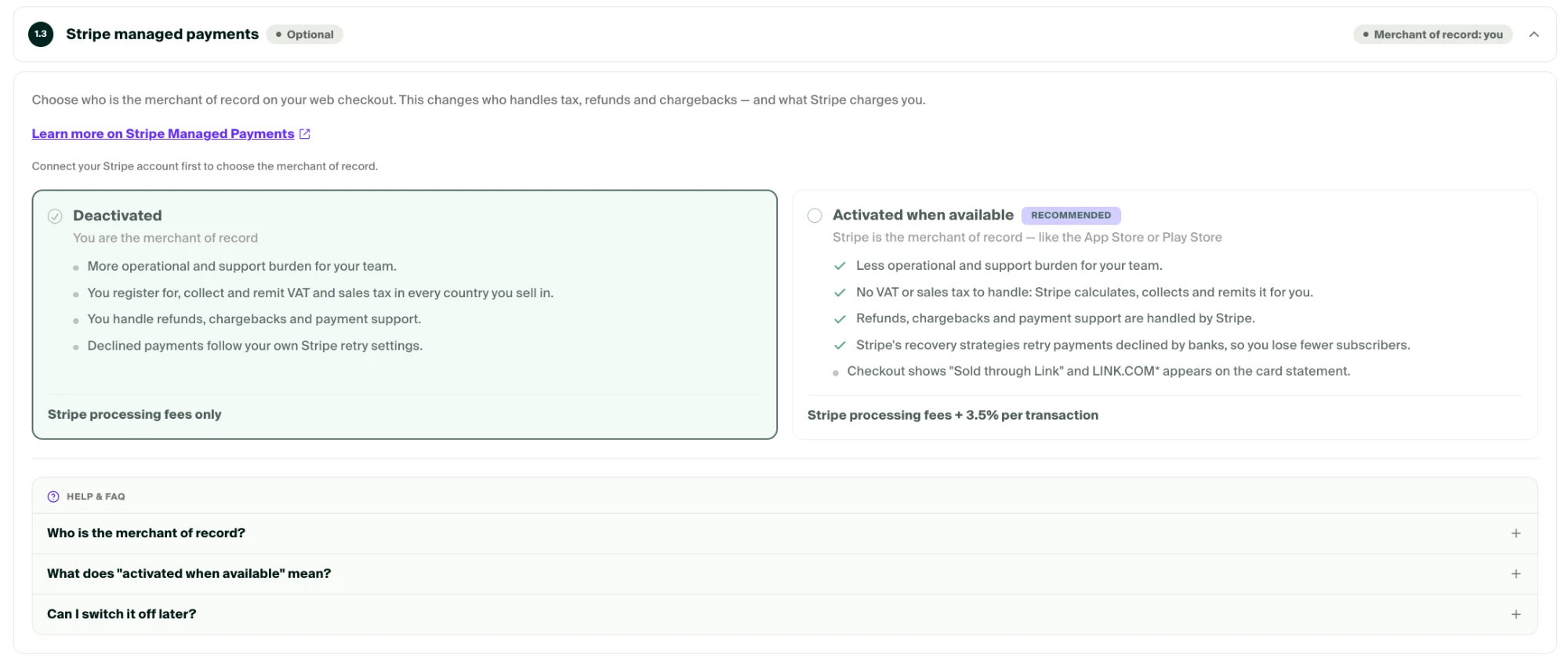
Managed Payments is optional. It is step 1.3 of the Web2App setup, and we recommend it to most apps.
Who is the merchant of record?
The merchant of record is the legal entity that sells the subscription to the customer. It appears on the customer's card statement, is liable for collecting and remitting VAT and sales tax in every country where it sells, and handles refunds, disputes and payment support.
| Deactivated: you are the merchant of record | Activated when available: Stripe is the merchant of record | |
|---|---|---|
| Operational and support burden | More work for your team | Less work for your team |
| VAT and sales tax | You register, collect and remit in every country you sell in | Stripe calculates, collects and remits for you |
| Refunds, chargebacks, payment support | Handled by you | Handled by Stripe |
| Declined payments | Follow your own Stripe retry settings | Stripe's recovery strategies retry payments declined by banks, so you lose fewer subscribers |
| What the customer sees | Your business name | "Sold through Link" at checkout, and LINK.COM* on the card statement |
| Stripe fees | Processing fees only | Processing fees + 3.5% per transaction |
Activate Managed Payments
Activation happens in two places, in this order. Activating the option in the Console alone has no effect: if Managed Payments is not enabled on your Stripe account, your checkouts keep running with you as the merchant of record.
1. Enable Managed Payments in Stripe
Follow Stripe's guide: Managed Payments. Stripe checks that your account and your products are eligible. Do it in live mode and in test mode if you want to test the managed checkout on your sandbox URLs.
Every product needs a Product categoryIn the Stripe Dashboard, each product you sell must have a Product category, which is a Stripe tax code. Stripe uses it to apply the right VAT or sales tax rate in every country where the subscription is sold. A product without a tax code is not eligible: Managed Payments will not apply to its checkouts and you will remain the merchant of record for those sales. Set the category when you create the product, or open the product and edit it.
2. Activate the option in Purchasely
In the Console, open Web2App → Setup, section 1. Connect Stripe, step 1.3 Stripe managed payments, and select Activated when available. The step header switches to Merchant of record: Stripe. Stripe must already be connected in step 1.1.
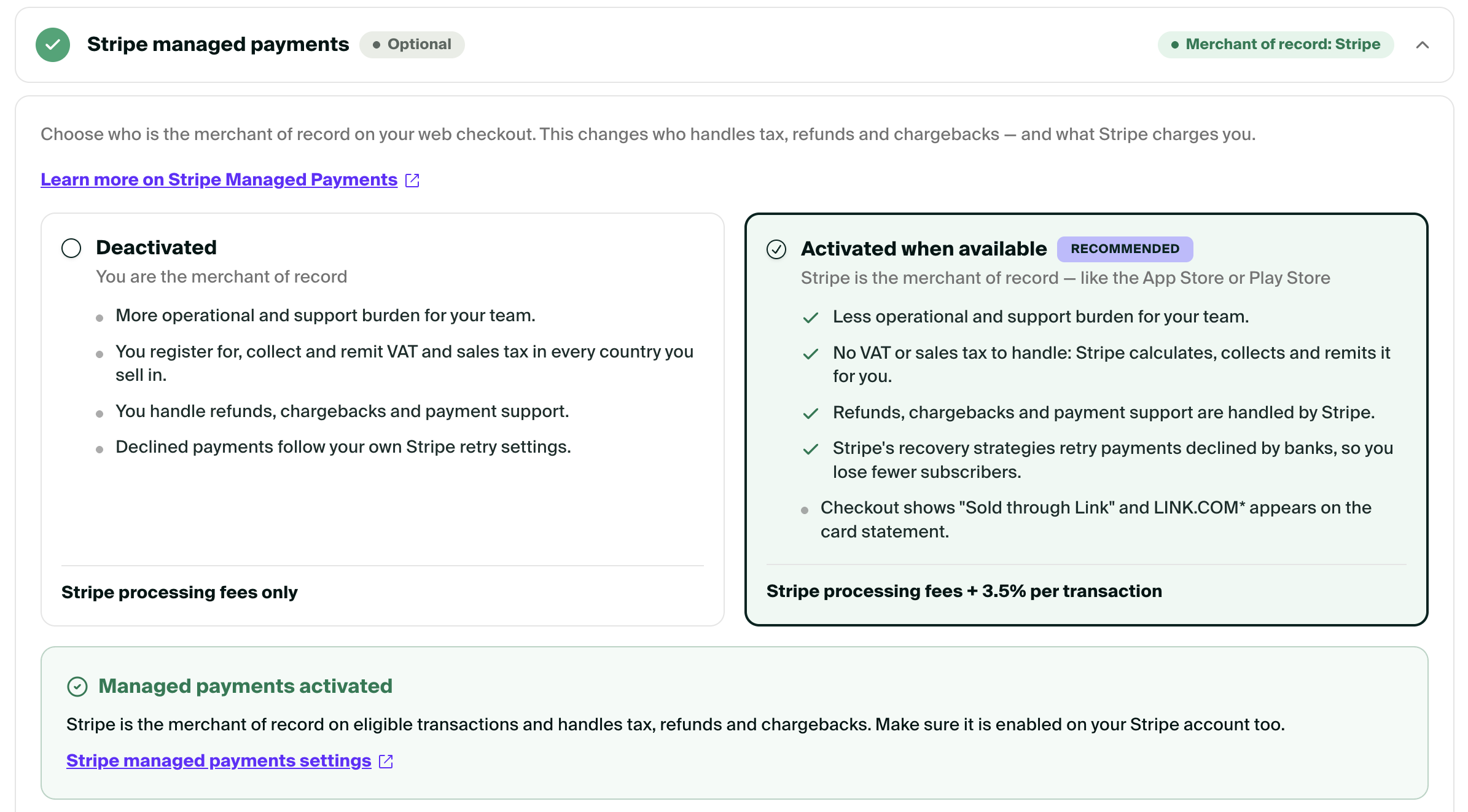
The same setting is available in App settings → Stores → Stripe.
What does "activated when available" mean?
Stripe decides, checkout by checkout, whether Managed Payments can apply to the sale. When it cannot, for example because a product is missing a tax code or is not eligible, Purchasely automatically falls back to a standard checkout where you remain the merchant of record. Your funnel never breaks, and the customer still pays.
Can I switch it off later?
Yes. Select Deactivated in step 1.3. The change applies to new checkouts only: existing subscriptions keep the merchant of record they were sold with.
Frequently asked questions
Does Managed Payments change anything in my app?
No. It only applies to purchases made in Web Flows. In-app purchases keep going through the App Store and the Play Store.
Does it change what Purchasely receives?
No. Subscriptions, entitlements, events and webhooks are identical whoever the merchant of record is.
Is the 3.5% fee charged by Purchasely?
No. It is charged by Stripe, on top of its standard processing fees.
Updated about 1 month ago
What’s Next
Next, configure your web domain, your email domain and the wallets.