

Free trials & intro offers with Stripe
Offer a free trial, an introductory price or both on a Web Flow: create the coupon in Stripe, declare the promotional offer on the plan, pick it in the Screen Composer.
Web Flows can sell a subscription with a free trial, an introductory price, or both, exactly as your in-app paywalls do with App Store and Play Store offers. On the web, the discount is a Stripe coupon and the trial is a number of days; both are carried by a Promotional Offer declared on the Purchasely plan, then picked in the Screen Composer next to the plan. This page walks through the three steps.
| Step | Where | What you do |
|---|---|---|
| 1. Create the coupon | Stripe Dashboard | Define the discount: percentage or fixed amount, for one or several billing cycles. Skip this step for a free trial without discount. |
| 2. Declare the Promotional Offer | Purchasely Console, Products & Plans | Add an offer to the plan with the number of trial days and/or the Stripe coupon. |
| 3. Use it on a Screen | Screen Composer | Select the plan and the offer on the purchase action, and display the offer tags. |
One Promotional Offer for all storesA Promotional Offer is the same object you use for App Store and Play Store offers. An offer can carry an App Store offer ID, a Play Store offer ID and the Stripe fields at the same time, so one offer on one plan serves the same Screen in the app and on the web.
1. Create the coupon in Stripe
Skip this step if you only want a free trial.
In the Stripe Dashboard, open Product catalog → Coupons and click Create coupon.
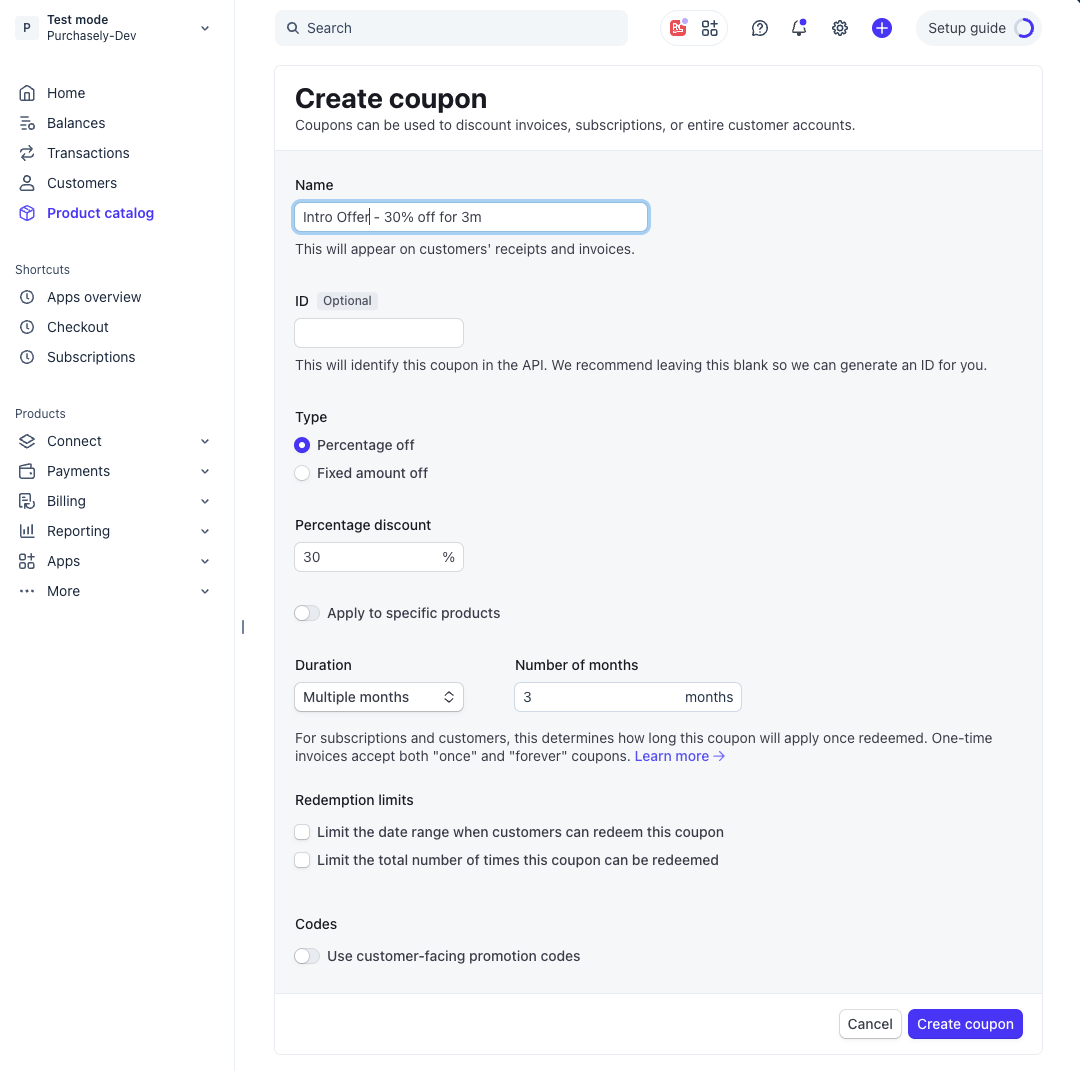
- Name: it appears on the customer's receipts and invoices, so write it for them, for example Intro Offer - 30% off for 3 months.
- Type: Percentage off or Fixed amount off. A fixed amount must be defined in every currency of the Stripe prices it applies to; otherwise the offer does not apply to the prices in the missing currencies.
- Duration: Once for one discounted billing cycle, or Multiple months for several. Leave Forever aside: a permanent discount is a different price, not an intro offer.
- Leave Use customer-facing promotion codes off. Purchasely applies the coupon itself at checkout; visitors never type a code.
- Create the coupon. Do it in live mode and in test mode, so your sandbox funnels can be tested with the offer.
Intro price duration is counted in billing cyclesA Multiple months coupon discounts every invoice issued during that period. For a monthly price, 3 months means three discounted months; for a yearly price, it means one discounted year. If the coupon is limited to specific products, the product of the plan must be among them.
2. Declare the Promotional Offer on the plan
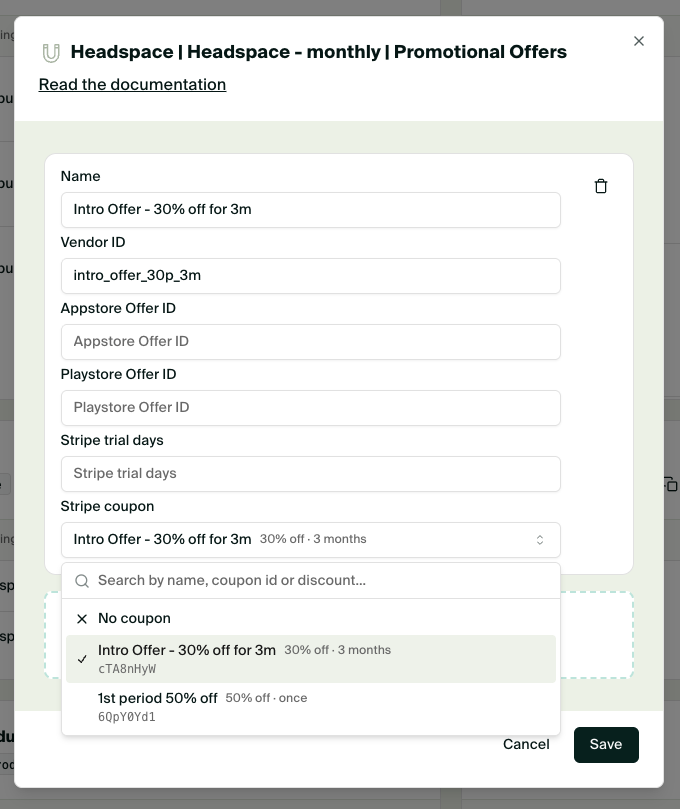
In the Console, open Products & Plans, click the three dots of the plan and Manage promotional offers, then Promotional Offer to add one. This is the same screen as for App Store and Play Store offers, described on Configuring promotional offers.
| Field | What to enter |
|---|---|
| Name | An internal name, for example Intro Offer - 30% off for 3m. |
| Vendor ID | Your own identifier for the offer, reused in the Composer and in your data. |
| Appstore Offer ID, Playstore Offer ID | Leave empty for a web-only offer, or fill them to use the same offer in the app. |
| Stripe trial days | The length of the free trial, from 1 to 730 days. Leave empty for no trial. |
| Stripe coupon | Pick the coupon in the list, searchable by name, coupon ID or discount. Leave empty for a trial without discount. |
Three combinations are possible:
| Offer | Stripe trial days | Stripe coupon | What the subscriber pays |
|---|---|---|---|
| Free trial | 7 | empty | Nothing for 7 days, then the full price. |
| Intro price | empty | 30% off, 3 months | The discounted price for 3 cycles, then the full price. |
| Trial then intro price | 7 | 30% off, 3 months | Nothing for 7 days, then the discounted price for 3 cycles, then the full price. |
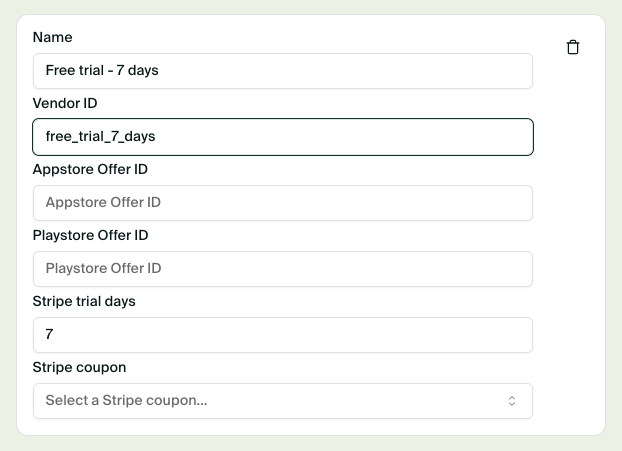
The Console warns you when a coupon has no amount in one of the currencies of the plan's prices, and when a Multiple months coupon would end before the trial does, which would leave no discounted cycle.
Locked once usedLike store offer IDs, the Stripe fields of an offer are locked after the first purchase made with it. To change a trial length or a coupon, create a new offer.
3. Use the offer on a Screen
In the Screen Composer, an offer is attached to a purchase action of a button or a plan picker:
- select the action Purchase,
- select the Plan, which must be mapped to the Stripe price, see Setup 1 · Connect Stripe,
- select the Offer.
The checkout then applies the trial and the coupon automatically. A visitor cannot get the offer without going through that action, and the Composer only proposes the offers of the selected plan.
Display the offer with tags
Switch the component to Offer mode to write the copy shown when an offer is attached, and use the offer tags. They are the same tags as for store offers, computed from the Stripe price and the coupon:
| Tag | Example | Meaning |
|---|---|---|
{{OFFER_PRICE}} | €7 / month | The discounted price per billing period. |
{{OFFER_AMOUNT}} | €7 | The discounted amount, without the period. |
{{OFFER_DURATION}} | 3 months | How long the offer lasts: the trial length, or the number of discounted cycles. |
{{OFFER_DISCOUNT_PERCENTAGE}} | 30% | The discount, for a percentage coupon. |
{{OFFER_PRICE_COMPARISON}} | €30 | The full price over the duration of the offer, for a strikethrough. |
The full list, including the per-period amounts such as {{OFFER_MONTHLY_AMOUNT}}, is in the Offer tags section of the Tags page. Intro tags ({{INTRO_PRICE}}, {{INTRO_AMOUNT}}) and offer tags can be used indifferently.
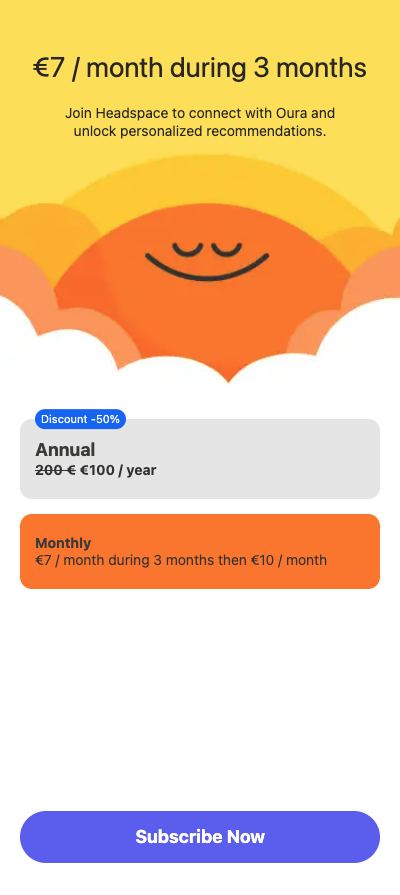
What the subscriber sees at checkout
The Stripe checkout shows the full price, the coupon as a line item with its name and the discount, and the total due today. With a free trial, the total due today is zero and the first charge date is displayed.
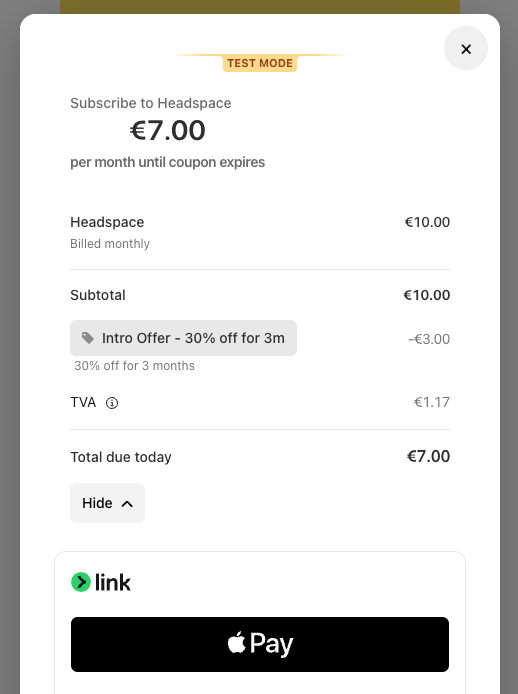
Renewals after the offer are charged at the full price by Stripe, as for any subscription.
How the offer is reported
When a Stripe offer is configured on the Promotional Offer, a free trial, an intro price or both, Purchasely sends the usual offer events to your webhook, exactly as for App Store and Play Store offers. Nothing changes in your integration: the same events, with the same attributes, also feed your dashboards and your analytics integrations.
| Offer | Events |
|---|---|
| Free trial | TRIAL_STARTED at purchase, then TRIAL_CONVERTED at the first paid invoice. |
| Intro price | INTRO_OFFER_STARTED at purchase, then INTRO_OFFER_CONVERTED at the first full-price invoice. |
| Trial then intro price | TRIAL_STARTED, then TRIAL_CONVERTED and INTRO_OFFER_STARTED at the first discounted invoice, then INTRO_OFFER_CONVERTED. |
The subscription carries the offer's vendor ID, and the Stripe subscription carries the offer in its metadata. See Offer events and Events, attribution & webhooks.
Testing
Test the offer on the sandbox URL of the flow with a Stripe test card: the coupon must exist in Stripe test mode and the offer must be attached to the plan's SANDBOX price. The checkout shows the discount and the trial exactly as in live mode. See Test and go live.
Troubleshooting
| Problem | Cause and solution |
|---|---|
| The coupon is not in the list. | It was created in the other Stripe mode, it is a Forever coupon, or it has expired or reached its redemption limit. |
| The offer does not appear in the Composer. | The offer belongs to another plan, or the plan is not mapped to a Stripe price. Select the plan first. |
| The checkout shows the full price. | The Screen is published without the offer on its purchase action, or the coupon has no amount in the visitor's currency, or it is limited to other products. |
| The Console warns about a missing currency. | Add the missing currency to the fixed-amount coupon in Stripe, or switch to a percentage coupon. |
| I cannot edit the trial days or the coupon. | The offer has already been used by a purchase. Create a new offer. |
Updated about 1 hour ago
What’s Next
Next, configure your web domain, your email domain and the wallets.