

Web components & AI generation
What the Screen Composer adds for the web: text inputs, custom HTML, and AI-generated components such as spin wheels, scratch cards and quizzes.
Screens used in Web Flows are built in the same Screen Composer as your paywalls and onboarding Screens: same components, same layouts, same localization. This page covers what the Composer adds when a Screen is displayed on the web, and how to create the interactive components that make web funnels convert: spin wheels, scratch cards, quizzes and loading screens.
One Screen, two renderers
A Screen has a Web platform tab in the Composer, next to iOS and Android. The same Screen renders natively in your app and in HTML on the web, so a paywall designed for the app can be dropped as is in a Web Flow. Use the Preview in web mode to see the HTML rendering before publishing.
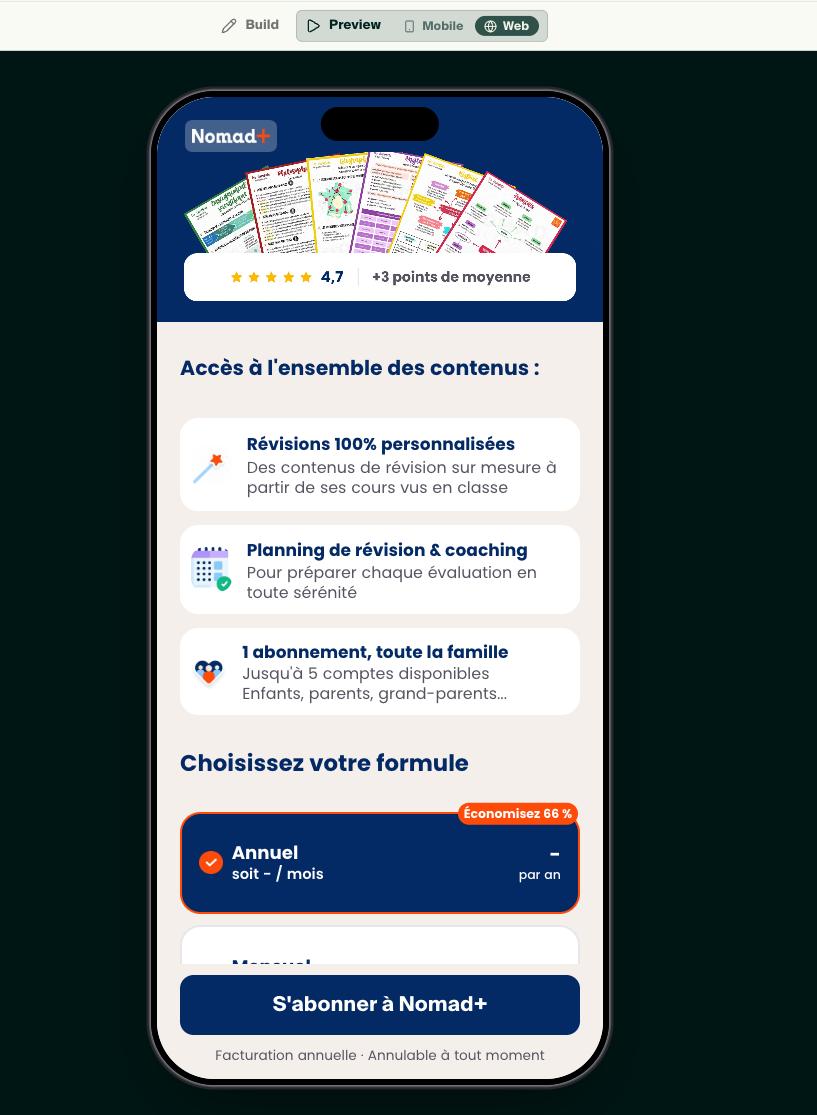
A few properties are specific to one platform. In the Composer they carry a Web only badge, and the standard components behave as follows:
| Component | On the web |
|---|---|
| Texts, images, stacks, spacers, buttons | Identical rendering. Gradients render on the web only. |
| Plan pickers, comparison table, CTA | Prices come from the Stripe prices mapped to the plan, in the visitor's currency. |
| Quiz and option pickers | Answers are saved as user attributes and can branch the flow. |
| Countdown, progress bars, timelines, reviews | Identical rendering. |
| Videos and Lottie animations | Played in the browser. |
| Text input | Web only, see below. |
| Custom HTML | Web only, see below. |
Actions on the webOpen flow step, Open URL and purchase actions work on the web. Close, Restore purchases, Login and Deeplink have no meaning in a browser and are ignored.
Text input
The Text input component adds a free text field to a Screen: first name, goal, email, weight… The value typed by the visitor is saved into the user attribute you select, exactly like a quiz answer. Pair it with a button whose action is Submit user attribute to validate the field and move to the next step.
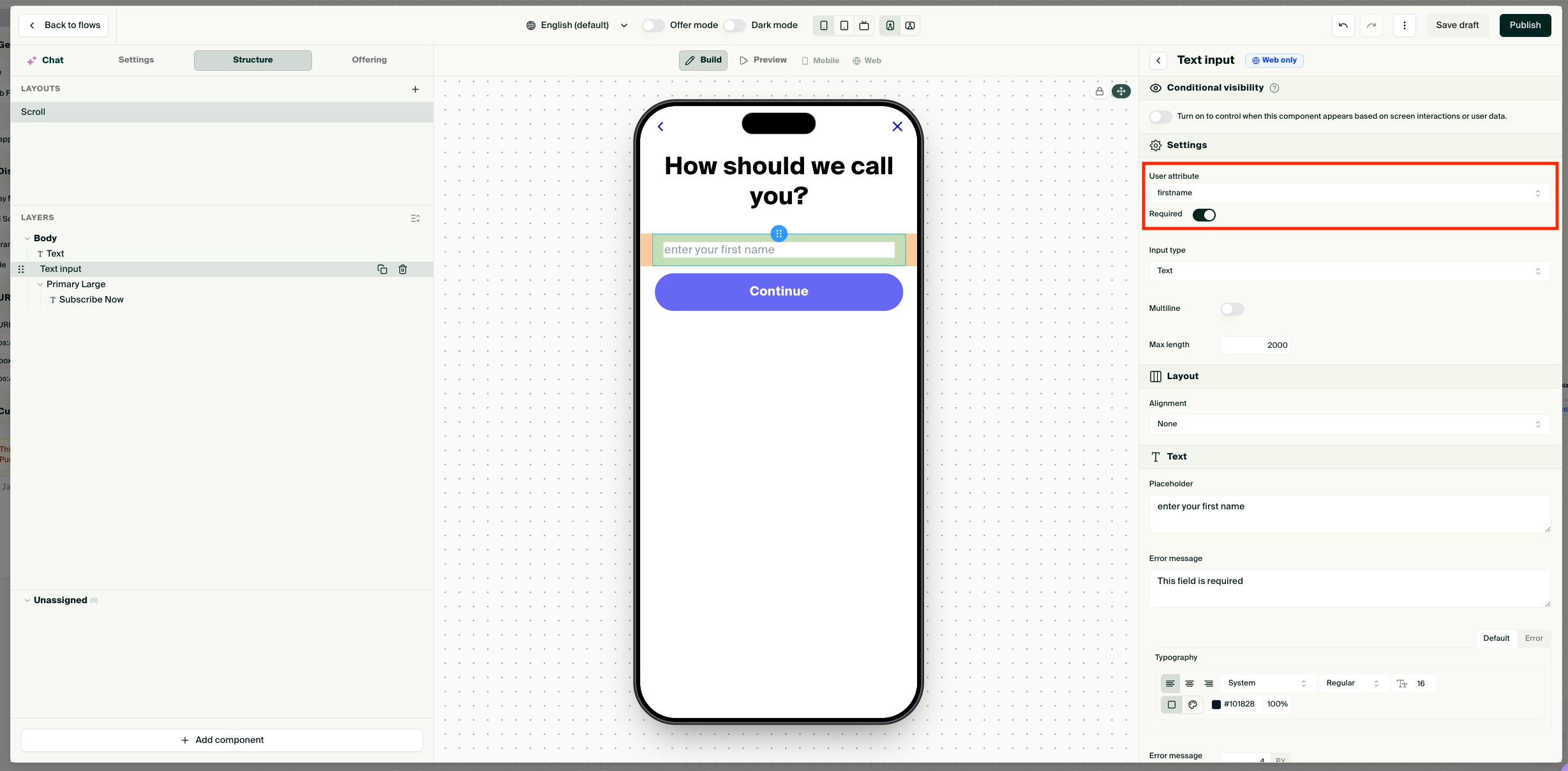
Use the attribute afterwards to personalize the next Screens ("Great, Anna, here is your plan") and, if you tick the option that saves it to the profile, in the app after the redemption.
Custom HTML
The Custom HTML component embeds your own HTML, CSS and JavaScript inside a Screen. It is the escape hatch for anything the Composer does not offer natively: a bespoke animation, a calculator, an embedded widget.
JavaScript does not run in the ComposerCustom HTML components, including the AI-generated ones below, rely on JavaScript. For security, that JavaScript is not executed inside the Console: in the Composer canvas the component appears static, and a spin wheel does not spin. To see the component working, open the Screen's preview in a web tab, or scan the preview QR code with your phone.
Wiring your markup to the flow
A Custom HTML component exposes up to five action slots, action_1 to action_5. Tag any element of your markup with data-ply-action="action_1", then assign a flow action to that slot in the component's settings. In a Web Flow, the available action is Open flow step, so a click on your element moves the visitor to the step you choose.
<button data-ply-action="action_1">I want to lose weight</button>
<button data-ply-action="action_2">I want to build muscle</button>
Each slot can lead to a different step, which lets a single Custom HTML component branch the funnel.
AI generation
Writing HTML by hand is rarely needed. The Custom HTML component comes with an AI Generation panel: describe what you want, optionally attach up to four images (a mockup, a screenshot of a competitor, your brand assets), and Purchasely generates the component. The generated code stays fully editable.
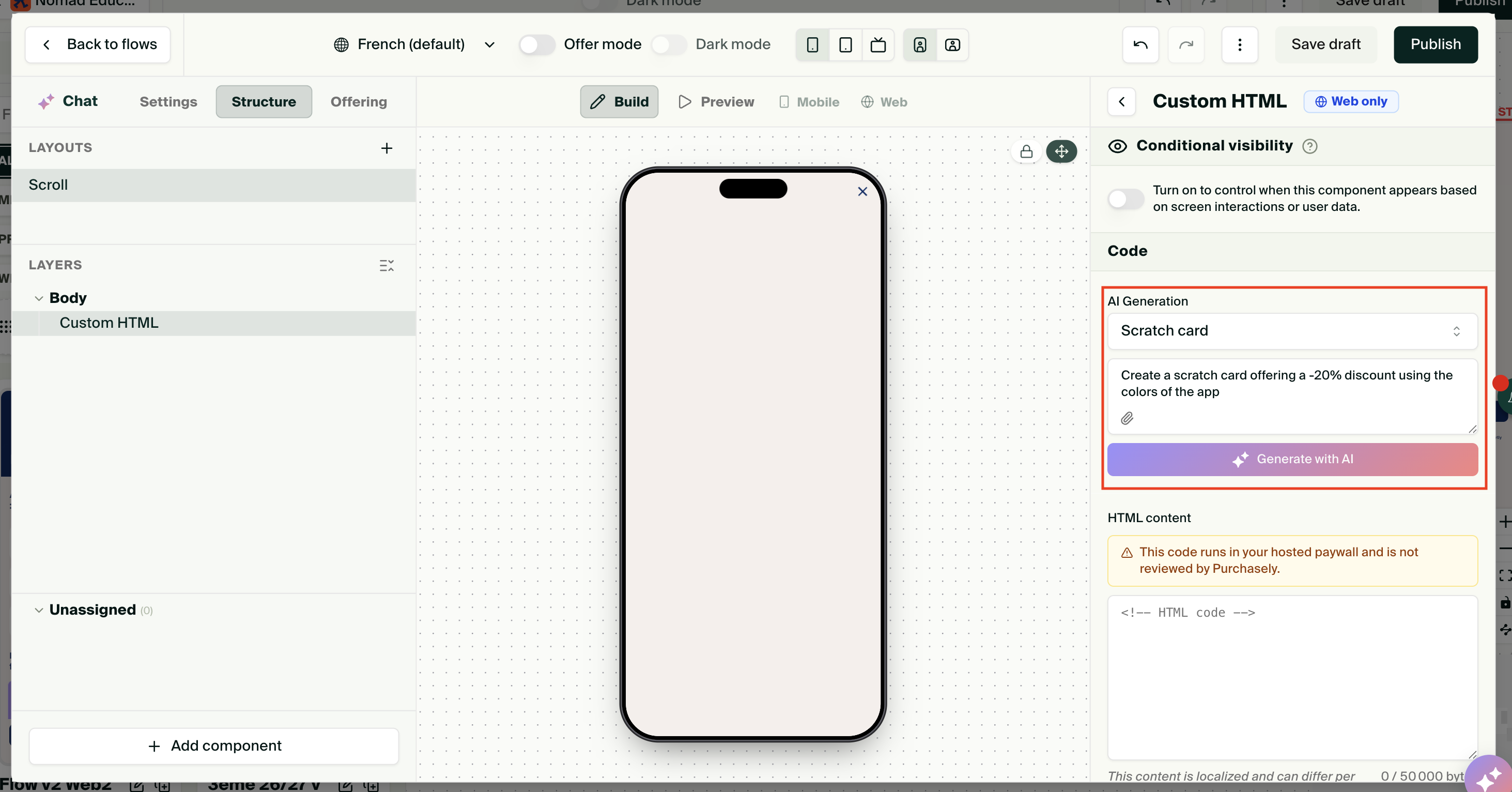
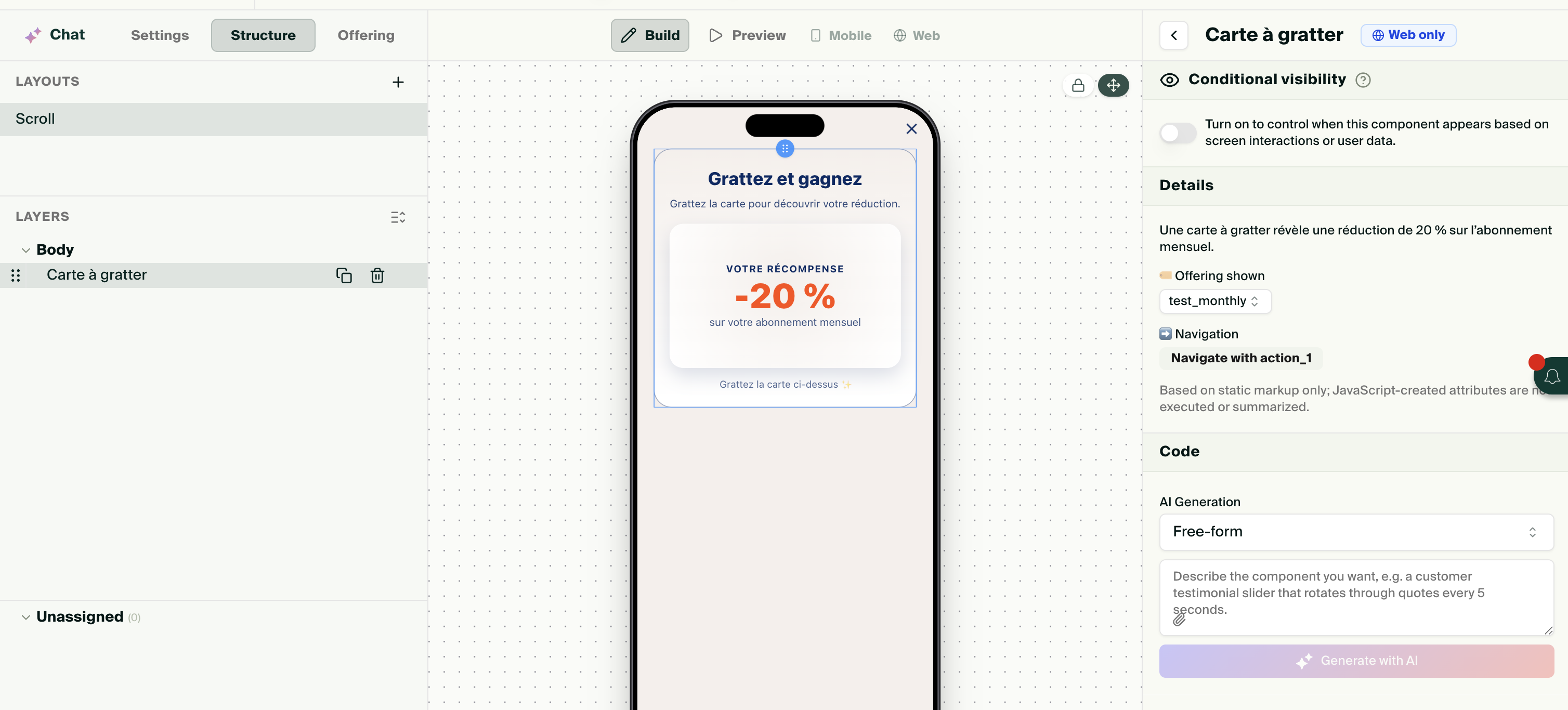
Six presets guide the generation:
| Preset | What it produces | Typical use |
|---|---|---|
| Spin wheel | A wheel with 2 to 8 segments the visitor spins, landing on a reward you define. | Reveal a discount or a bonus before the paywall. |
| Scratch card | A card the visitor scratches with their finger to reveal what is underneath. | Reveal a promo or a personalized result. |
| Reveal card | A card that flips or opens on tap. | Show the visitor's "profile" or plan after the quiz. |
| Quiz | A question with answers, each answer setting a user attribute you choose. | A quiz step with a custom look the standard quiz component does not offer. |
| Plan picker | A selection of offers with your plans and prices. | A paywall element with a bespoke design. |
| Free-form | Whatever you describe. | Loading screens, calculators, animated charts, testimonials carousels. |
The Spin wheel, Scratch card and Reveal card presets start from validated templates, so the mechanics work out of the box and the prompt is used for the look, the copy and the rewards. The Quiz preset asks for the user attribute and the answers; the Plan picker preset asks which offers to display.
Examples
A "building your plan" loading screen. Free-form preset: "A full-width progress bar that fills in 4 seconds with three checkmarks appearing one after the other: Analyzing your answers, Selecting your program, Finalizing your plan. When it completes, trigger action 1." Assign Open flow step → paywall to action_1.
A spin wheel before the paywall. Spin wheel preset: "6 segments in our brand colors, rewards 10%, 20%, 30%, 40%, 50% and Try again, the wheel always lands on 40%. Show a confetti burst and a Claim my offer button when it stops." Assign Open flow step → paywall to action_1.
A scratch card revealing the plan. Scratch card preset: "Silver scratch surface, underneath the text Your personalized 8-week plan is ready with a Continue button."
Test each generated component in the web preview or on your phone: the Composer canvas shows the markup, not the animation.
Generating a whole Screen from a prompt
Beyond components, you can also generate an entire Screen from a prompt in the Console, from the Screens list or when adding a step to a Web Flow. Describe the Screen, its role in the funnel and your brand, and iterate on the result in the Composer. Generated Screens are standard Screens: they render on web and in the app alike.
Custom JavaScript on a Screen
A Screen's settings include a Custom JavaScript field, executed when the Screen is displayed on the web. Use it for Screen-specific scripts; for scripts needed on every page of the funnel, use the flow-level field described in Build a Web Flow.
Publishing a Screen alone on the web
A Screen can also be published on its own web URL, outside a flow, from its header in the Composer. Use it for a standalone web paywall or a landing page, with the same live and sandbox URLs as a flow.
Troubleshooting
| Problem | Cause and solution |
|---|---|
| A component shows a Web only badge and does not appear in the app. | Text input and Custom HTML render on the web only. Use conditional visibility, or a separate Screen, for the app. |
| The component is static in the Composer, the wheel does not spin. | Expected: JavaScript is not executed in the Console. Open the preview in a web tab or scan the preview QR code on your phone. |
| A click in my Custom HTML does nothing. | The element has no data-ply-action attribute, or the slot has no action assigned in the component's settings. |
| The generated component looks right but the flow does not advance. | Assign Open flow step to the slot the generated code triggers, usually action_1. |
| Prices are missing in a Custom HTML plan picker. | The plans have no Stripe price. Map them in Setup 1 · Connect Stripe. |
Updated about 1 month ago