

Amplitude Cohort Sync
Sync your Amplitude cohorts to Purchasely Custom Audiences with an Amplitude Cohort Webhook.
Pre-requisitesThis integration requires the Custom Audiences feature on your Purchasely account. Without this feature, the webhook answers
403. To enable the feature, contact us.Amplitude Cohort Webhooks require a paid Amplitude plan.
The Amplitude SDK and the Purchasely SDK must identify users with the same user ID.
General overview
Amplitude Cohort Webhooks call a webhook when users enter or leave a cohort. Purchasely receives these calls and keeps a Custom Audience in sync with the cohort.
Purchasely creates one Custom Audience for each synced cohort. The vendor_id and the name of this Custom Audience are amplitude_<cohort_id>. You can then use this Custom Audience in Placements, Campaigns, Flows and A/B tests.
Integrating Amplitude Cohort Sync with Purchasely
1 - Identifying users with the same user ID
Purchasely matches each cohort member with a Purchasely user through the user ID.
Send the same user ID to Amplitude setUserId() and to Purchasely.userLogin().
let userId = "user_123"
amplitude.setUserId(userId: userId)
Purchasely.userLogin(with: userId)
Anonymous usersPurchasely does not sync anonymous users. A cohort member without a user ID does not go to the Custom Audience.
2 - Creating a Client API key
Amplitude authenticates its calls with a Client API key of your Purchasely app.
Not the SDK API keyA Client API key is not the API key that you give to the Purchasely SDK when you start it. The webhook refuses the SDK API key with
401.
Create a key for Amplitude:
- In the Purchasely Console, go to Settings > API keys.
- In the Client API keys section, click Create API key.
- In Name, type a name, for example
Amplitude Cohort Sync. - Click Create API key.
- Copy the token and keep it in a safe place.
- Click Done, I've copied the token.
The token is shown only onceThe Console does not show the token again. If you lose it, create a new key.
Each Purchasely app has its own Client API keys. Create one key in each app that you sync. A key of another app gives 403.
If you revoke the key, Amplitude gets 401 and Purchasely stops receiving the cohort changes. Create a new key, then update the header of the webhook destination in Amplitude.
3 - Getting the setup values from the Purchasely Console
In the Purchasely Console, go to Settings > API keys. The Amplitude Cohort Sync card shows the three values that you need in Amplitude:
| Value | Use in Amplitude |
|---|---|
| Webhook URL | The URL of the webhook destination. Each app has its own URL. |
| Header name | The name of a custom header: X-Purchasely-Api-Key. Its value is the Client API key of step 2. |
| Payload template | The FreeMarker template of the webhook destination. Paste it as it is. |
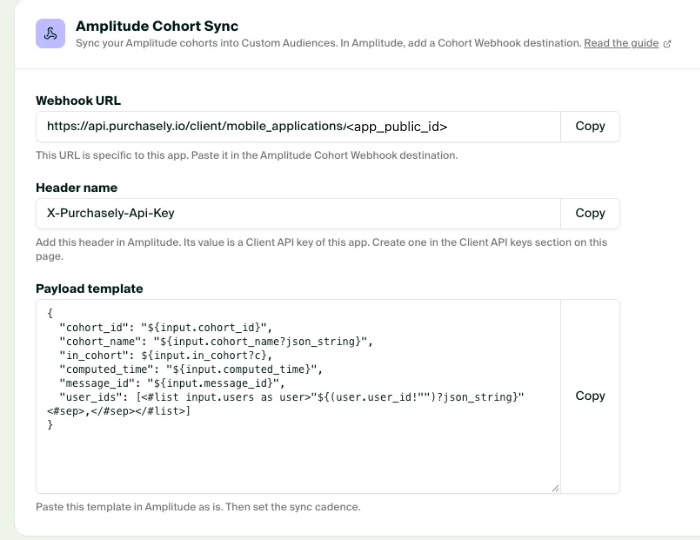
The webhook URL of your app is:
https://api.purchasely.io/client/mobile_applications/<app_public_id>/custom_audiences/webhook/amplitude4 - Adding the webhook destination in Amplitude
- In Amplitude Data, click Catalog, then select the Destinations tab.
- In the Cohorts section, click Webhook.
- Fill in the destination:
- URL: the webhook URL of step 3.
- Headers: add one header. The name is
X-Purchasely-Api-Key. The value is the Client API key of step 2. - Payload: select the FreeMarker template option, then paste the payload template of step 3.
- Click Save.
The payload template is:
{
  "cohort_id": "${input.cohort_id}",
  "cohort_name": "${input.cohort_name?json_string}",
  "in_cohort": ${input.in_cohort?c},
  "computed_time": "${input.computed_time}",
  "message_id": "${input.message_id}",
  "user_ids": [<#list input.users as user>"${(user.user_id!"")?json_string}"<#sep>,</#sep></#list>]
}
Use the Purchasely templateDo not use the default Amplitude payload. Purchasely reads only the fields of this template.
5 - Syncing a cohort
- In Amplitude, open the cohort.
- Click Sync, then select Webhook.
- Select the webhook destination of step 4.
- Do not select user properties. Purchasely does not read them.
- Select the sync cadence.
- Click Sync.
Add one sync for each cohort. Each cohort gives one Custom Audience in Purchasely.
The first sync sends all the members of the cohort. The next syncs send only the users who enter or leave the cohort.
Audience created before the syncIf you create the Custom Audience yourself before the first sync, give it the
vendor_idamplitude_<cohort_id>and keep it empty. Purchasely does not link a cohort to an audience that already has members: the webhook answers400.
Data freshness
Amplitude sends the changes of a cohort at the sync cadence that you select. Purchasely caches audience membership for 15 minutes.
A change in a cohort can therefore take the sync cadence plus 15 minutes to reach your users in the worst case. Processing time in Purchasely adds to this delay.
Managing the Custom Audience
Amplitude manages the members of a synced Custom Audience. The Custom Audiences API cannot change these members: it answers 409 with the code MANAGED_BY_SYNC.
Limits
| Limit | Value |
|---|---|
| Calls per app | 300 per minute |
| Size of a call | 10 MB |
| User ID length | 255 characters. Purchasely ignores longer user IDs. |
| Anonymous users | Not synced |
For the limits of Amplitude, see the Amplitude Cohort Webhooks documentation.
Troubleshooting
The webhook answers 401
The X-Purchasely-Api-Key header is missing, or its value is not a Client API key. Check the header of the webhook destination in Amplitude.
The webhook answers 403
Two causes are possible:
- The Client API key belongs to another app. Use a key of the app that the webhook URL names.
- The Custom Audiences feature is not enabled on your account. Contact us to enable it.
The webhook answers 400
Two causes are possible:
- The payload does not use the Purchasely template. Paste the payload template of step 3 again.
- The Custom Audience
amplitude_<cohort_id>already has members. Remove all its members, then remove the cohort sync in Amplitude and add it again.
The Custom Audience misses members
The Custom Audience is complete only when Purchasely accepted the first sync of the cohort. This sync sends all the members. The next syncs send only the changes.
If Purchasely refused the first sync (for example with 401, 403 or 400), fix the cause. Then remove the cohort sync in Amplitude and add it again. Amplitude then sends all the members of the cohort again.
The Custom Audience was archived
When you archive the Custom Audience of a cohort, the sync stops. To restore the sync:
- Create a Custom Audience again with the same
vendor_idas the archived audience. Keep it empty. - In Amplitude, remove the cohort sync.
- Add the cohort sync again.
Amplitude then sends the full cohort again.
Updated about 7 hours ago